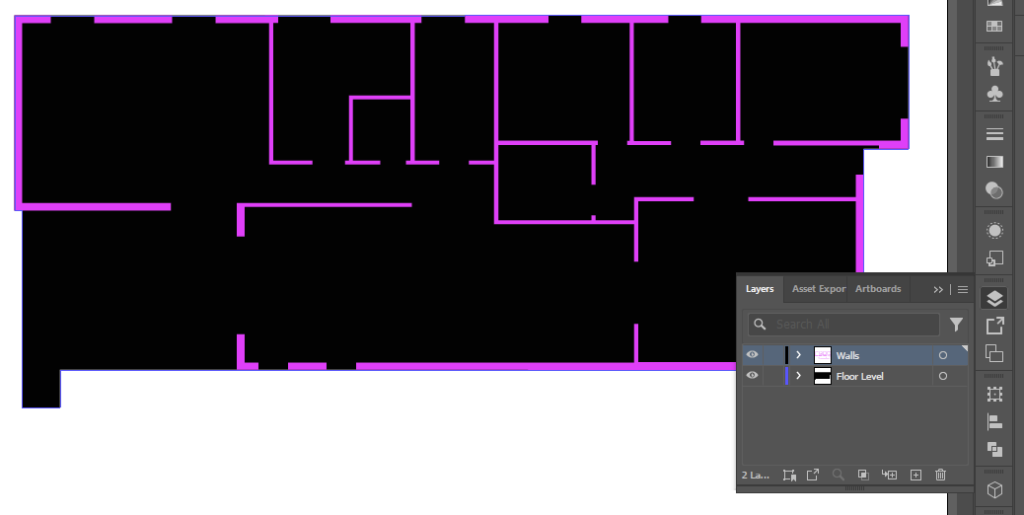
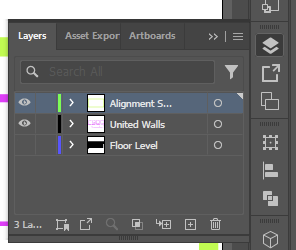
To prepare our floor plan for importing into Bambu Studio, we need to separate the walls and floor into different layers.
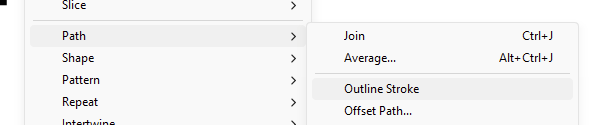
After separating, make sure any strokes are converted to closed objects. Select all of the walls, click Object > Path > Outline Stroke.
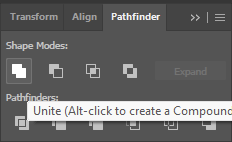
Now we need to flatten any overlapping shapes. In the Pathfinder Panel, use Unite to flatten all of the walls.
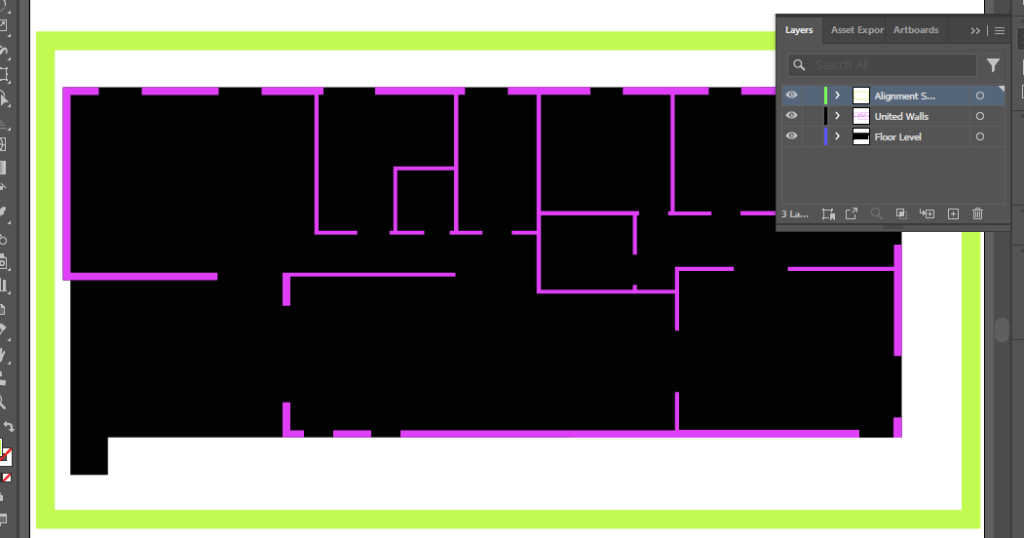
Finally, we need to create an alignment square, this ensures our different layers are imported in the correct orientation. In a new layer, create a square with an outline and no fill around your floor plan. give it a thick stroke weight and use outline stroke as you did before.
Now can export our layers individually. Using the layers panel, toggle off visibility for the floor, being sure to keep the walls and the alignment square visible.
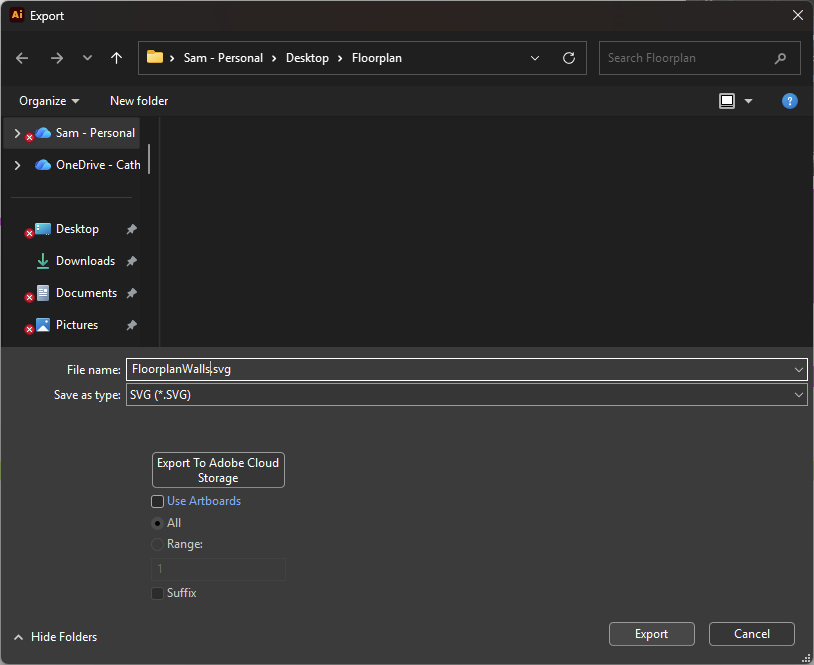
Using File > Export > Export As… export the visible layers as a .SVG file.
Toggle the floors visibility on and the walls visibility off and export again. Be sure the keep the alignment square visible.
Open Up Bambu Studio (you can also use similar slicers like Prusa Slicer or Orca Slicer)
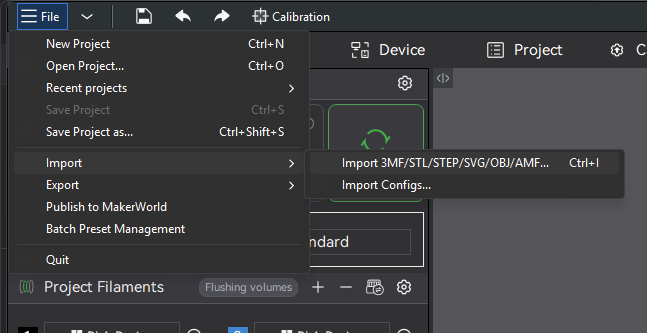
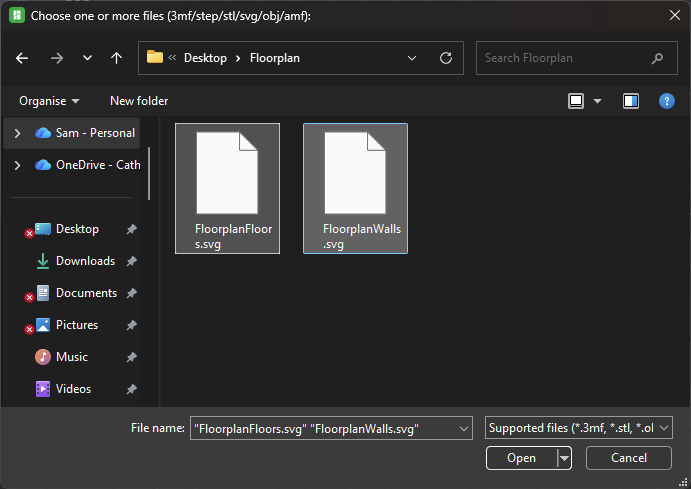
In the Prepare menu select File > Import > Import 3MF/STL/STEP/SVG/OBJ/AMF…
Import both of your exported .SVG files
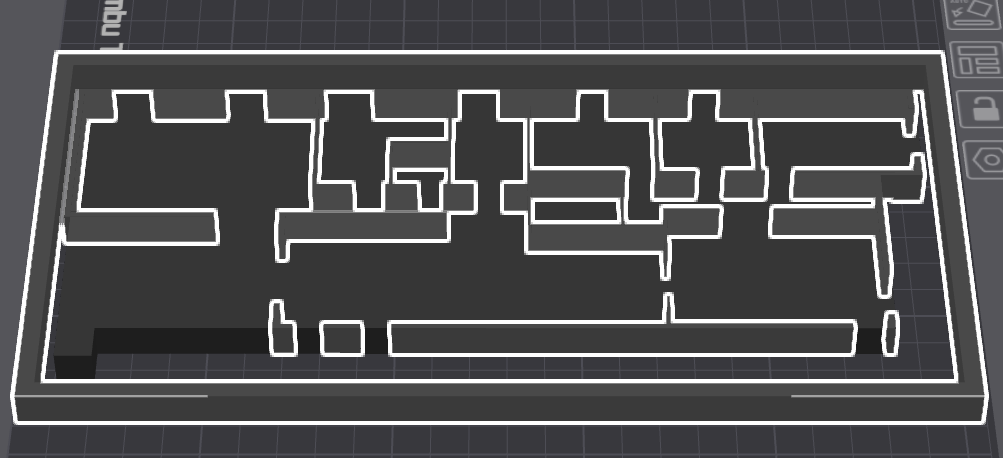
All layers should Import in perfect alignment, but the floor and walls should appear as the same height.
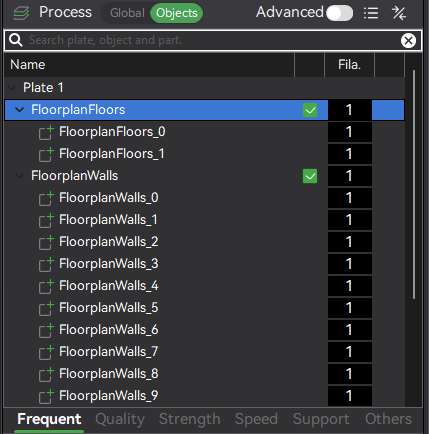
In the left-side toolbar, select “Objects” next to Process.
In the Objects Panel, find your floor and select it.
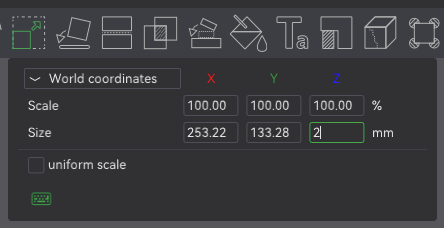
Using the Scale Tool in the top toolbar, reduce the height of the floor object. You can also raise the height of the walls in this way. Refer to your scale factor to determine what height each should be.
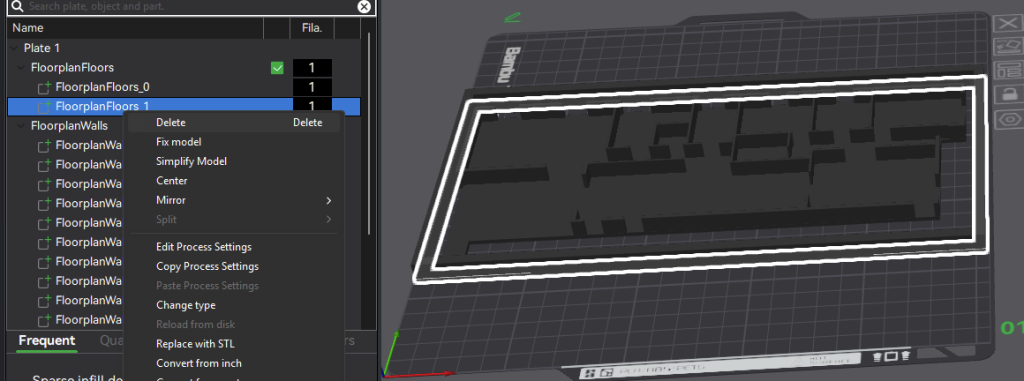
After you are happy with the height of your walls and floor, find the alignment square for each and right-click to delete them.
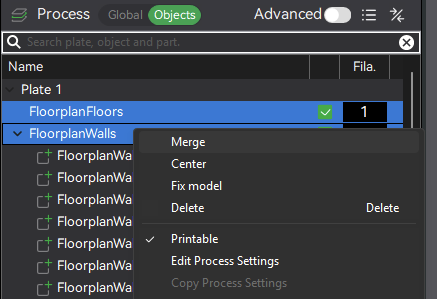
Finally, select both the Floor and Walls groups and right-click to merge into a single assembly.
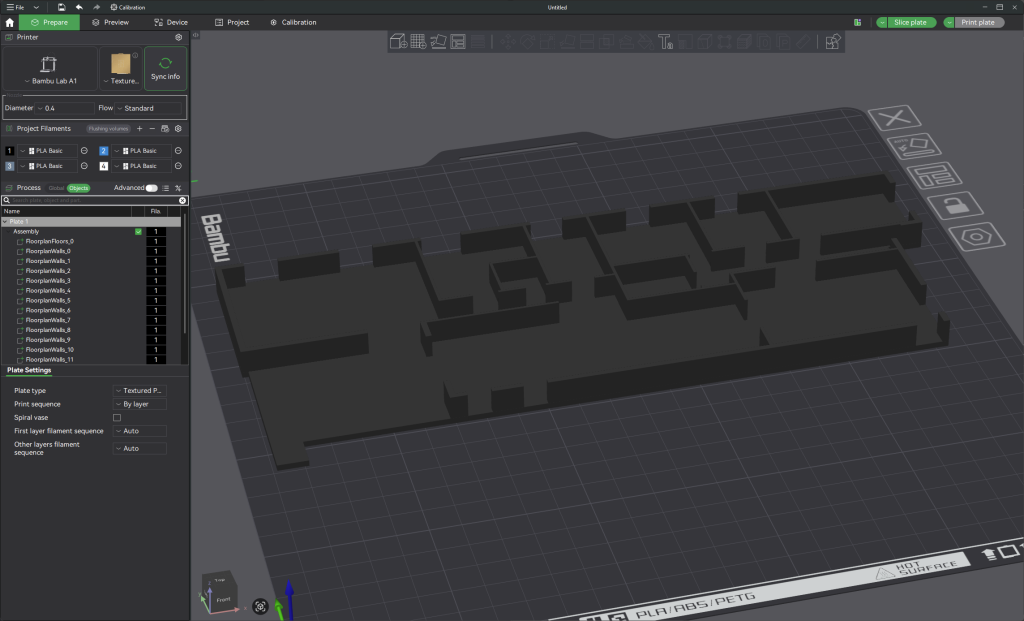
Your floor plan should now be a cohesive single object ready for printing.
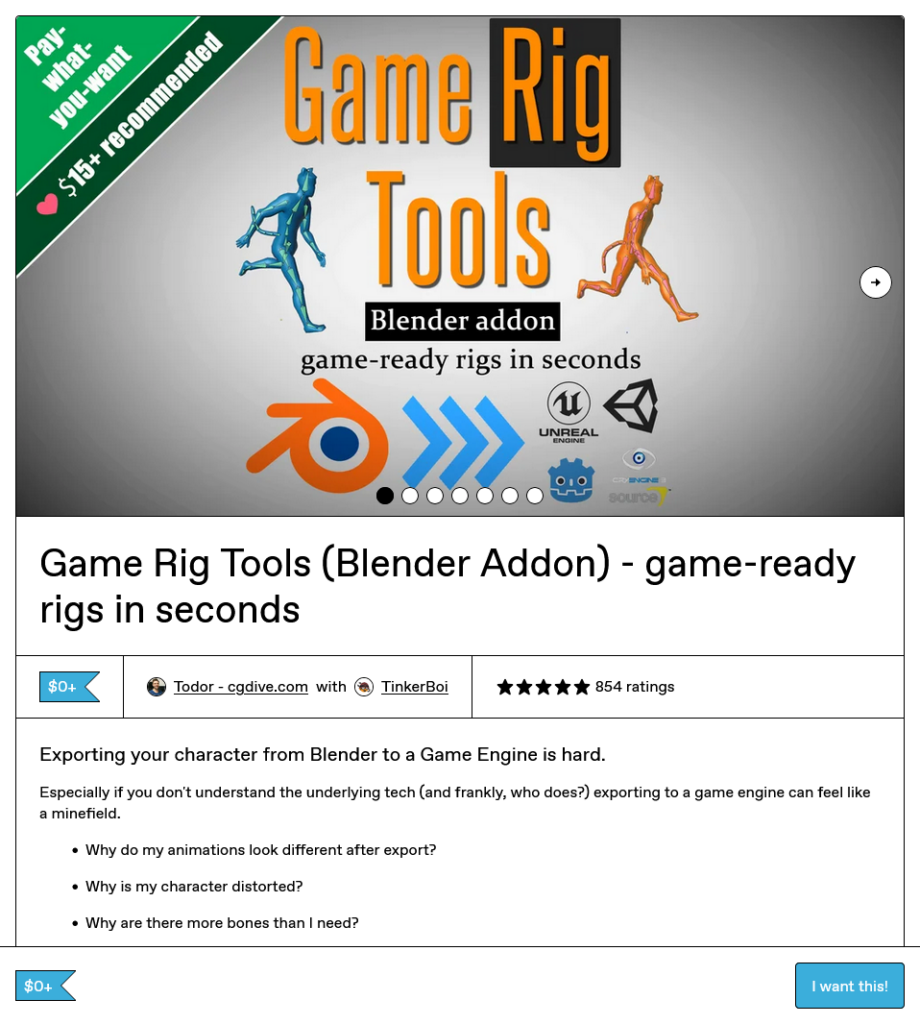
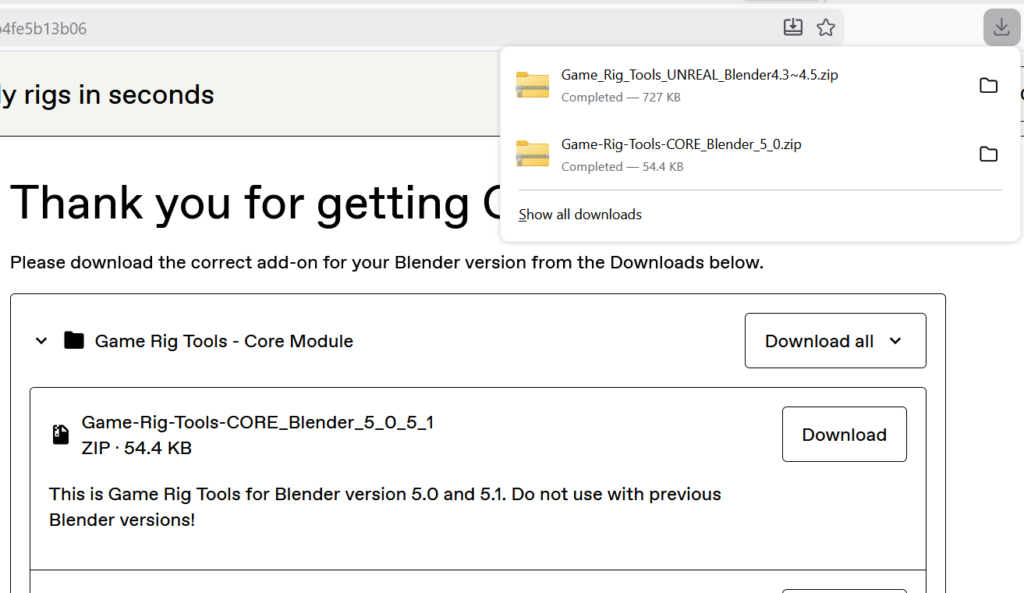
First we need to download our Rigging Add-on – go to https://toshicg.gumroad.com/l/game_rig_tools. Set your pay price as $0 (or more if you’re feeling generous) and press “I want this”. Provide your email address and press “Get” to receive the download link in your emails.
Download the Core and Unreal Modules matching your versions of Blender and Unreal Engine respectively.
Installing the Add-on
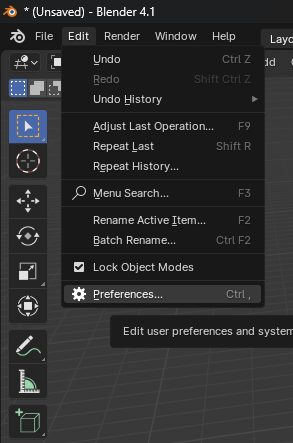
In Blender, go to Edit > Preferences. Select the Add-ons tab on the left and select “Install” in the top right corner.
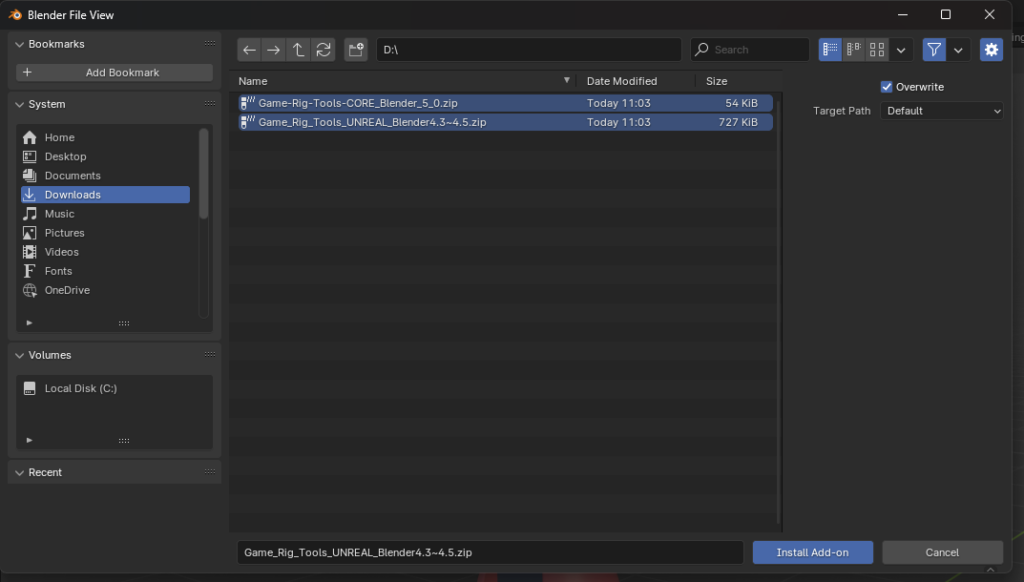
Select the two modules you just downloaded and press “Install Add-on”. These are likely in your Downloads folder. Ensure this add-on is enabled before leaving this menu.
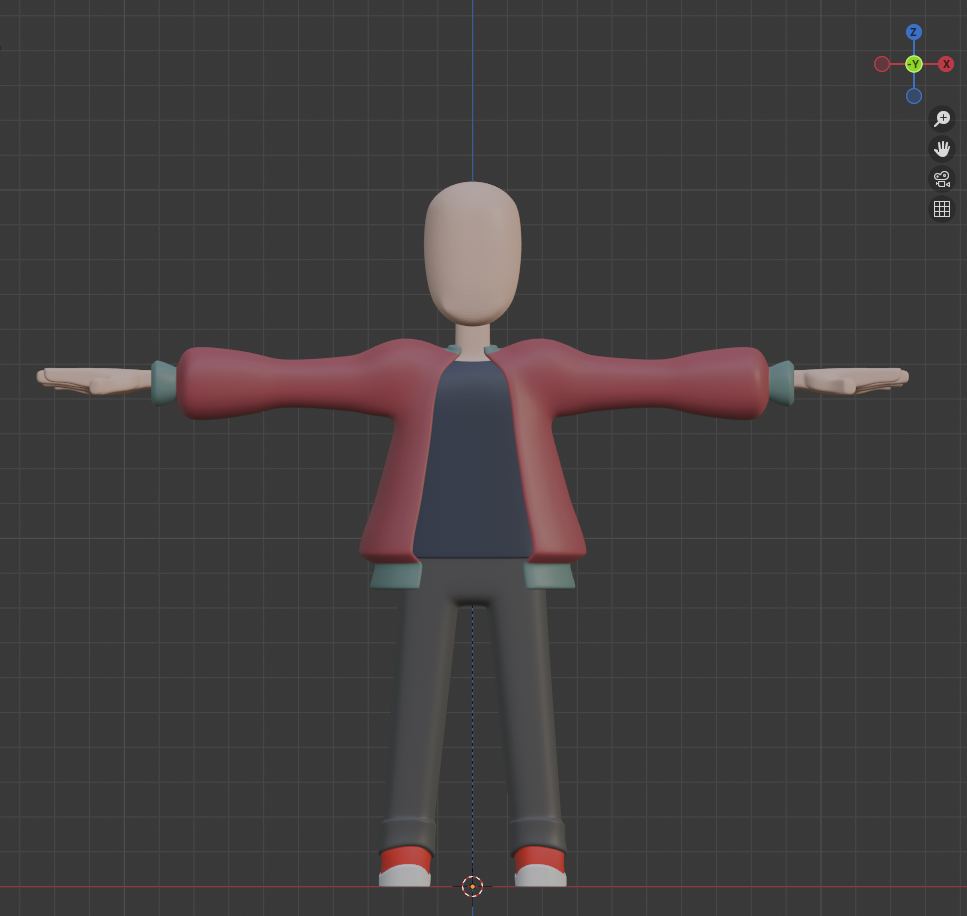
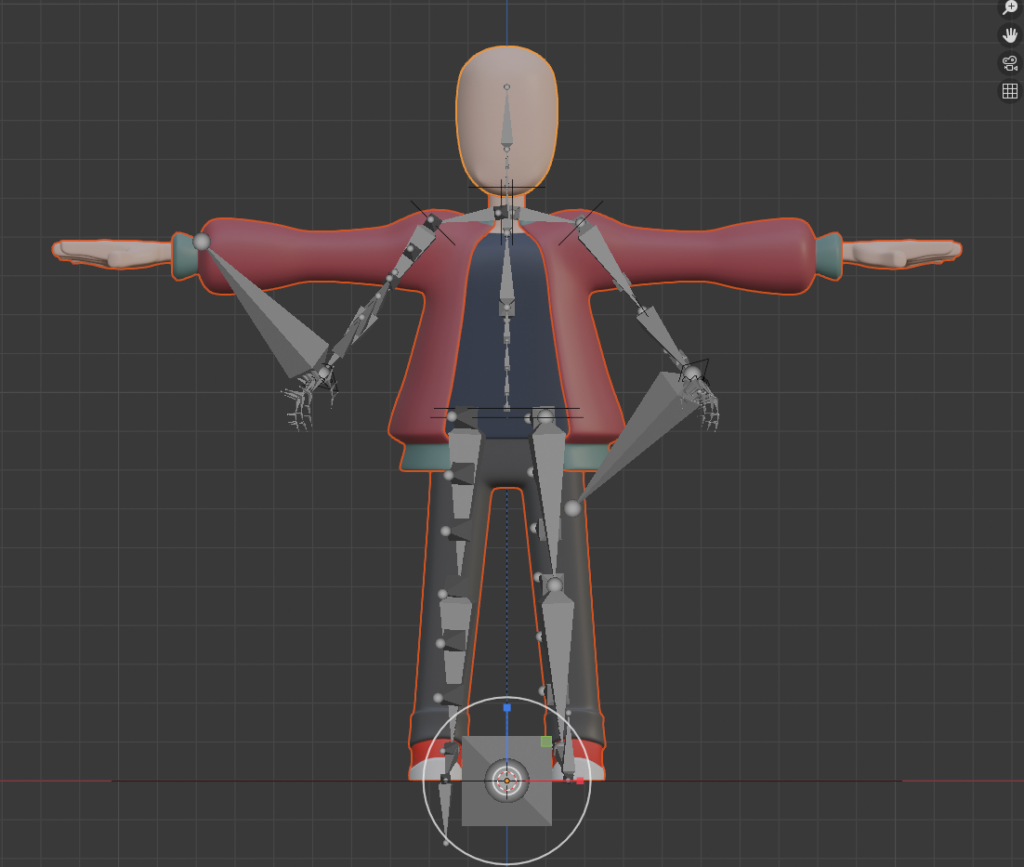
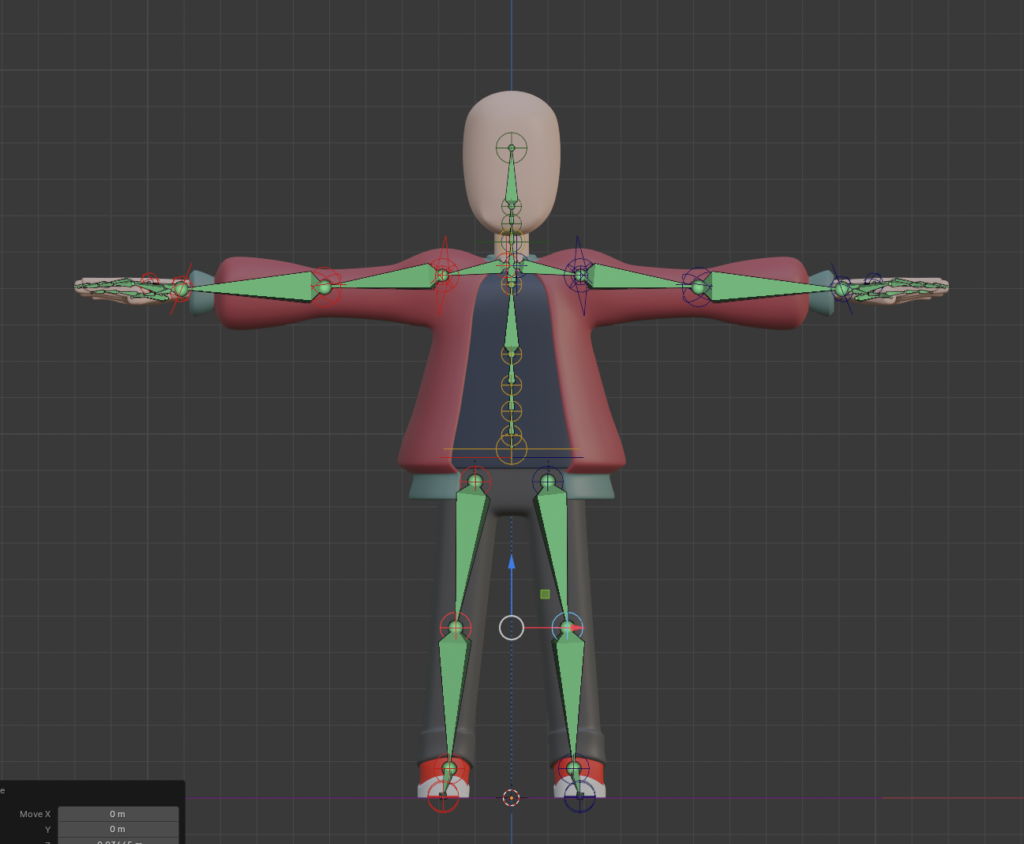
Before starting, ensure your model is perfectly centered and aligned on the grid as shown above.
Creating Rig
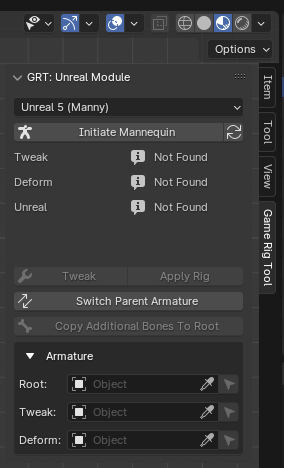
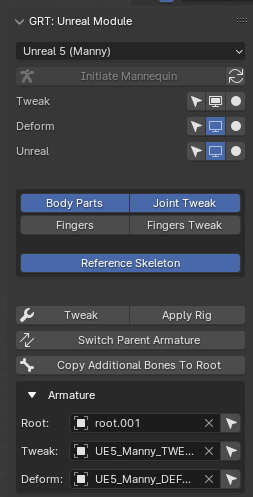
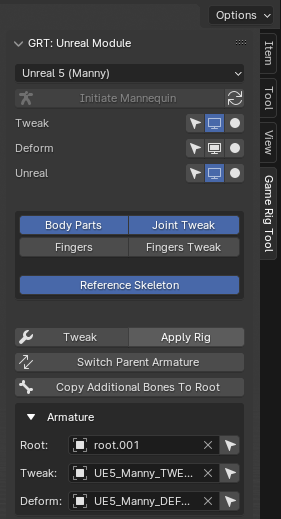
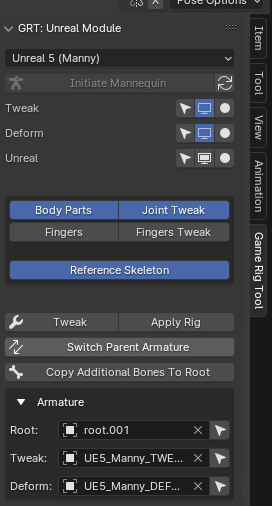
On the right side, open the “Game Rig Tool” panel. Ensure the correct rig is selected (“Manny” for Unreal Engine 5 or “Mannequin” for Unreal Engine 4) and press “Initiate Mannequin”. This creates the Unreal Engine default skeleton for our character.
In object mode scale, move and rotate your character model to broadly overlap the skeleton. Your model probably will not align with the Skeletons proportions perfectly, so focus on aligning with the skeletons shoulder height correctly for now. Be careful to only to adjust the character model to match the skeleton, not the other way around.
Arranging Bones
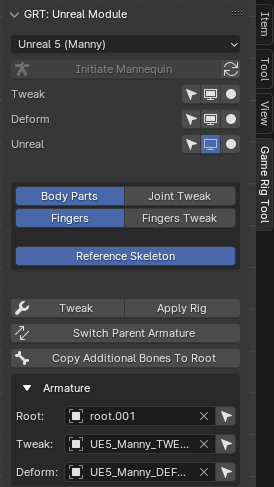
Now we need to align our bones with the character model. Bore we start lets hide the Unreal skeleton in the Game Rig Tool panel by pressing the computer screen next to “Unreal”.
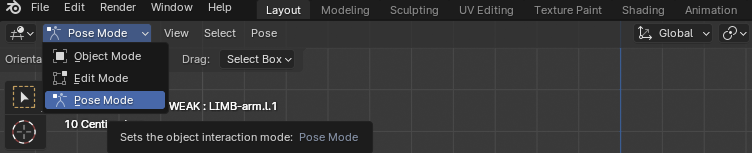
Select one of the controllers (the diamonds around the skeletons joints) and select “Pose Mode” from the top left drop down menu.
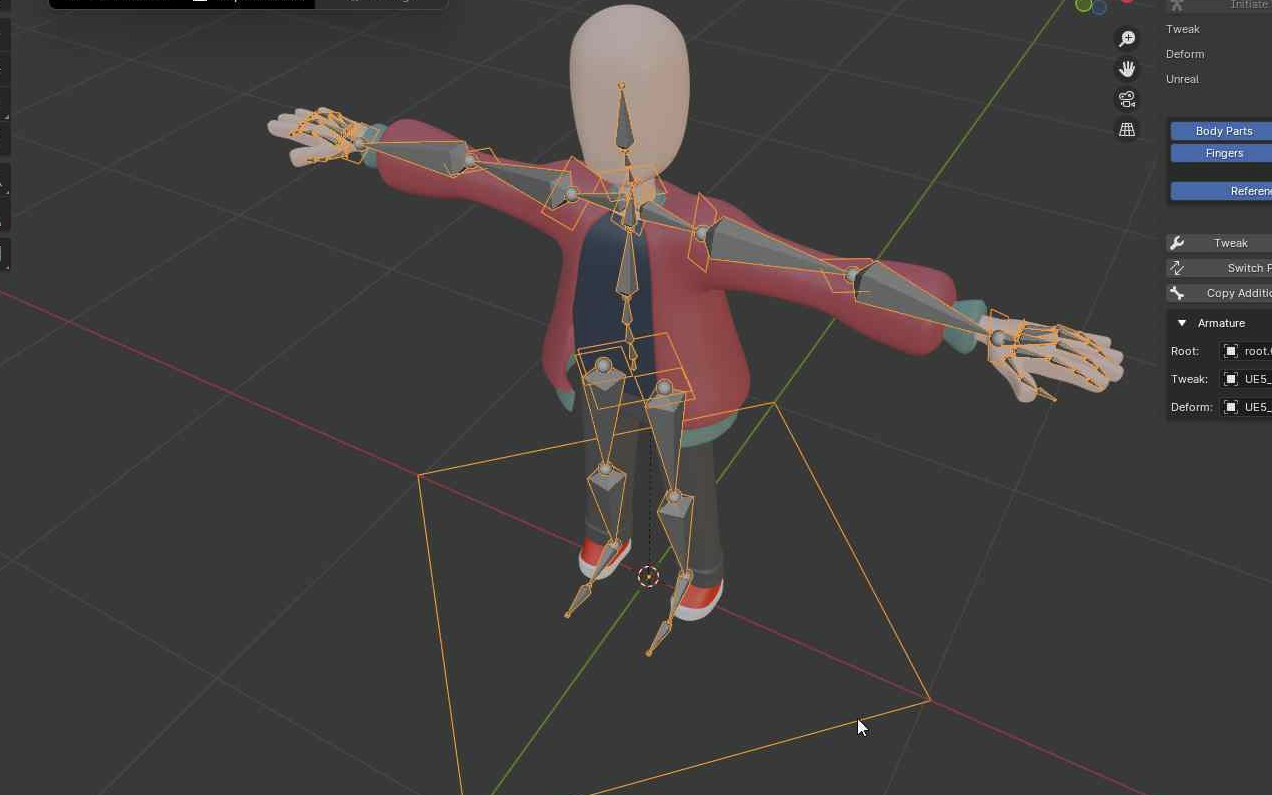
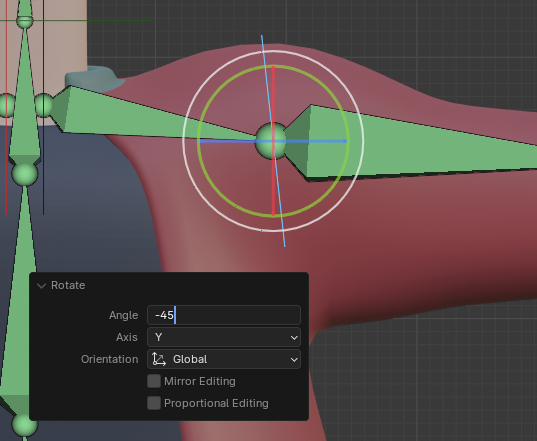
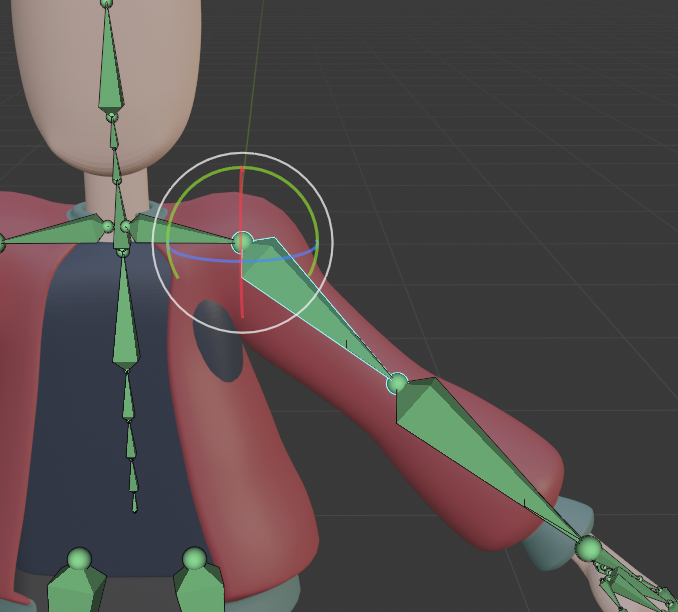
As we built our character model in a T pose, we need to adjust the skeletons position from it’s default A pose. Select the right shoulder controller (the blue diamond) and rotate by around -45 degrees on the Y axis. Note that the left side of the skeleton will mirror the changes we make on the right
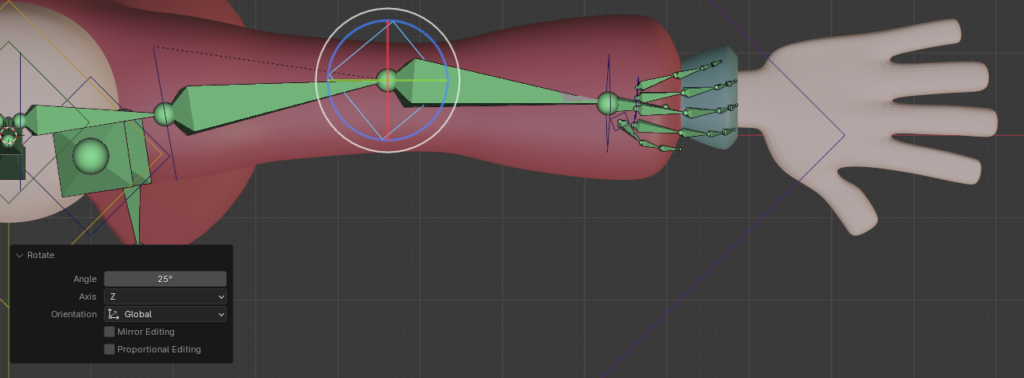
Continue to scale and rotate the arm into it’s general position using the controllers. Our character model probably doesn’t perfectly match the skeletons proportions, we will need to adjust these joint positions manually.
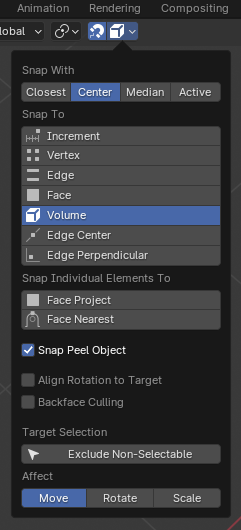
Before continuing, let’s turn on snap to volume and tick “Snap Peel Object”.
This will automatically place joints at center mass of the character model when we move them into position.
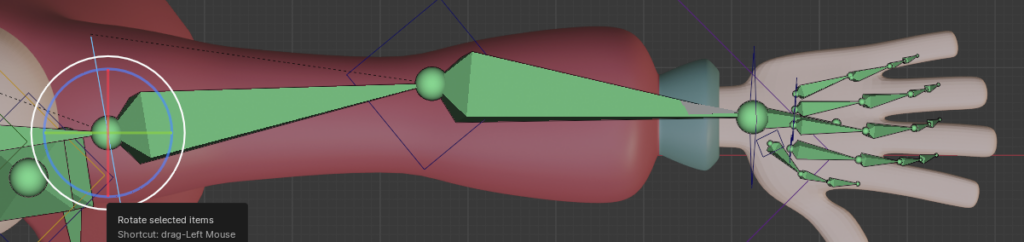
Let’s begin making fine adjustments. In the Game Rig Tool panel check that “Body Parts” and “Joint Tweak” are selected. Using the move tool, position each joint in the appropriate location. Be careful not to reorder the joints. We will work on the hands after this step.
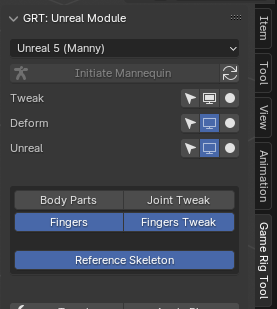
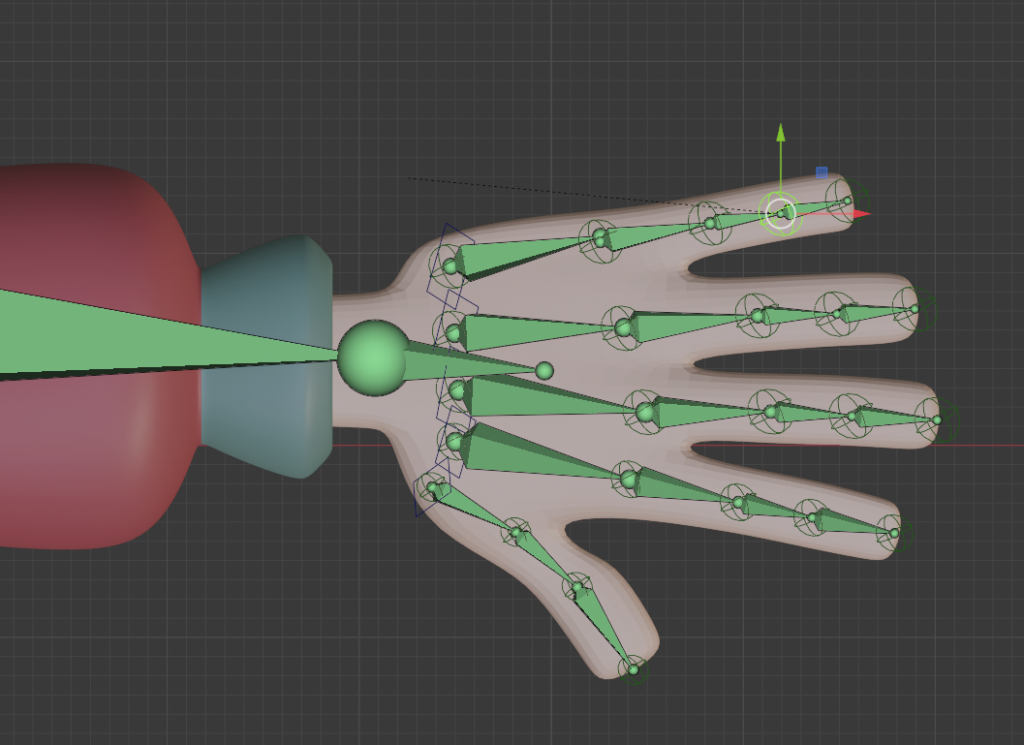
When the joints of main body is in position, move onto your characters hands. Back in the Game Rig Tool panel enable “Fingers” and “Finger Tweak” and disable “Body Parts” and “Joint Tweak”.
Zoom into on one of the hands to position the joints using the move tool. Be careful not to change the order of the fingers.
Setting up your Model for binding
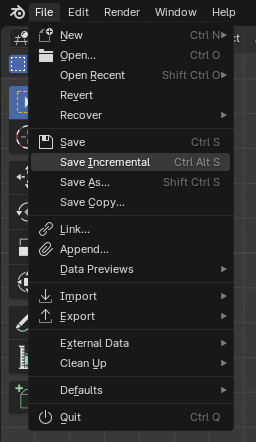
We are about to make some permanent changes to our character model, before starting with this step we are going to save a copy, this way we can return to our more editable model if needed. Before starting go to File > Save Incremental.
When you are happy with your bone placement press Apply Rig in the Game Rig Tool. This finalizes our mesh position. We can now hide the tweak Skeleton and focus on the deform skeleton.
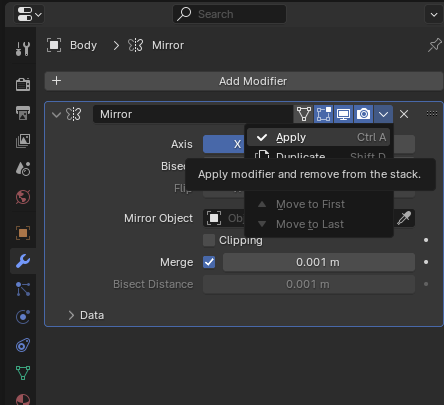
Go to the Modifiers panel on the right. Select each piece of your model individually and press the downwards pointing arrow next to the camera to select “Apply”. This permanently implements the mirror modifier we used for character modeling.
Binding Rig to Mesh
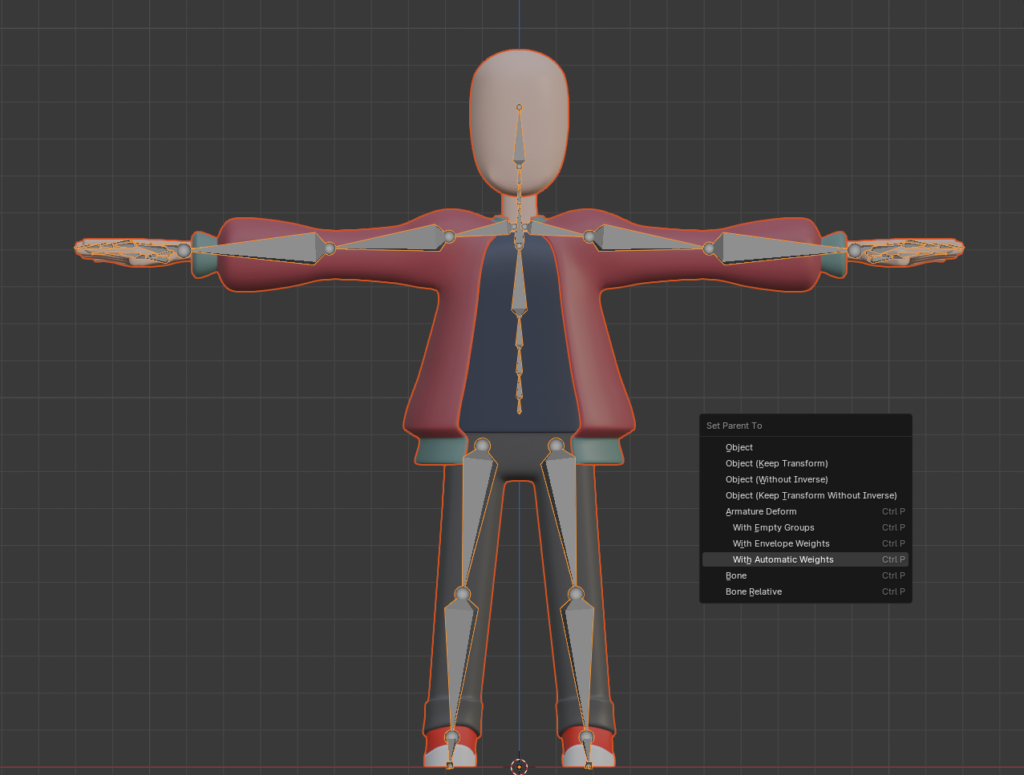
Shift-Select your model and then the deform skeleton. Press Ctrl+P and select “With Automatic Weights”. This will do an automatic binding of your mesh to the skeleton. If your character model is made up of several pieces binding each piece separately often produces better results.
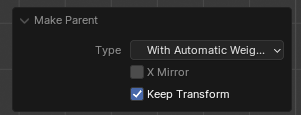
If your character “disappears” tick “Keep Transform” in the bottom left corner. What’s actually happening is that the character is scaling out of the view-port.
Select your deform skeleton and use the rotate tool to check your rigging. At this point you might notice some flaws in the rig including clipping and bad deformations. Automatic rigging is a great start, but to get great rigging we would need to do some weight painting.
Weight painting is a very complicated discipline outside of the scope of this unit, but feel free to do some independent study and attempt it on your own time.
Bind Character to Unreal Skeleton
Because Unreal Engine handles bones differently to Blender, we need to apply the binding of our deform skeleton to our Unreal skeleton.
Switch to object mode. In the Game Rig Tool Panel, Click “Switch Parent Armature”. While we are here, turn off display for the Tweak and deform skeletons and turn on the display for the Unreal skeleton.
Select the Unreal skeleton and enter pose mode. Rotate some bones to confirm your mesh is is now bound to the Unreal skeleton.
Exporting Your Rigged Mesh
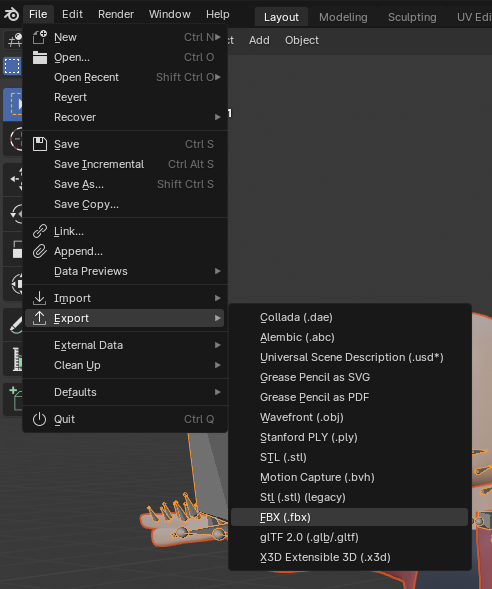
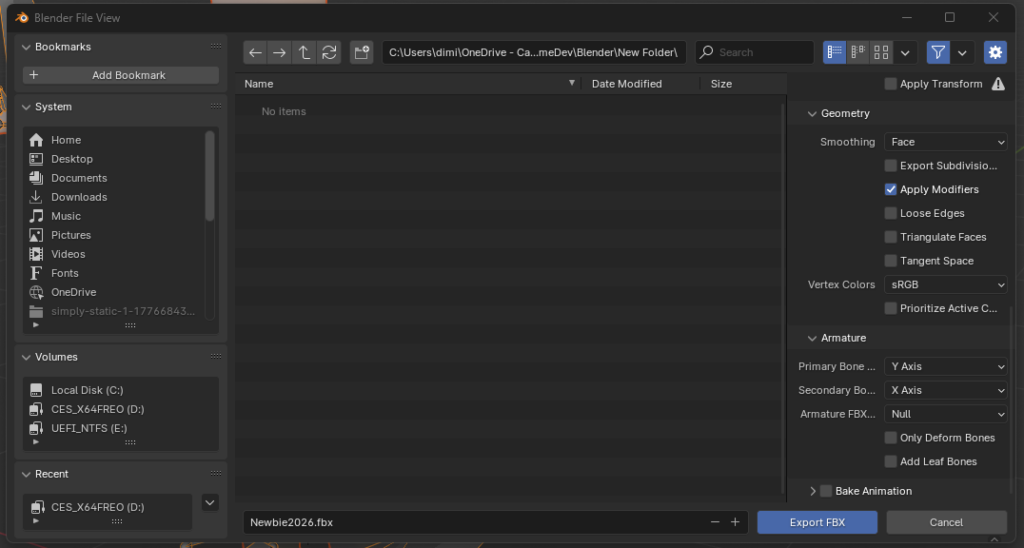
We are done! it’s time to export our character mesh to Unreal Engine. Shift-select the Unreal Skeleton and all pieces of our character mesh. Select File > Export > FBX.
In your FBX export settings name your character and select the following options:
In Include enable “Limit to Selected Objects”
In Geometry set “Smoothing to Face”
In Armature disable “Add Leaf Bones”
Disable “Bake Animation”
Next lesson we will import our rigged mesh into Unreal Engine 5
Many people think that because young people grow up using phones, tablets, and computers, they must be “good with technology”. But studies are showing that digital literacy and basic computer skills are actually declining in Gen Z and Gen Alpha. This because the apps we use are so convenient that they often automatically do these tasks for us.
Managing folders, saving files properly, or using different programs are key skills that schools and jobs still rely on every day. Whether you’re writing a report, making a slideshow, editing a video, or just emailing someone a file, Good file management saves time, reduces stress, and shows you know what you’re doing.
Here’s a basic task that shows your current real-world computer skills. Try to complete the task on your own first and see how far you can get without help. If you get stuck, step-by-step instructions are provided at the bottom of the page.
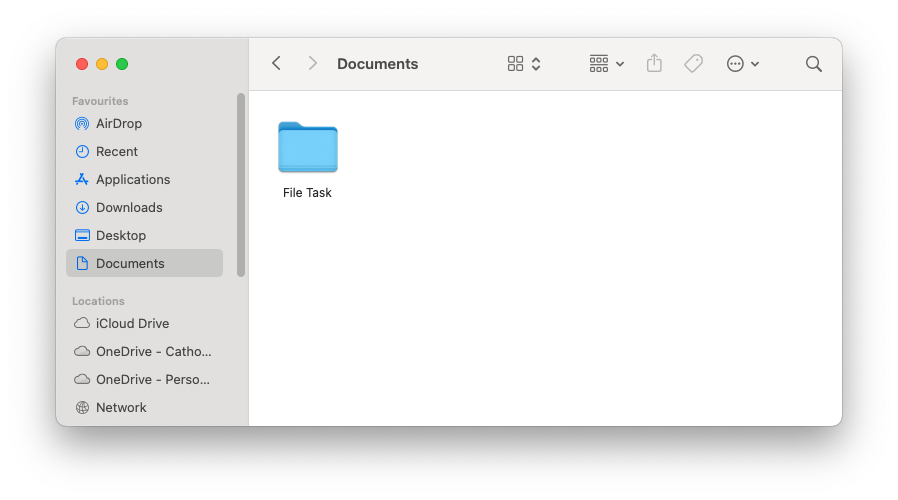
In Documents, create a new folder. Name it “File Task“
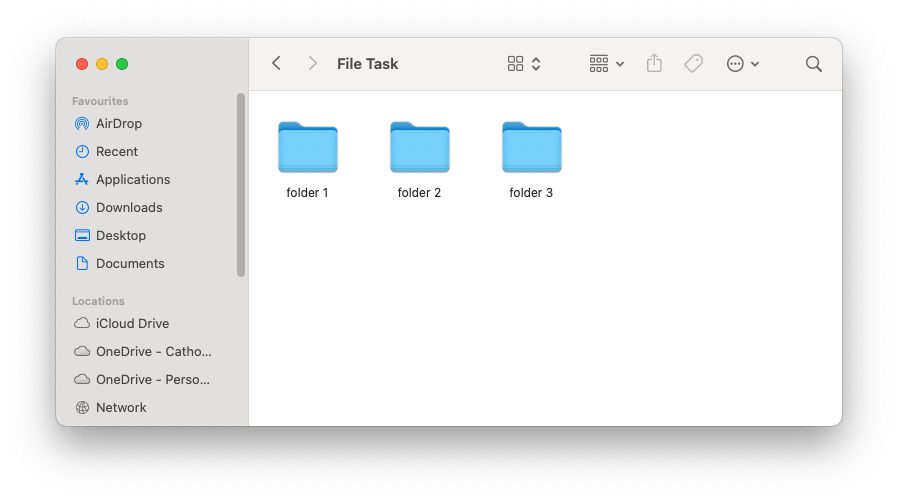
Inside the folder, create 3 more folders. Name these folders:
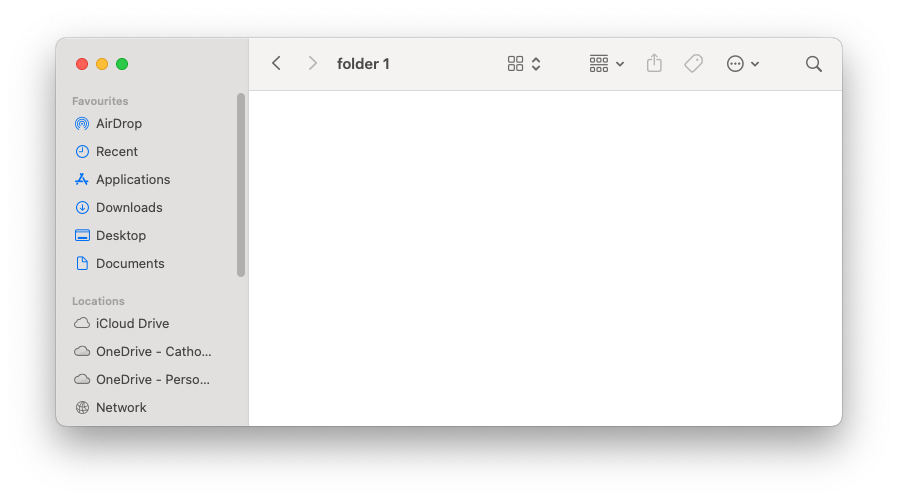
folder 1
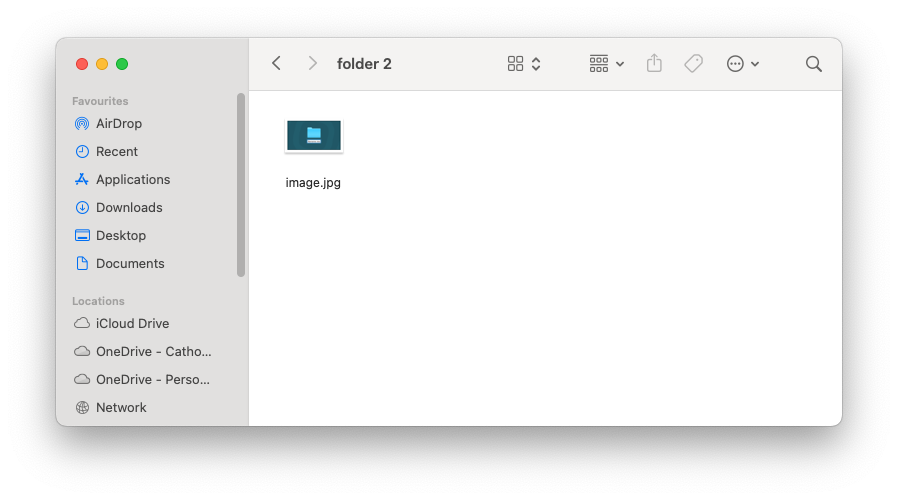
folder 2
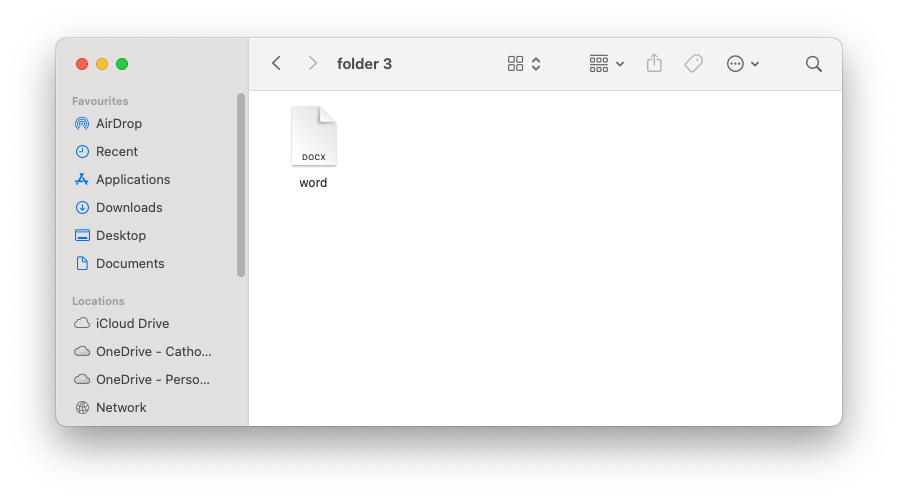
folder 3
Leave the first folder empty.
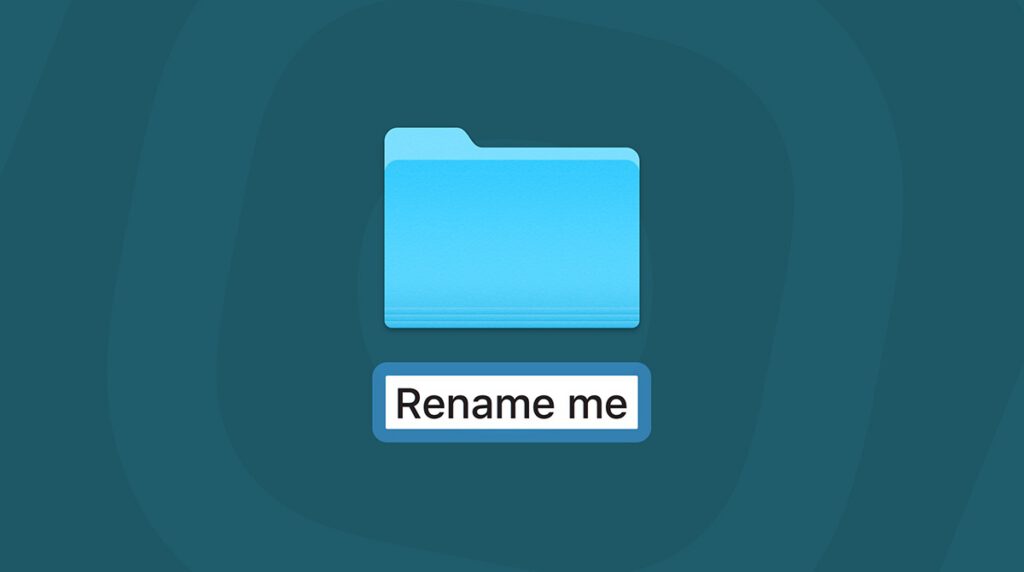
Save the image to the right into folder 2. Rename the image file “image.jpg“
In folder 3, create and save a Word document. Name the document “word“
When you are finished, compress your File Task folder containing the other 3 folders into a ZIP folder and submit on compass.
By completing this task, you have practised and developed the following essential digital skills:
File and Folder Management
Creating folders and subfolders
Naming and renaming folders and files clearly
Moving and saving files to specific locations
Basic Computer Operations
Navigating through folders to find and organising files
Using right-click or menus to rename and move files
Preparing a group of files into a single ZIP folder for file handling, such as uploading to to an online platform.
These are basic digital skills you’ll use throughout your study and employment, especially when working with assignments, projects, or creative files.
Need Help? Here’s How to do it on a Mac
🗂 How to Create a New Folder
Open Finder (the blue-and-white smiley face on your Dock).
In the sidebar on the left, click on Documents.
Right-click in an empty space.
Click New Folder.
A new folder will appear called “untitled folder” — rename it to File Task
To create the 3 additional folders inside, double-click your new folder to open it and repeat the process.
🖼 How to Save an Image to a Specific location and Rename It
Right-click the image to the right.
Choose Save Image As...
Choose your folder 2 from the list of folders.
Save the file.
Go to folder 2 in Finder.
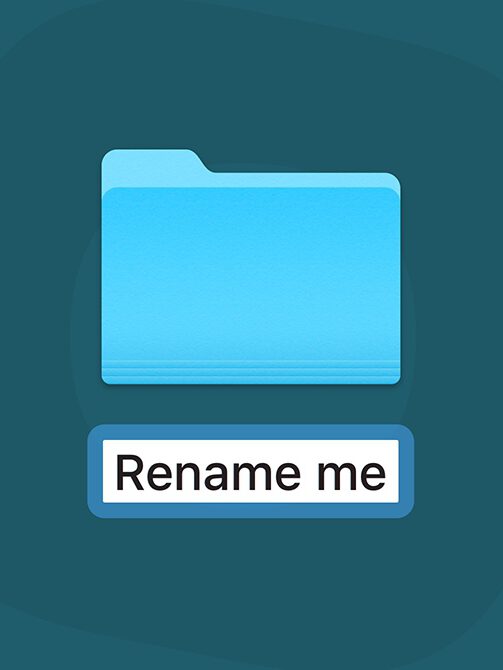
Right-click the image file and select Rename.
Type “image.jpg” and press Return.
📄 How to Make a Word Document and Save It
Open Microsoft Word from the Dock or by pressing cmd + Space and typing “word“.
Click File > New Document (just make a blank one – you don’t need to type anything).
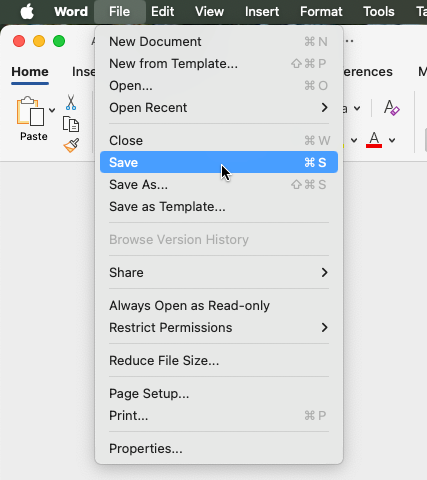
In the top-left corner, click File > Save.
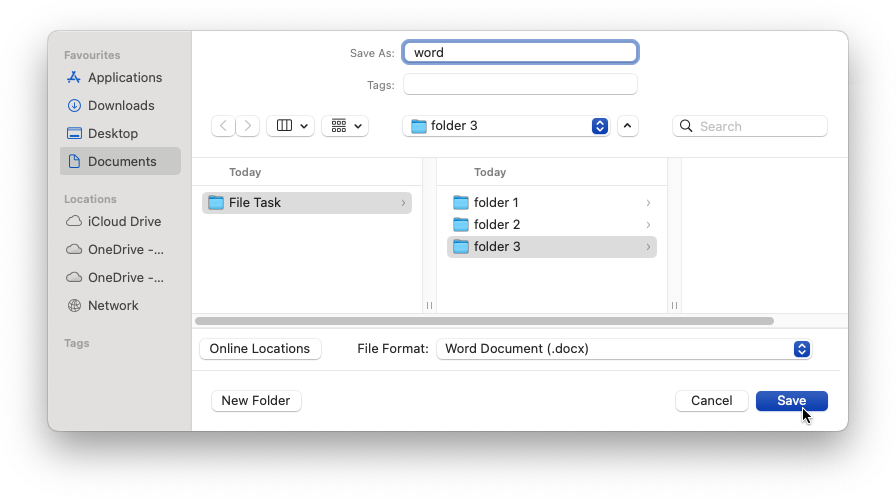
Use the save window to choose folder 3 from your folders. (You may need to select On My Mac in the bottom left corner of the window to save locally.)
Name the file “word” and press save.
Make sure the extension ends in .docx
📦 How to Compress a ZIP Folder
Go back to your Documents folder in Finder and find the File Task folder you made (the one with folder 1, folder 2, and folder 3 inside it).
Right-click the task folder.
Select Compress from the menu.
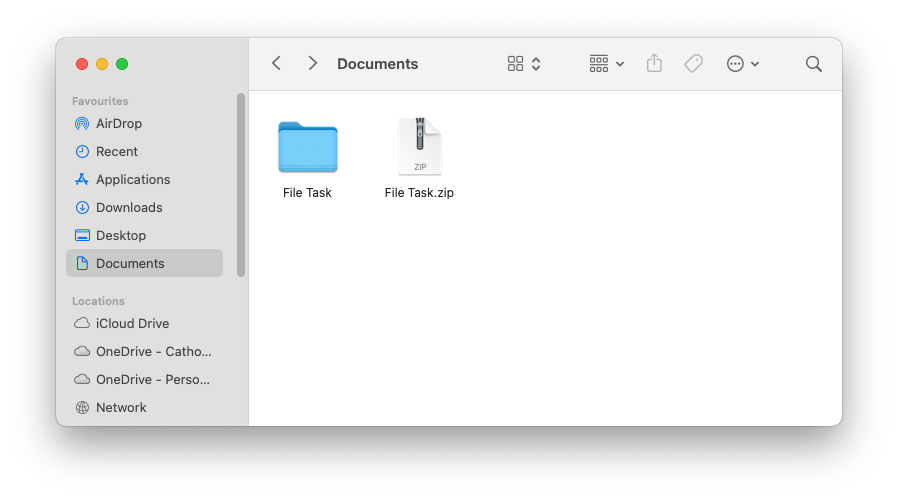
You’ll see a new file appear called File Task.zip: That’s the one to upload to Compass.
This task aims to assess your understanding of cryptography concepts, and encryption techniques, creativity and problem-solving skills, and collaboration skills with your partner.
Your task is to create a cryptography puzzle that consists of at least 3 layers of security. Your puzzle should use a range of cryptography techniques including one of the cipher methods we learned in class.
How it will be Assessed
Your puzzle will be graded according to the following criteria:
Collaboration & contribution skills.
Creativity and complexity.
Understanding & implementation of Encryption techniques.
Clarity of instructions & hints
Presentation & peer engagement to the testing of others puzzles.
Follow the steps below carefully to complete the task.
Step 1: Research, inspiration and ideas.
Conduct research based on encryption methods we have covered in class, as well as additional ideas you may be able to use to help create your puzzle.
Record a list of your ideas on a Word Document.
Step 2: Make your puzzle.
Begin the process of creating your puzzle. Establish what will happen in each layer of security and encryption.
(Feel free to collect resources and materials or make your own in this stage.)
Begin making your clues, hints or steps required to complete your puzzle. Ensure these are presented in a way for someone to follow.
Step 3: Testing your puzzle.
Test your own puzzle to ensure it works. If there are any changes or amendments to be completed, ensure they are corrected before final submission and presentation.
Step 4: Presenting your puzzle.
Discuss the best way to present your puzzle to the group with me and gather any resources needed to do so.
You will have half a lesson to present your puzzle to the group as well as take part in the completion of other groups puzzles.
Example Puzzle Ideas:
Use the ideas below to help your get started:
Substitution Cipher Puzzle:
Encrypt a short message using a simple substitution cipher (e.g., A=1, B=2) and provide a key for reference.
Include hints like “The alphabet has been shifted by 3 positions.”
Transposition Cipher Puzzle:
Rearrange the letters of a sentence using a transposition cipher and provide a clue on the rearrangement pattern.
Offer a hint like “Read every third letter in reverse.”
Caesar Cipher Puzzle:
Encrypt a famous quote using a Caesar cipher with a specific shift value.
Provide a hint that indicates the shift value, but not the plaintext.
Vigenère Cipher Puzzle:
Develop a Vigenère cipher puzzle and provide a keyword.
Challenge your peers to decipher the message with the given keyword.
Hints and Tips:
Think outside the box!
Incorporate basic puzzles like dot-to-dots, crossword puzzles or find-a-words into your puzzle to add layers of complexity.
Revisit past grok modules, How do they create puzzles?
A one time pad, also known as a “Vernam cipher” or “perfect cipher,” is an encryption technique that provides absolute security when used correctly. It works by using a random key that is as long as the message itself. This key is used only once, hence the name “one-time pad.”
Think to yourself… What benefits would having the key as long as the message have? What limitations could this pose?
Key characteristics?
Perfect Security: When used with a truly random and secret key, a one-time pad provides perfect security. This means that even with unlimited computational power, an attacker cannot determine the original message. This is because the key is as long as the message, making it statistically impossible to crack.
Key Length: The key must be as long as the message, which can be a limitation for practical use. Sharing long, random keys securely can be challenging.
Key Reusability: The key should never be reused for another message. Reusing a one-time pad key weakens the security because it allows patterns to emerge that attackers might exploit.
Key Security: Protecting the secrecy and integrity of the key is crucial. If the key is compromised, all security is lost.
Limited Practical Use: One-time pads are rarely used in modern communication due to their limitations, especially in securely distributing and managing long, random keys. Instead, modern encryption methods like public-key cryptography and symmetric-key algorithms are more practical for most purposes.
How does it work?
Key Generation: To encrypt a message using a one-time pad, you need a random key that is as long as the message. This key can be generated using truly random processes, such as a hardware random number generator, to ensure that it’s unpredictable and unique for each use.
Key Distribution: The key must be securely shared between the sender and the receiver. This is a significant challenge because if the key is compromised or intercepted, the security of the system is lost. In practice, this is one of the main limitations of one-time pads.
Encryption: To encrypt a message, the sender combines each character of the plaintext (the message) with the corresponding character in the key using modular addition. This process creates the ciphertext. The key is never reused for another message.
Decryption: To decrypt the message, the receiver uses the same one-time pad key and subtracts it from the ciphertext using modular subtraction to recover the original plaintext.
A one-time pad is a theoretically perfect encryption method that relies on using a random and secret key that is as long as the message. While it provides unbreakable security, it has practical limitations that make it less suitable for most everyday encryption needs.
Parting Question
If I wanted to set up a one-time-pad for use to swap secret messages with someone, how would I do this?
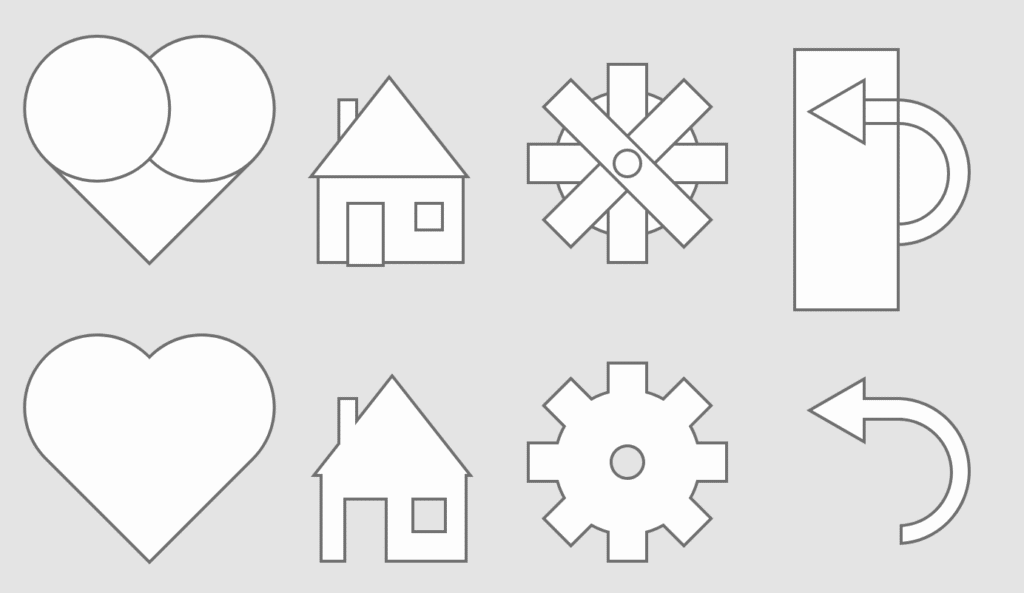
Sometimes we need more complicated shapes than circles, squares and polygons. The Pathfinder panel allows us to create new shapes by adding and subtracting them together.
To use the Pathfinder Panel we need to select both objects by using the selection while holding shift.
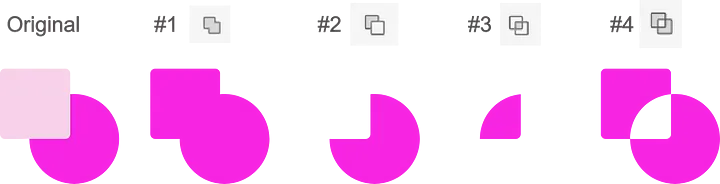
The pathfinder tool has the following functions:
#1 Add: Combines the selected objects together
#2 Subtract: Slices the top object out of the bottom
#3 Intersect: Creates a new object from the overlapping area of both objects.
#4 Exclude Overlap: Cuts out the overlapping area of both objects.
Creating new shapes using the Pathfinder panel
Below we will learn how to make a simple heart shape with the Pathfinder Panel.
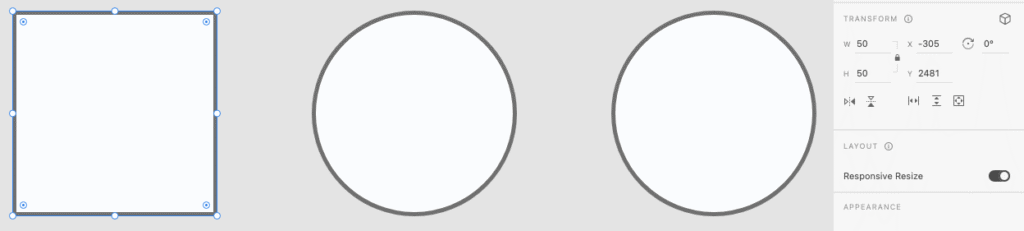
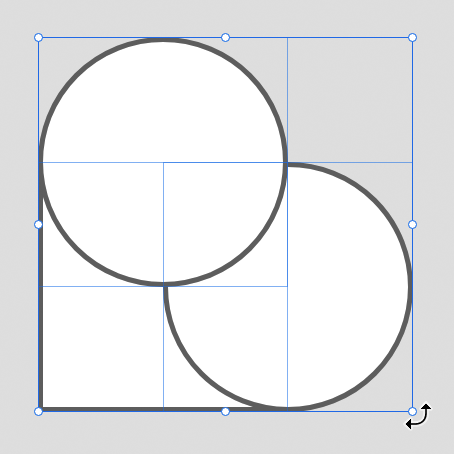
To start, create a square and two circles. Use the Transform panel on the right to ensure all three objects have the same height and width.
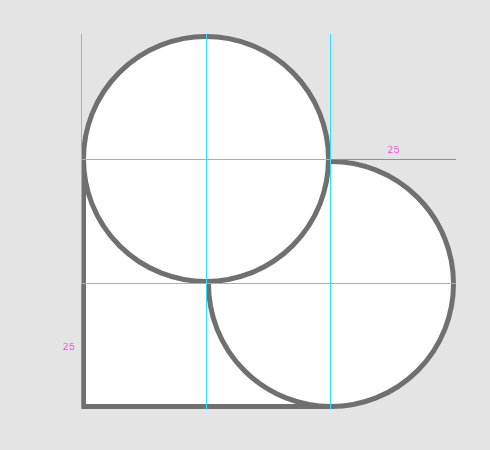
Drag the circles over two edges of the square. Use the guides to help you line everything up perfectly.
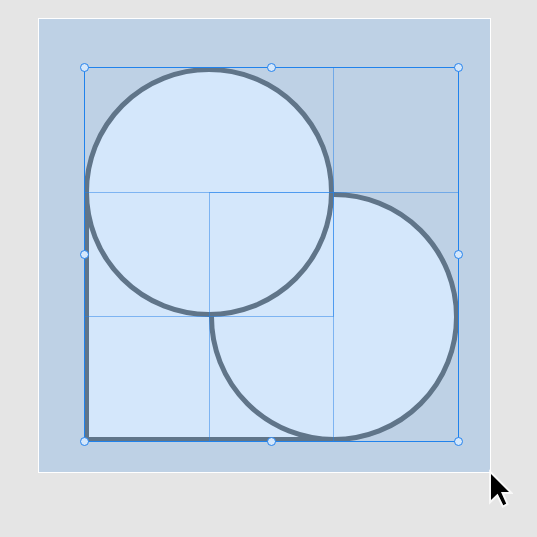
Drag select all 3 objects.
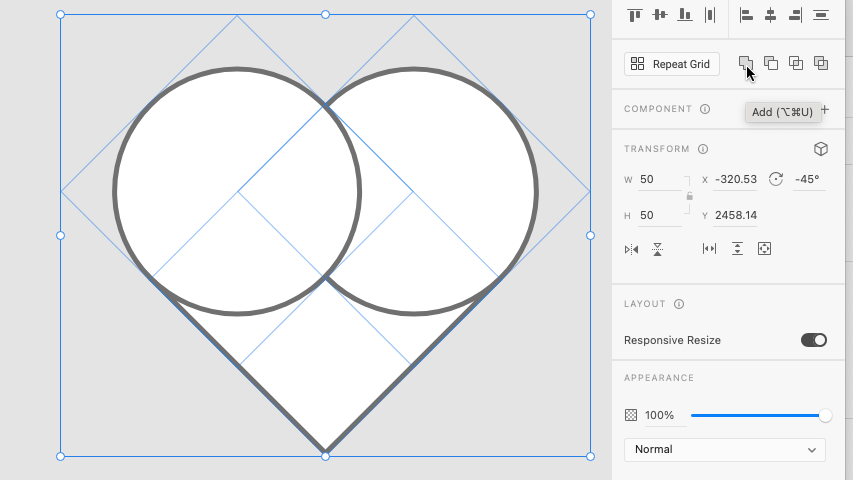
Hover your mouse just outside of one of the selection box’s corners to make the rotation tool visible. Rotate your heart so it is upright.
Press add in the Pathfinder Panel.
Your heart should now be complete. Try to think of other ways you can use the Pathfinder panel to create new shapes.
Please focus on your apps minimum viable product first
After we have created our apps basic functionality we can add and change elements to refine it. This polish can be the difference between our app appearing to be created by an amateur or professional.
Visual Constancy
Do these two characters look like they belong together? Probably not! That’s because they have very different art styles, which can make your work look messy and confusing.
When styles don’t match, it’s harder for people to understand what’s going on, and it doesn’t look as good. Try to keep things looking similar. For example, if you’re using photos, keep using photos, or if you start with 3D characters, don’t mix in hand-drawn ones.
Good design looks better and is easier to use when things match.
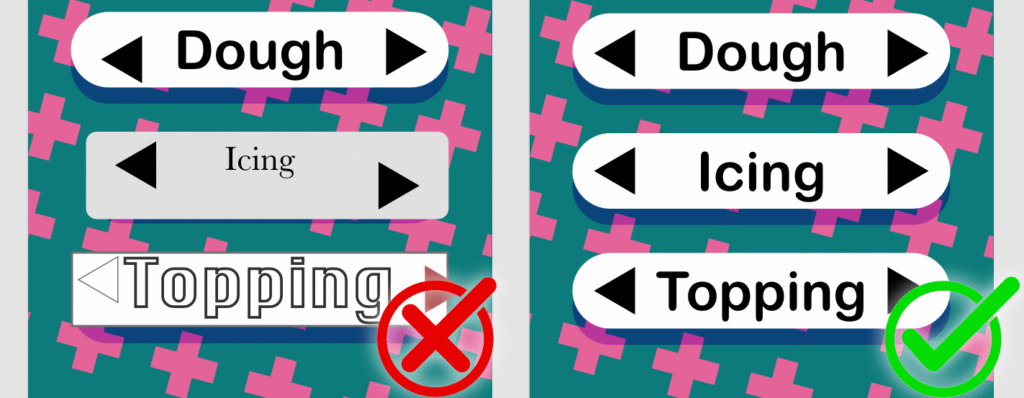
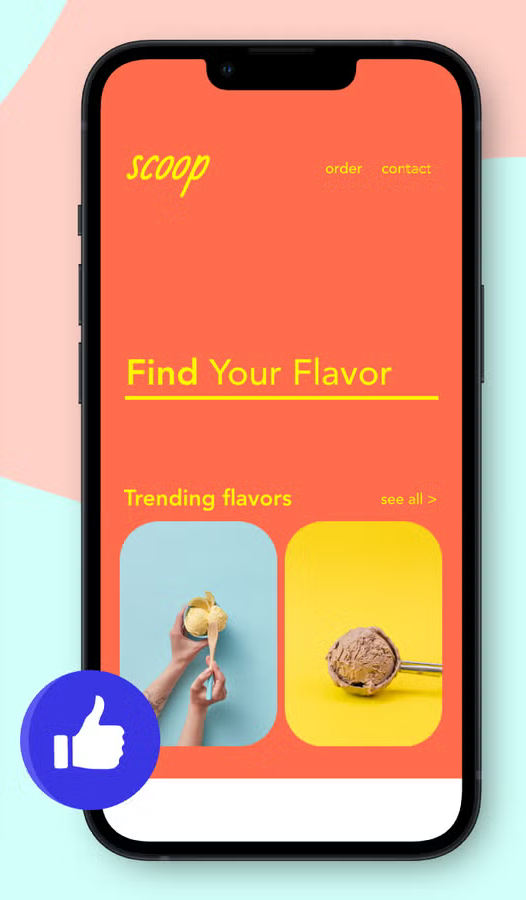
In the first example, the words are different sizes, the fonts don’t match, and the buttons are all shaped differently. This makes it look messy and harder to follow. In the second example, everything is the same size, the fonts match, and the buttons all look the same. When things are consistent like this, the design looks neater and is easier to understand.
Colours
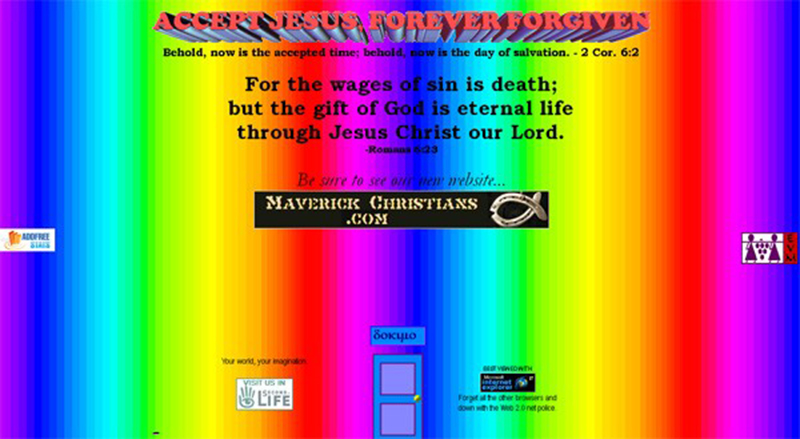
In the example above, there are too many bright colours fighting for attention, which makes it hard to know where to look and can even give people a headache.
When you use fewer colours that work well together, your design feels calm, organized, and more professional. It also makes important things stand out without overwhelming the viewer. Remember that good design helps people find information quickly, and a limited colour palette makes that easier.
Animation
A splash screen is the fist screen users see before using an app, even before the home screen. This type of screen is used to capture the users attention and to get them excited to use the app.
If we want to add a little bit of style to our app we can include some basic animation.
Bellow, will I show you how to make a simple splash screen
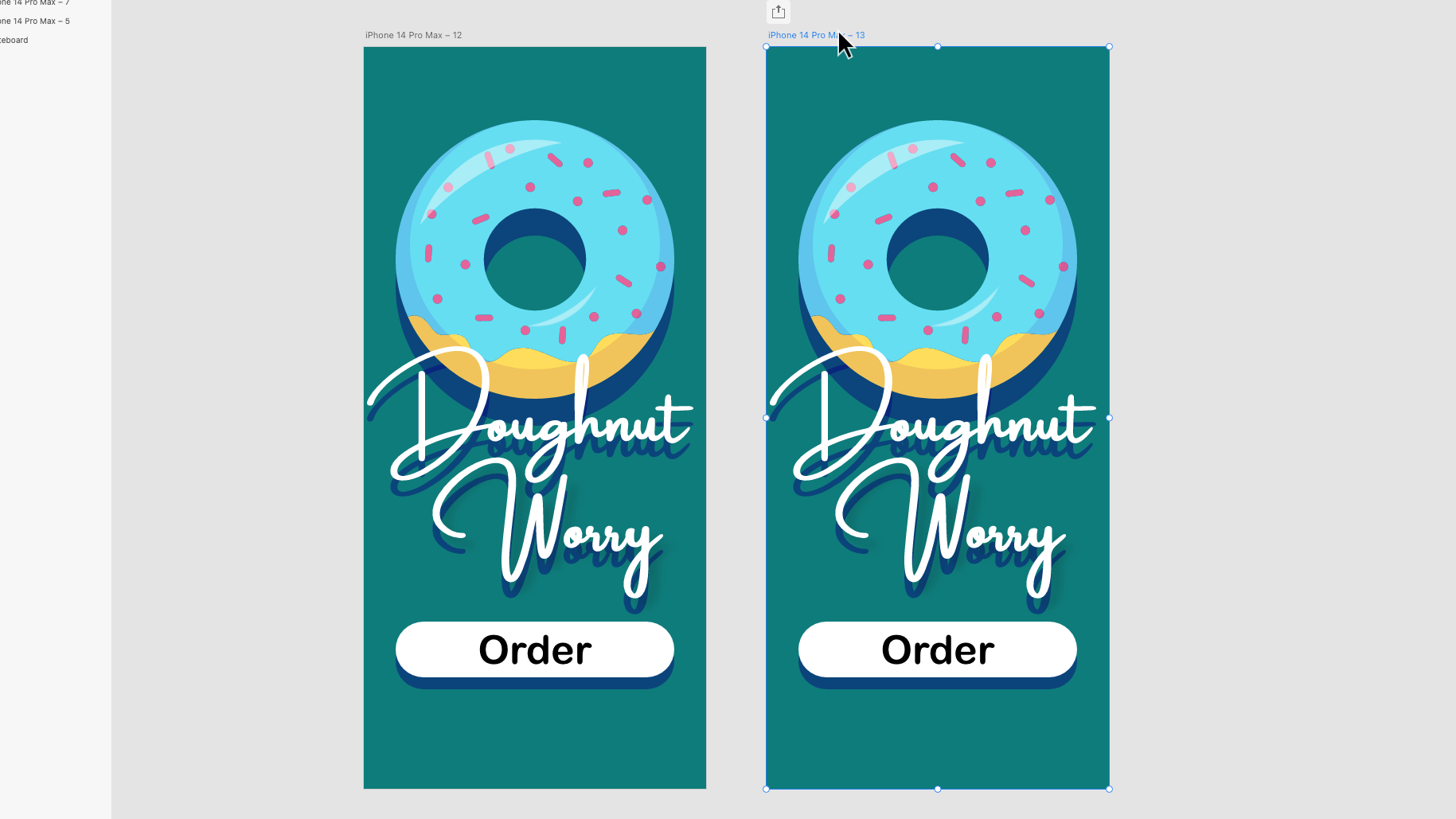
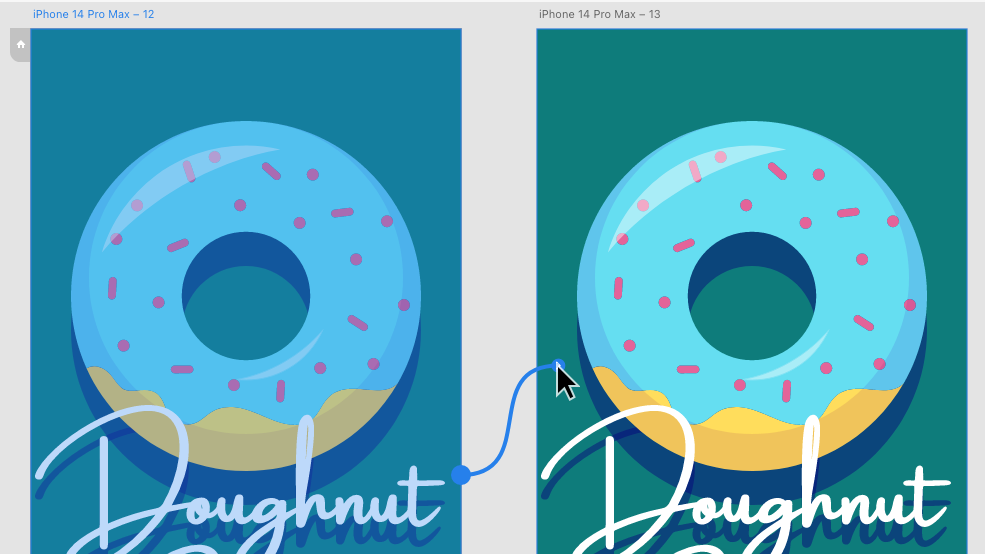
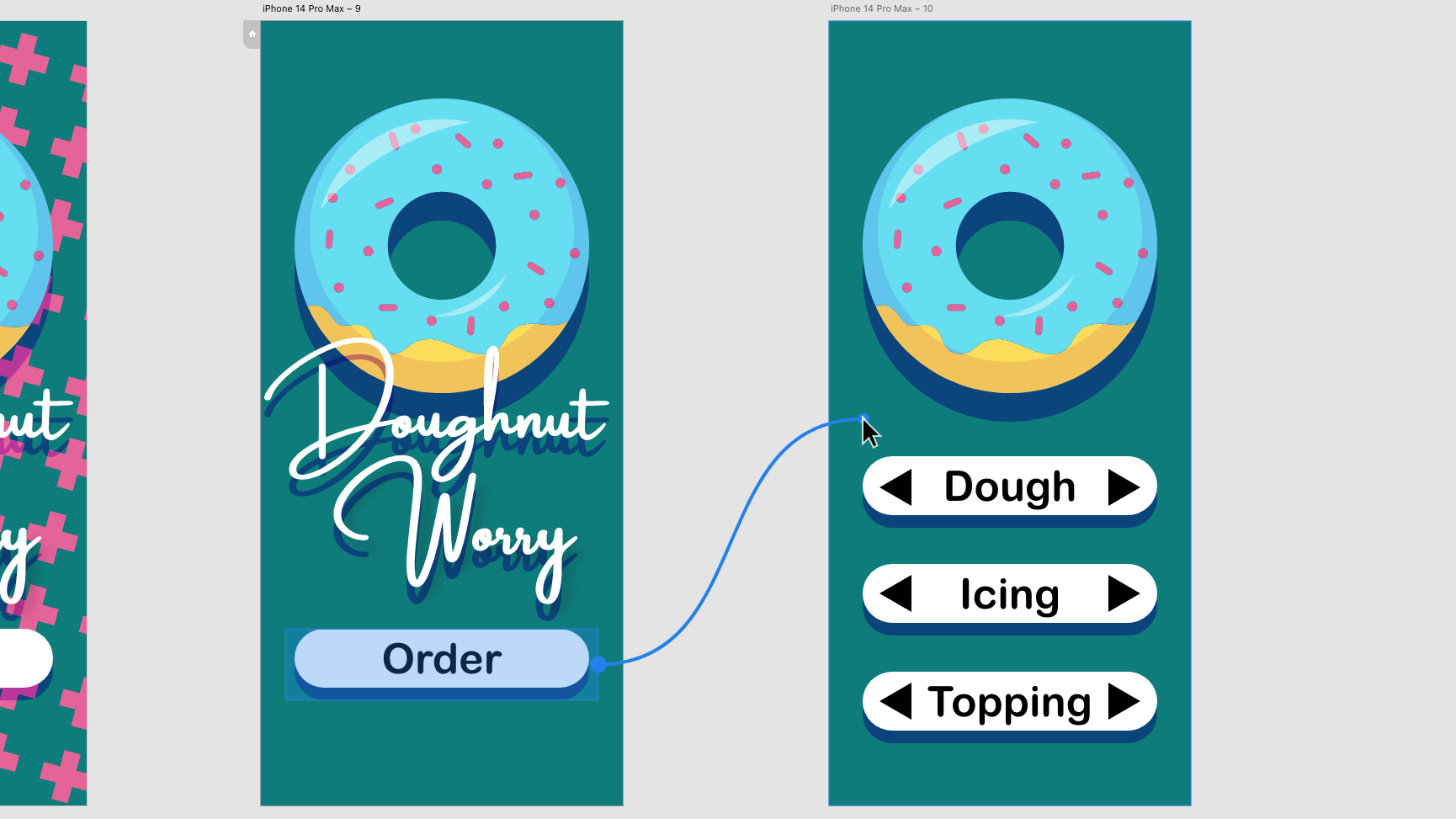
Here we are going to add a simple rotation animation to the doughnut. This kind of animation works best with round elements that don’t have parts sticking out. This object could be a wheel, ripples in a cup of coffee, or in this case, a doughnut.
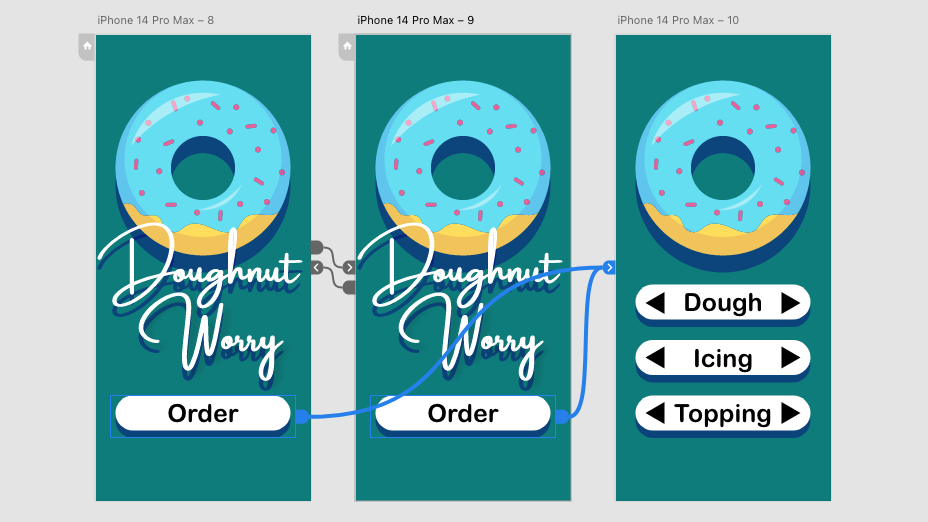
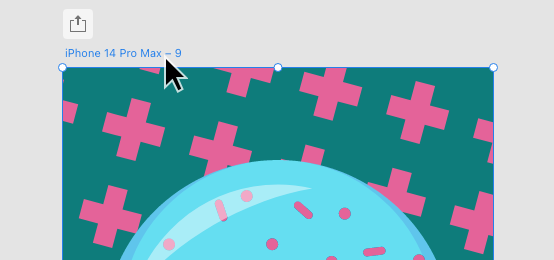
Start by designing a splash screen and making a copy of it by grabbing the artboard title (This is usually called iPhone 14 Pro Max”) and dragging off a new one while holding alt/option.
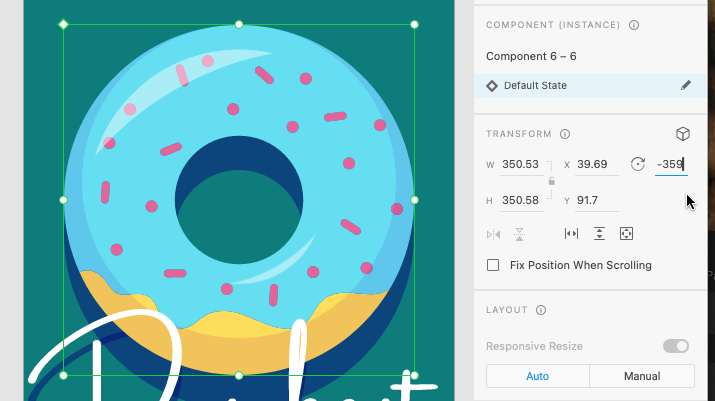
On the second screen while in the Design menu, change the rotation of our round element to 359 degrees. While it may not appear a lot has changed, this is an important step in making our object spin.
Head to the Prototype menu.
In the Prototype menu, select the title of the first splash screen and drag a wire over to the second screen.
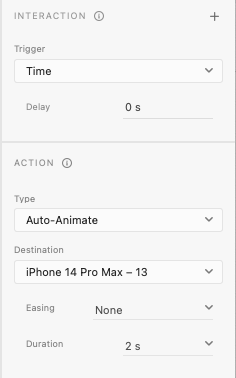
After connecting the wire head over to the Interaction panel on the right.
Change the trigger to time with a delay of zero seconds, this makes the animation begin right away.
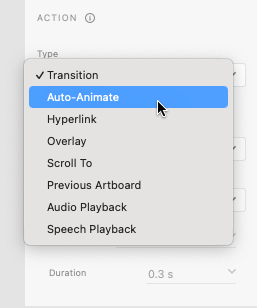
in the Action panel, change the animation type to “Auto-Animate”, the Easing to “None”, and the Duration to “2 seconds”. This will make the object rotate at an even speed. You might want to experiment with these settings later.
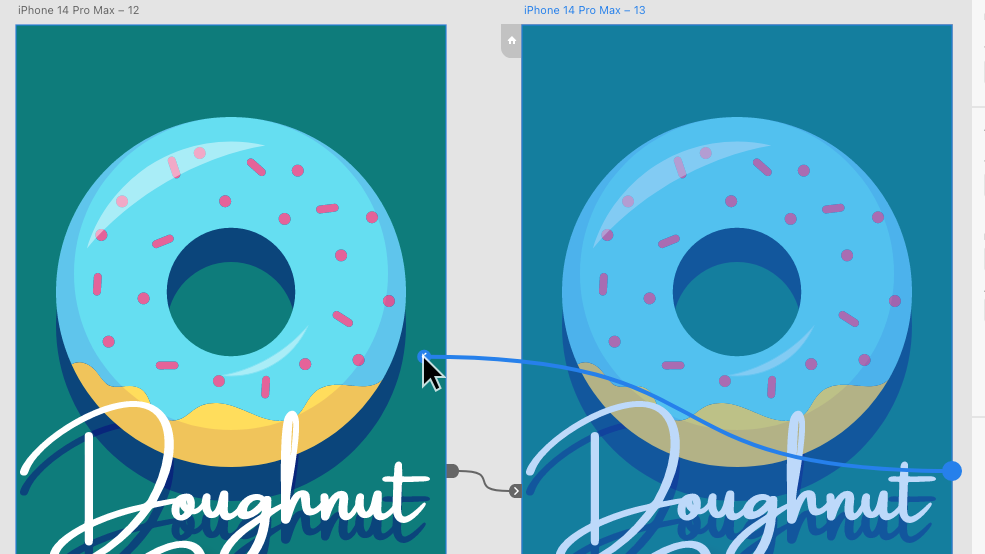
Now select the title of the second splash screen artboard and drag a wire over to the first.
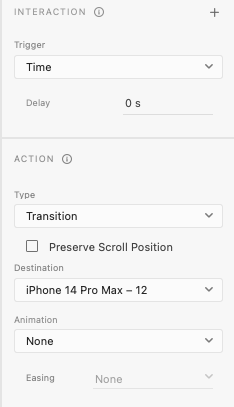
Head back to the Interaction and Action panels.
Here, change the animation type to “transition”. While you are here, ensure there is no delay and animation is set to “None”.
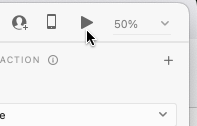
You can text if you have successfully created your splash screen animation by pressing play in the top right corner. If successful, the animation should loop forever.
Finally, we need to connect the splash screen to the home screen. Be sure to connect the buttons on both splash screens as show above to ensure it is always accessible.
This is just one of many ways we can use animation to add a premium feeling to our app. Experiment with the skills you have learnt to see if you can create new types of animations.
By now you should be ready to create additional screens for your app. These screens are called artboards.
The best way to do this is by duplicating the existing art board. This ensures the new artboard is the same size, this is important because phone screens cannot change size.
Duplicating Artboards
To duplicate the artboard, we need to use the selection tool to select the title of the artboard (This is probably called something like “iPhone 14 Pro Max”). After selecting, we can duplicate the window two ways; by pressing cmd+d or by dragging the artboard by the title while holding alt/option.
After duplicating the artboard we can delete the unneeded elements and continue working.
Creating Buttons
Before we create our transitions we need a button to press to activate it. These buttons can be a shape, image, text or be any type of object.
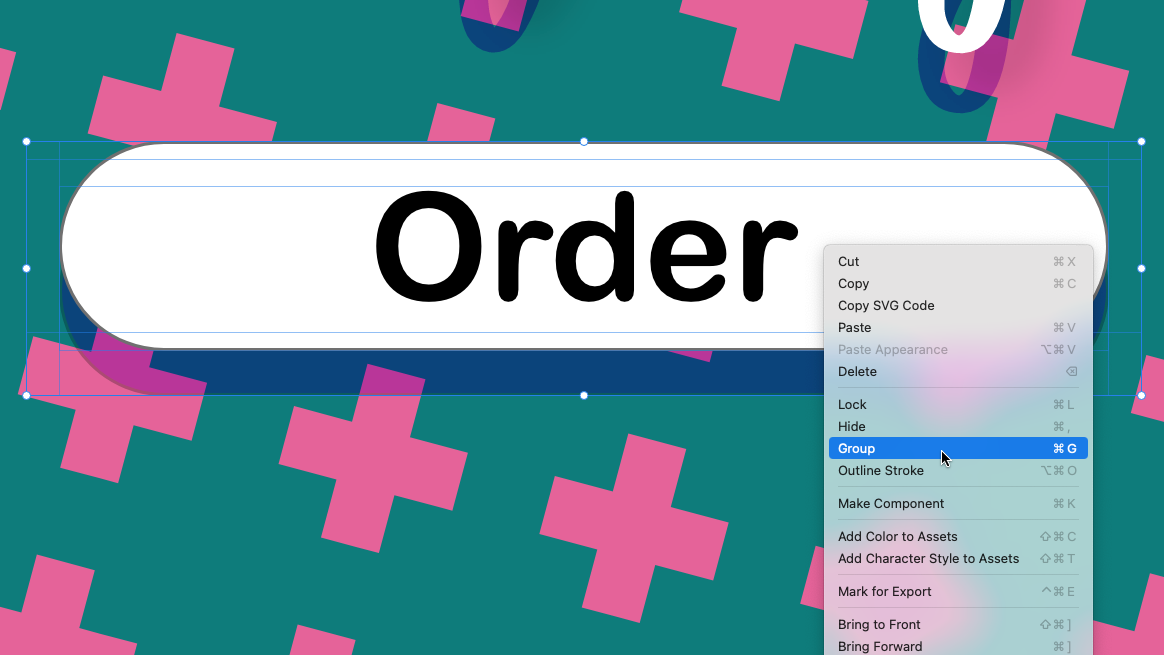
If our button is made of multiple objects we can group them together using the select tool to select multiple objects while holding shift. We can then right-click the selection and choose group, or press cmd+g. The group of objects selected will now be treated as one object.
The Prototype Menu
Up until this point we have been using the Design menu to define the visual aesthetic of our app, we now need to move to the Protoype menu in the top left corner to create our transitions.
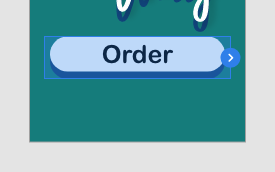
To create a transition, use the select tool to select your button. You will notice a blue arrow on the right side of the object.
You can now drag this arrow to the artboard you want your button to link to and unclick. After releasing, you will notice a connection between the button and artboard – these connections are called wires.
You can now test your buttons by clicking the play button in the top right corner of the screen. You may need to click the artboard that has your button in it first to start in the right place.
Types of Transitions
With your now linked button selected you might notice the action menu on the right side of the screen. Here you can change the type of transition that will happen when the button is pressed.
Maybe you want everything to move into place with Auto-Animate or for the new screen to fade in over the old one with Overlay.
Experiment with the different types to see what effects can be done!
Now that we have gotten a general idea of our layout with our wireframe, it is time to add some visuals to our app.
Colour Palette
nearly every major app has a distinct colour palette: Youtube is red, white, and black while Snapchat is yellow, blue and white. to strengthen the appearance of our app we can also choose a colour palette for our apps.
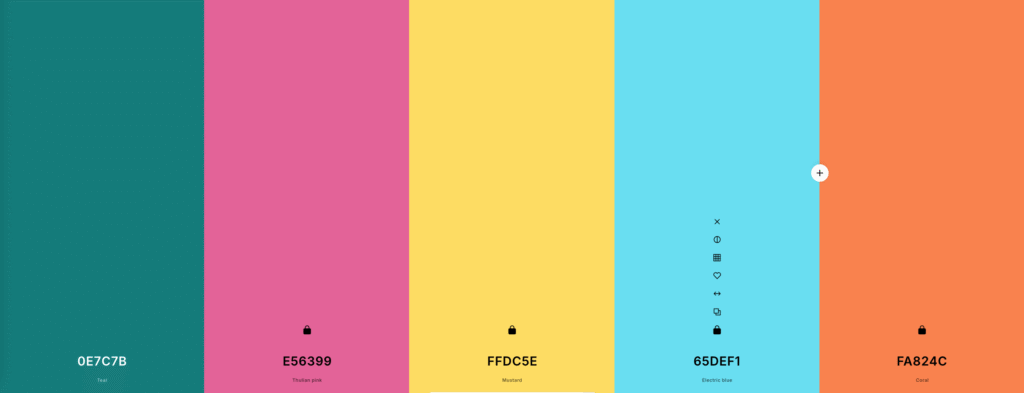
As a quick way to generate a colour palette I recommend using Coolors.co. Here we can generate colour palettes by pressing spacebar until we get one we like.
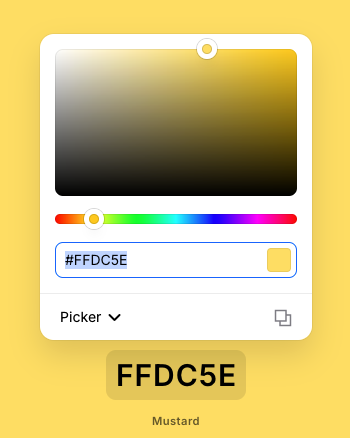
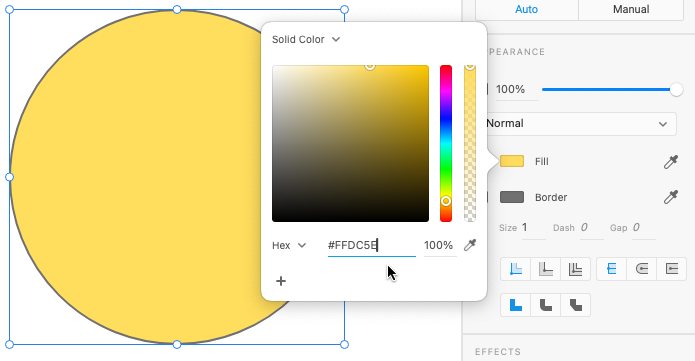
Once we are happy with the colour palette, we can copy the individual colours by clicking the codes at the bottom and using cmd+c. This is called a Hexcode which turns the exact colour into numbers and letters.
We can now make an object in our Adobe Xd document this colour by selecting it, clicking the colour block next to “fill” or “border” and pressing cmd+v.
Inserting Images
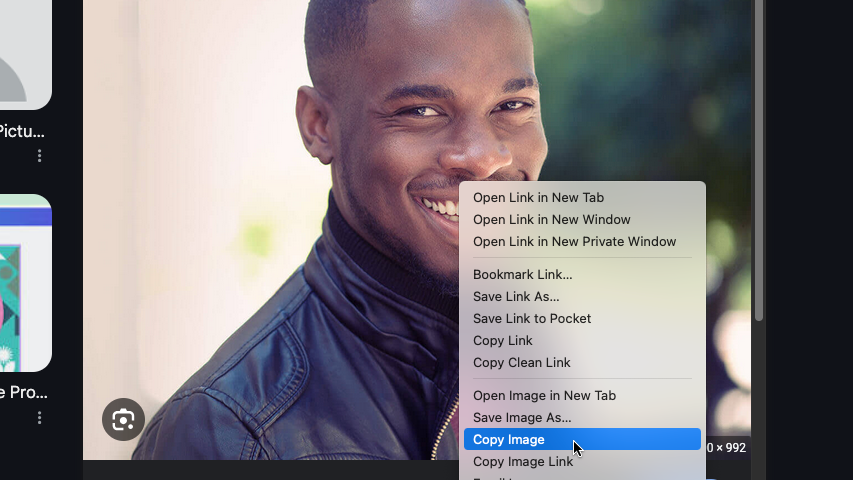
Rather than creating every image in our app from scratch, we can use online images from places such as Google Images. When we find and image we like we can copy the image by right-clicking and selecting Copy Image.
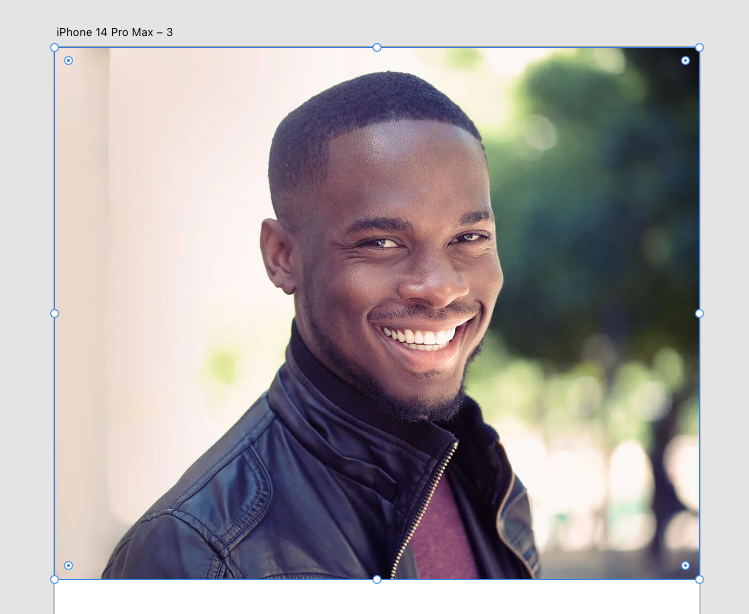
We can then insert the image into Adobe Xd with cmd+v.
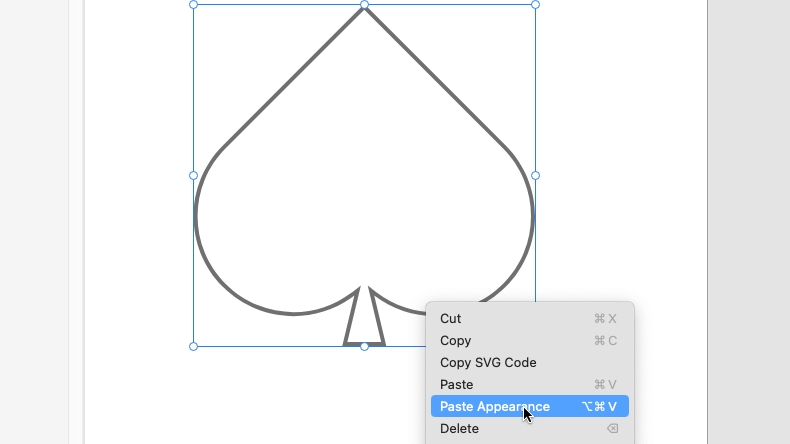
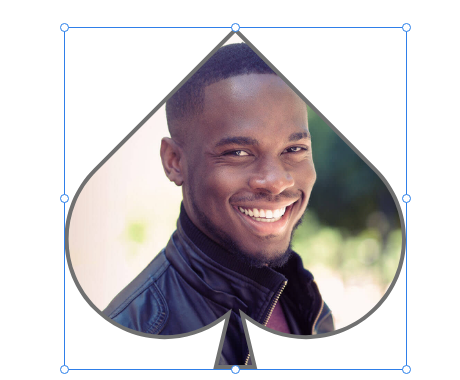
We can also use a shape to mask our image by right-clicking and selecting Paste Appearance.
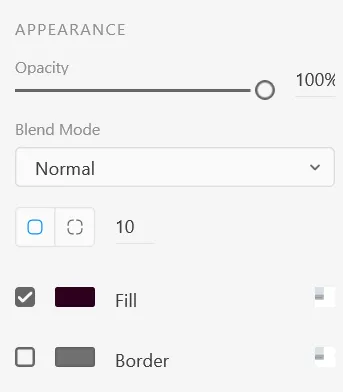
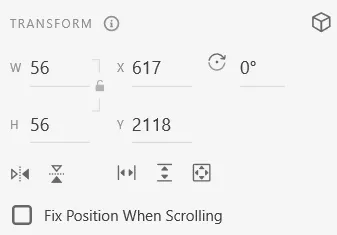
We can change the appearance of other elements in our app using the following panels:
Appearance Panel
Here you can change the fill colour, border colour and roundness of object corners.
Transform Panel
Allows the height, width, angle and position of the objects to be changed.
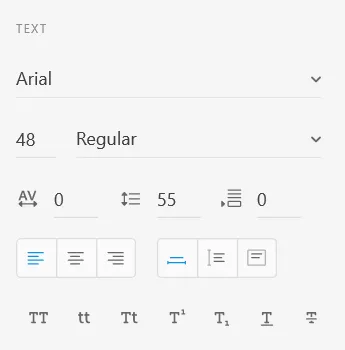
Text Panel
Here you can modify font type, size, text alignment, and other text options.
Watch the video below to recap how a simple Ceasar Cipher works. Practice manually ciphering messages with a partner to reinforce these ideas.
Vignére Cipher Refresh
Watch the video below to recap how to Encrypt and Decrypt using a Vignére Cipher. Practice manually ciphering messages with a partner to reinforce these ideas.