Category: Unreal Engine

  • Winning and Losing

    Last lesson we created a “lose” state for when our player character is destroyed, which returns them safely to the game starting point. In this tutorial, we will add methods for the player to “win” or “lose”.

    Losing

    Sometimes our characters meet an unfortunate fate. Maybe they have stepped onto spikes or lava, immediately causing their doom. Dangerous terrain like this is called a “killzone”
    As we have set up our player character to immediately respawn in a safe location whenever they are destroyed.

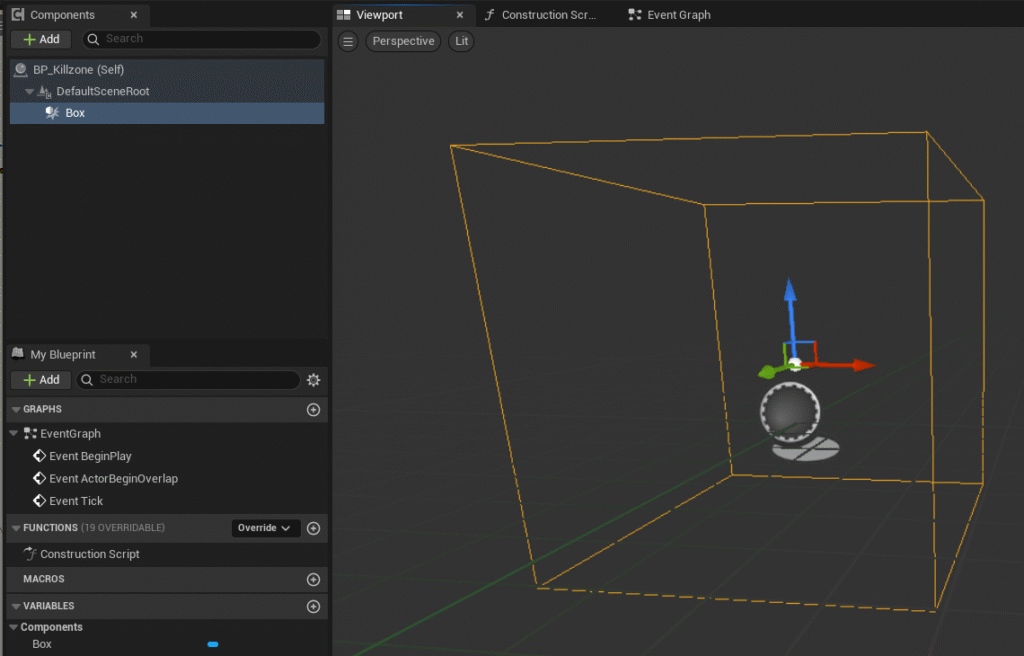
    Go to the Content Drawer and go to Add > Blueprint Class > Actor. Name this new Blueprint “BP_Killzone”, double click to enter. Once in the blueprint add a Box Collision in the components panel on the left. Head to the Event Graph.
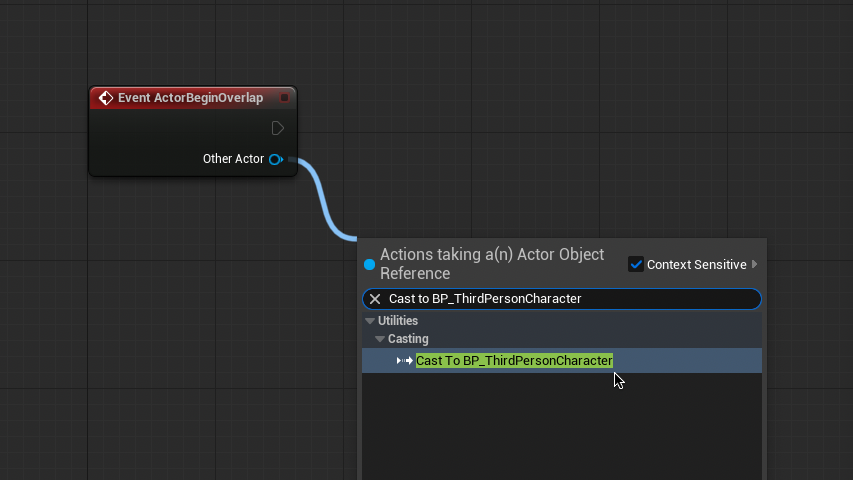
    From “Event ActorBeginOverlap” Cast to BP_ThirdPersonCharacter.
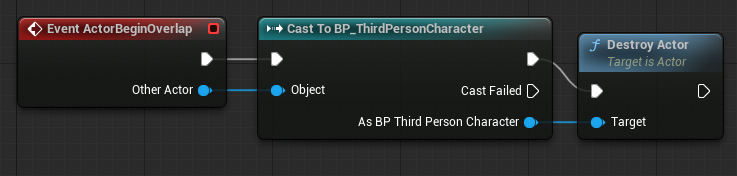
    Now from “As BP_Third Person Character” Drag and release to select “Destroy Actor”

    Compile and test. Your character should trigger the respawn function we created last lesson when coming into contact with the killzone. Feel free to return to the viewport and add a static mesh to the killzone, such as spikes or lava.

    While the killzone has it’s core functionality, it doesn’t really have any impact. Let’s freeze the character for a moment to signify the impact.

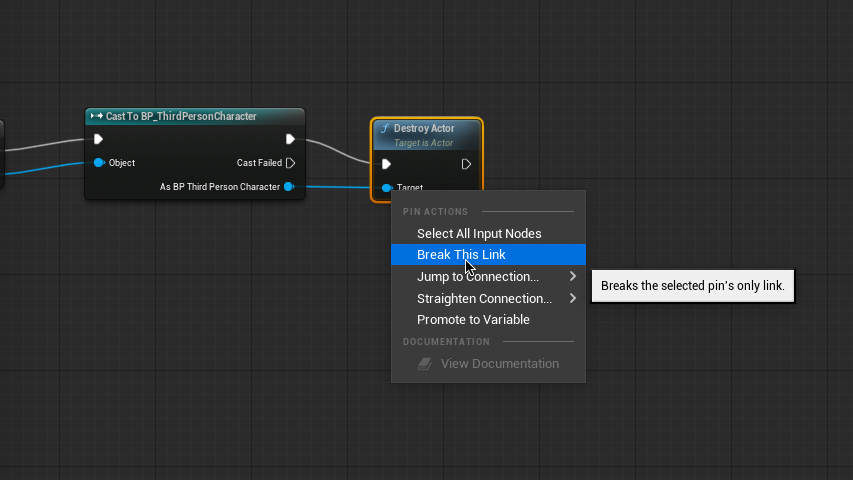
    Right click both the links to the Destroy Actor node and select “Break This Link”.
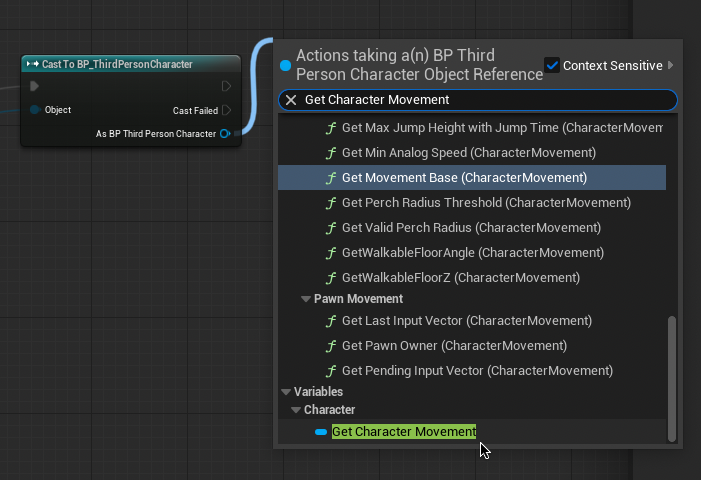
    From “As BP Third Person Character” drag and release twice to select “Get Character Movement” and “Get Mesh”. These are the assets we will be freezing.
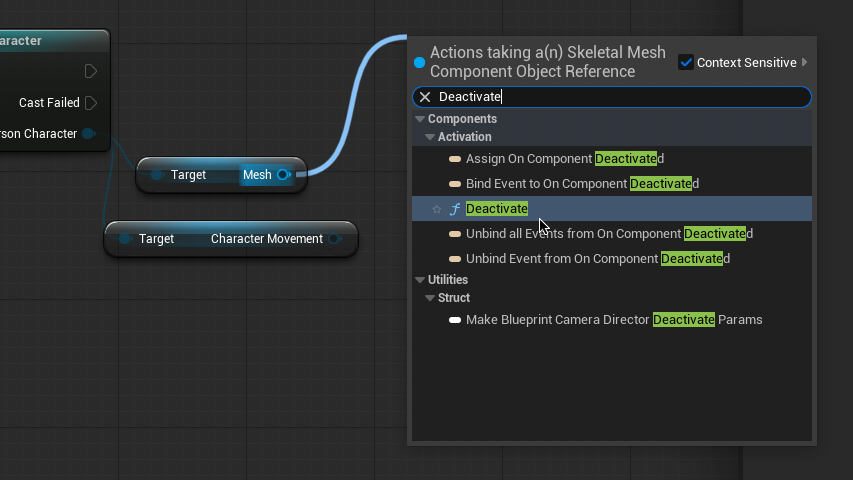
    From one of these new nodes, drag and release to select “Deactivate”. Connect both of these nodes to the target. Connect the new Deactivate node to the Cast To BP_ThirdPersonCharacter node.
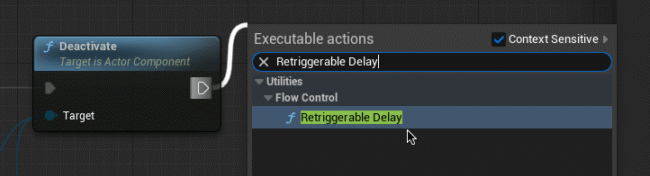
    From the Deactivate node drag and release to select “Retriggerable Node”.

    Reconnect the Destroy Actor node to the end of the chain and to “As BP Third Person Character”. Your Event Graph should look like this. Now when the player character hits the killzone there will be a noticeable delay before being returned to the respawn point.
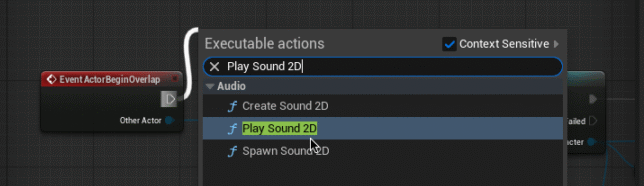
    This is a good start, but we can improve the impact by adding a sound effect. Right-click the top output of the Event ActorBeginOverlap node and select “Break This Link”. Drag and release from this output to select “Play Sound 2D”, which will create a sound effect centered on the player. Connect the output of this node to the input of “Cast To BP_ThirdPersonCharacter”.
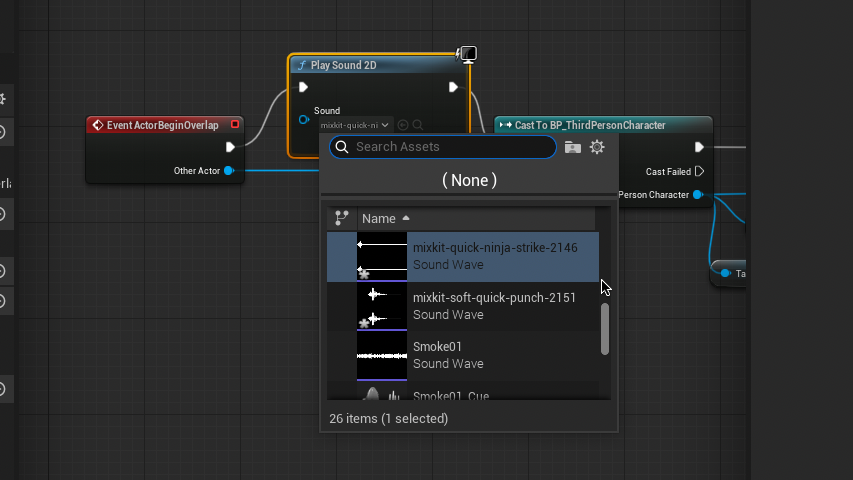
    In the Sound input of the new node select your sound effect. You may want to find a sound online and import it to the game by going to Content Drawer > Add > Import to /Game…

    We can add additional effects to increase the impact of our player character taking damage, such as shaking the screen, flashing red or black over the viewport, or adding particle effects such as sparks or explosions. Do some independent research to come up with your own to find your own way of communicating losing to the player.

    Winning
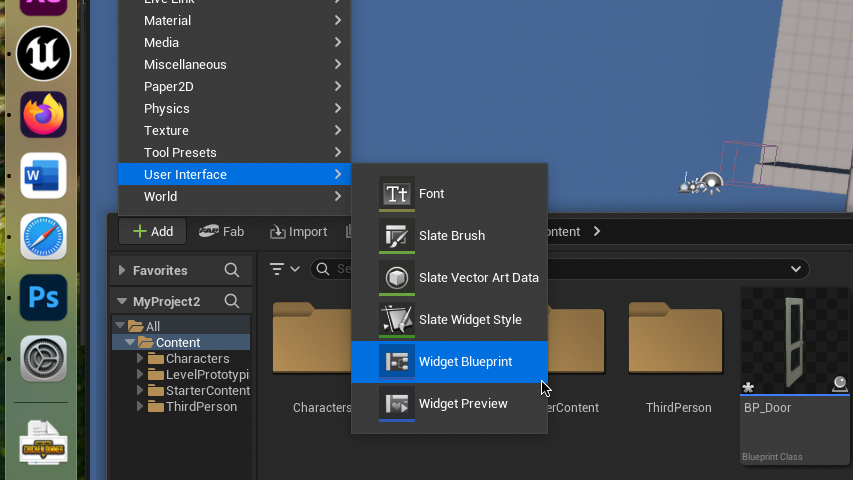
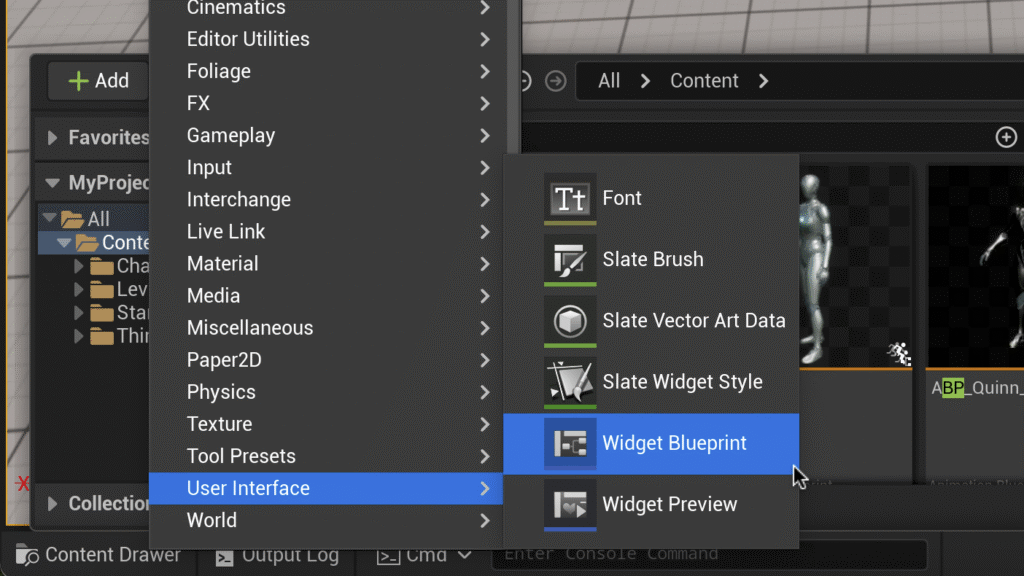
    To start, we need to make a victory screen to communicate to the player that they have won the game. Got to the Content Drawer and select Add > User Interface> Widget Blueprint. Name this new Blueprint “WBP_Victory”. Double Click to enter the Widget Designer.
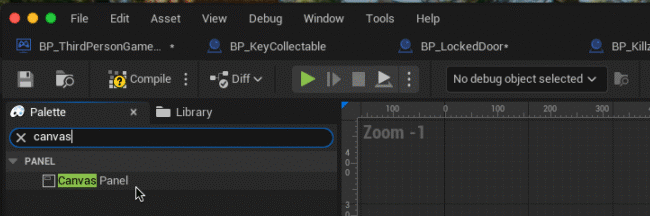
    In the top-left Palette Panel, search and drag “Canvas Panel” into the designer.
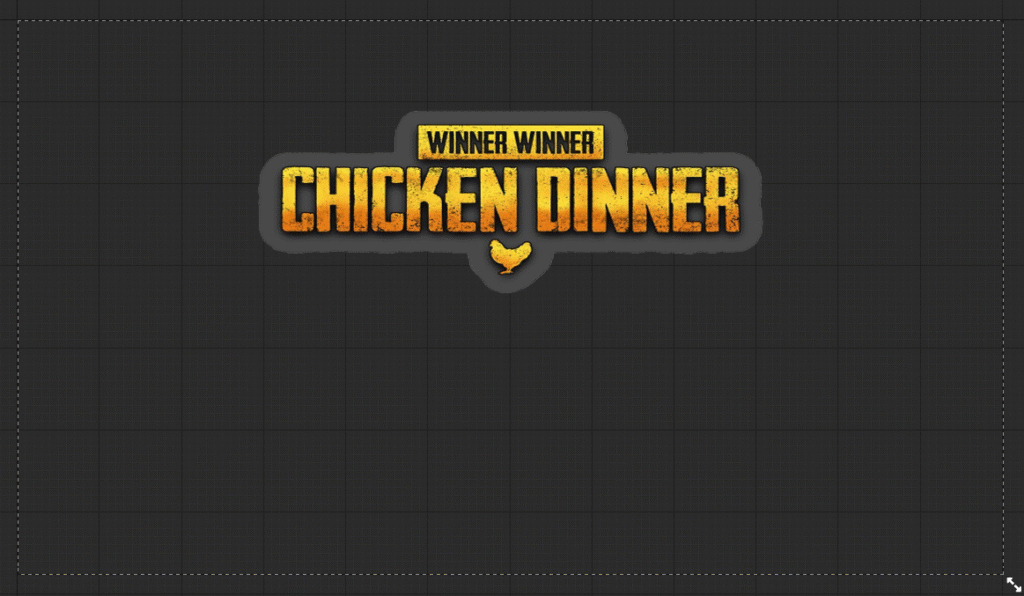
    Spend a little bit of time designing a victory message to the player. You can add images or text the game way you did in Communicating Collectables.
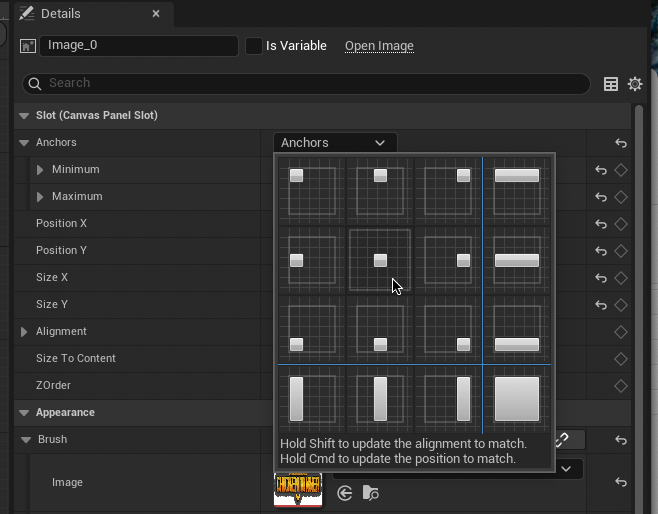
    Be sure to Anchor this and all future objects to center in the right Details Panel. This ensures the elements will always aligned to the center of the screen, regardless of screen size and aspect ratio.
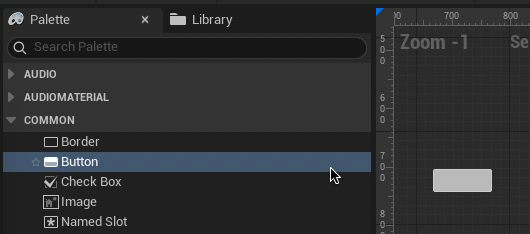
    Back in the Palette Panel, drag two buttons into the canvas. Name these buttons “Replay” and “Quit”.
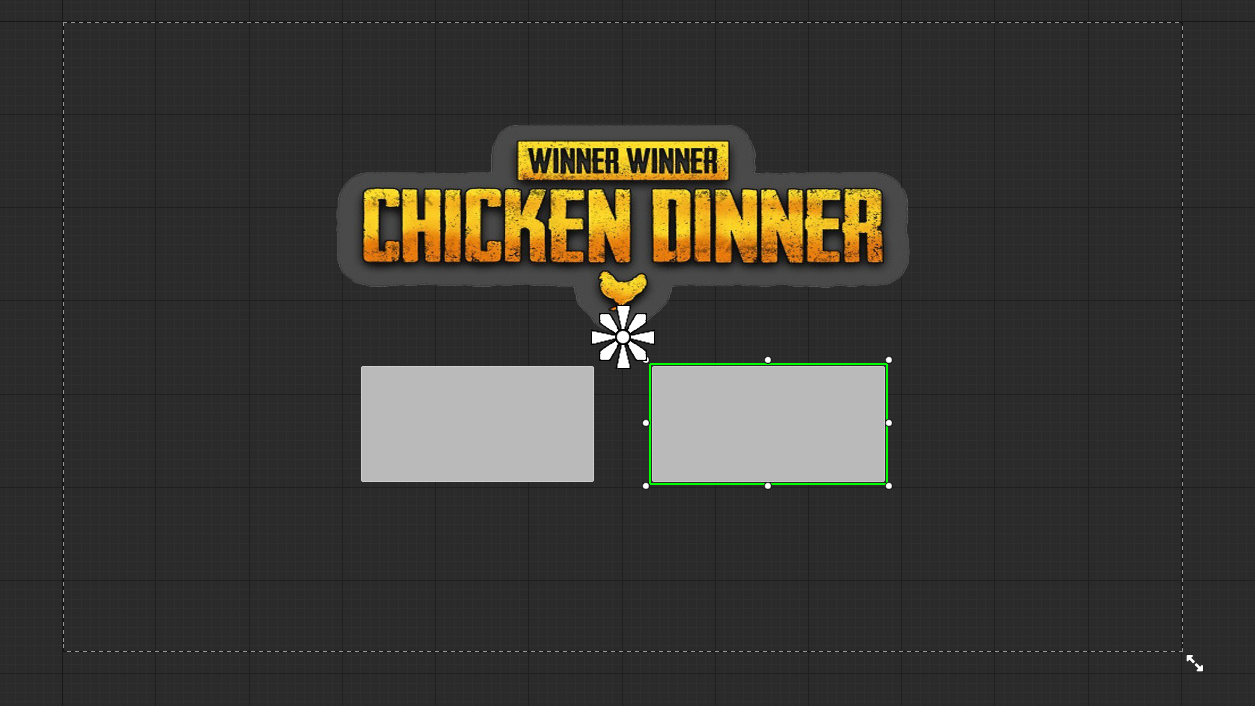
    Resize and arrange these buttons however your feel.

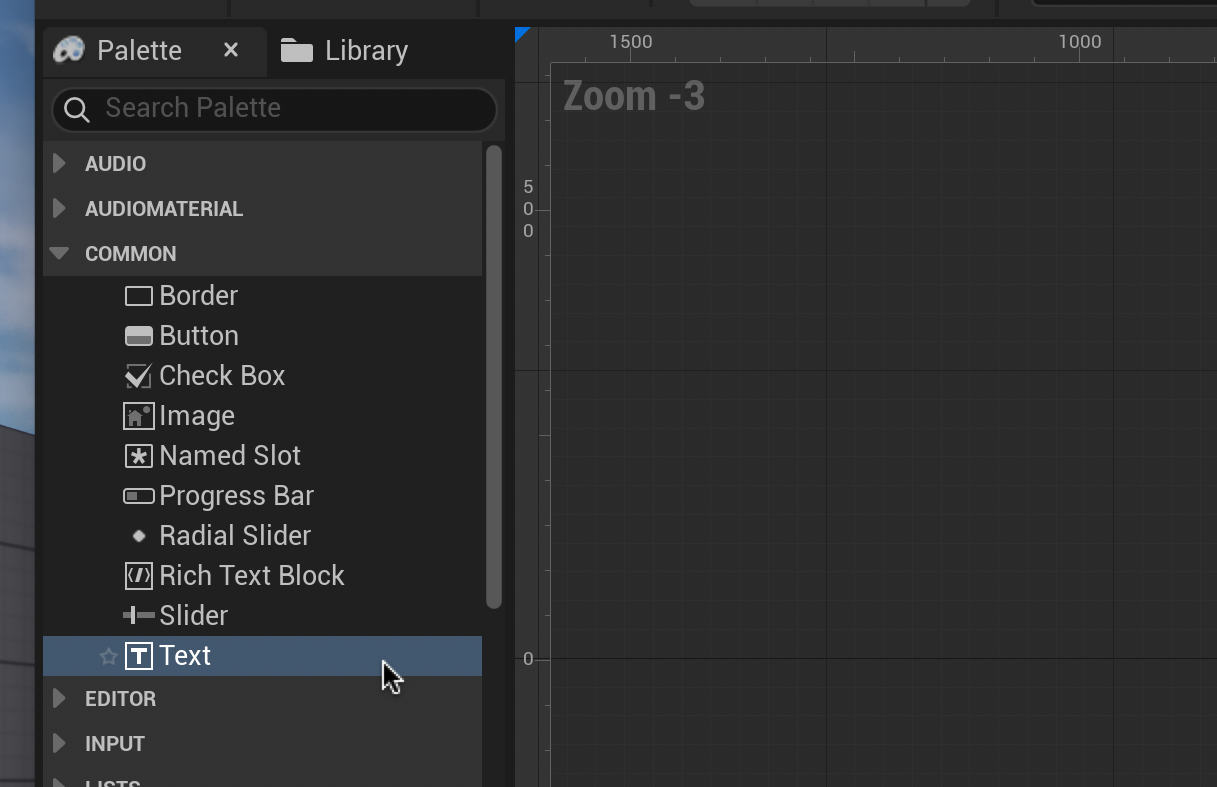
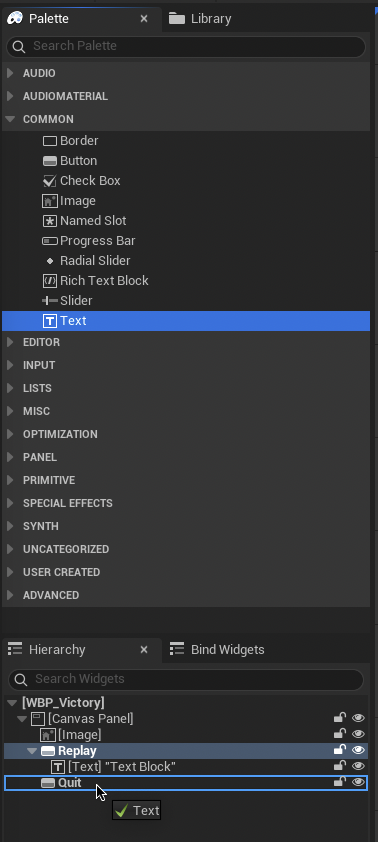
    From the left Palette Panel, Drag a text box into each button. In the right Details Panel change the names of these text boxes to “RetryText” and “QuitText”. Change the text of these boxes to their respective purposes under Content > Text.
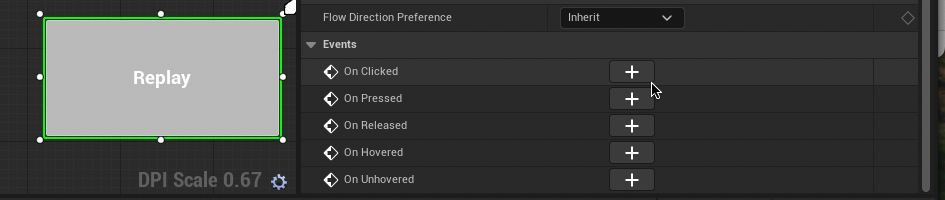
    Now let’s add some controls to our buttons. Select the Retry button and scroll down to the bottom of the right Details Panel. Under “Events” select “On Clicked”, this will take you to the Event Graph.
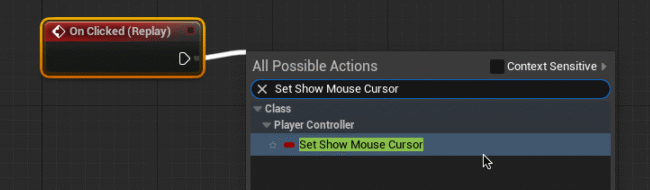
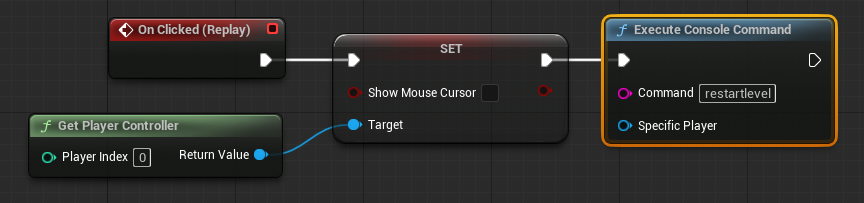
    From the On Clicked Event, Drag and Release to type and select “Set Show Mouse Cursor” (you will need to uncheck “Context Sensitive” to find this) and ensure “Show Mouse Cursor” is unticked. Drag and release from the target input and select “Get Player Controller”

    From the Set node output Drag and Release to select “Execute Console Command”. Fill in the Command text box with “restartlevel”. Your Event Graph should look like this.

    Return to the Widget Designer and select the Quit button > On Clicked Event.
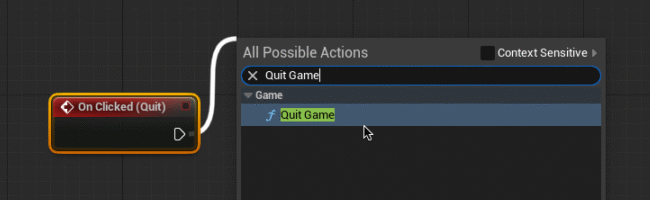
    From “On Clicked (Quit)” drag and release to select “Quit Game”. Click compile.

    We have now completed our victory screen widget. We now need to create a Goalzone to trigger this screen.

    Return to the Content Drawer and Click Add > Blueprint Class > Actor. Name this blueprint “BP_GoalZone” and double-click to enter.

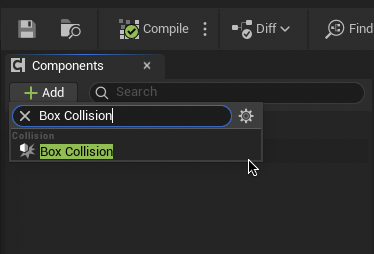
    As we did for BP_Killzone add a Box Collision. Go to the Event Graph.
    From “Event ActorBeginOverlap” Cast to BP_ThirdPersonCharacter.
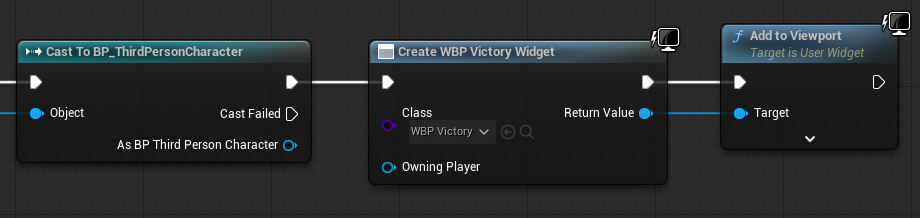
    From the new node, drag and release to select “Create Widget”. Set the Widget Class to “WBP_Victory”. Drag and release from the Return Value to select “Add to Viewport”.
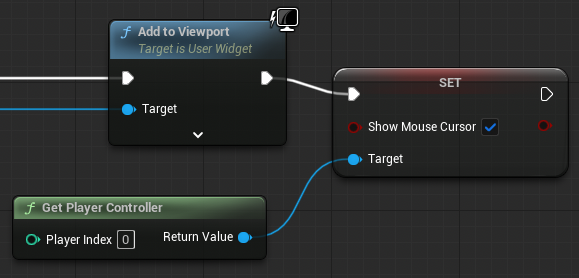
    From the Add to Viewport node, drag and release to select “Set Show Mouse Cursor” (as before, you will need to uncheck “Context Sensitive” to find this) and ensure “Show Mouse Cursor” is ticked. Drag and release from the Target input to select “Get Player Controller”.

    Finally, Drag from the Set node to select “Set Game Paused”. ensure “Paused” is ticked. Your event Graph should look like this.

    Compile and test. Your victory screen should now appear when the player character collides with it.

    Think of other ways you could make the victory screen more exciting. Maybe you could add sounds or visual other effects to improve the players sense of achievement. This is your chance to be creative.

  • Respawn Points

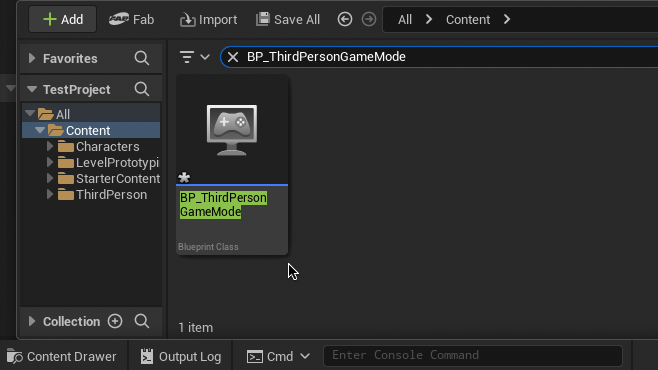
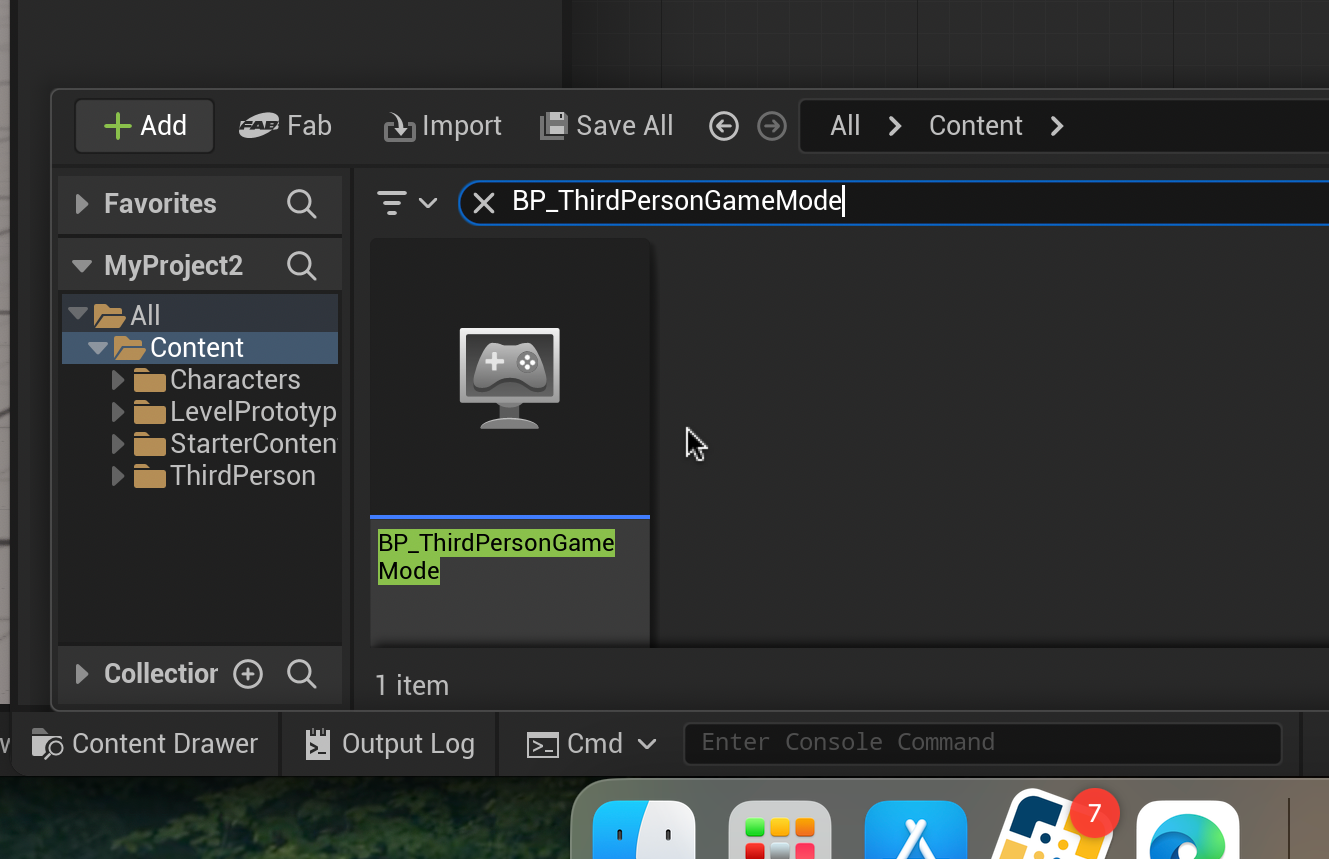
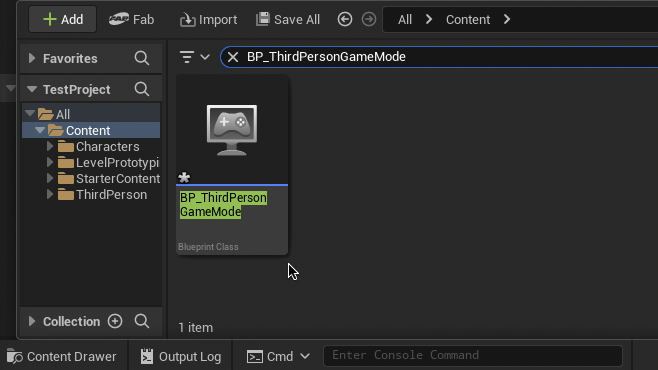
    From the Content Drawer, search for “BP_ThirdPersonGameMode” and double-click to enter the blueprint.

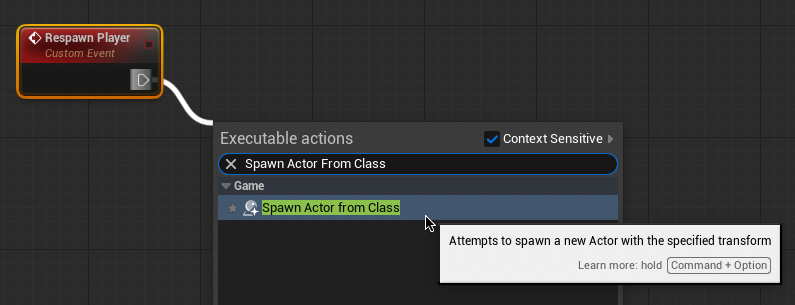
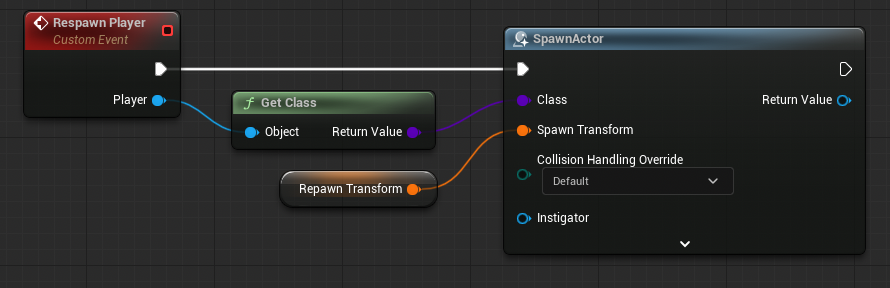
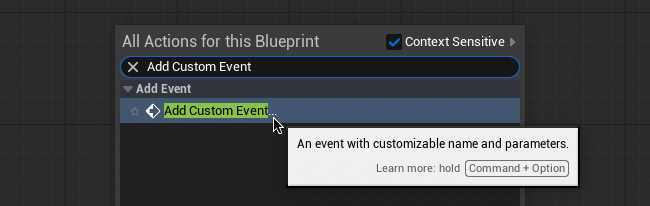
    Right-click a blank area of the Event Graph to Add Custom Event. Name this event “Respawn Player”.

    Drag and release from the white arrow of the new node to type and select “Spawn Actor From Class”.

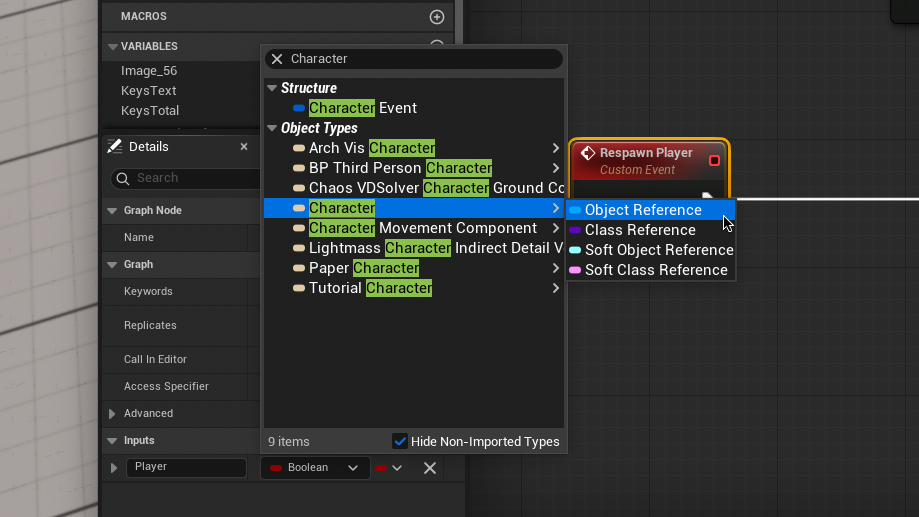
    Select the Respawn Player node. In the Details menu create a new input and name this “Player”. Change the variable type from Boolean to a Character Object Reference.

    Drag and release from the “Player” output of the Respawn Player event. Type and search “Get Class” and connect this to the Class input of the Spawn Actor Node. Right-click on “Spawn Transform” and Promote to variable and rename this “Respawn Transform”.

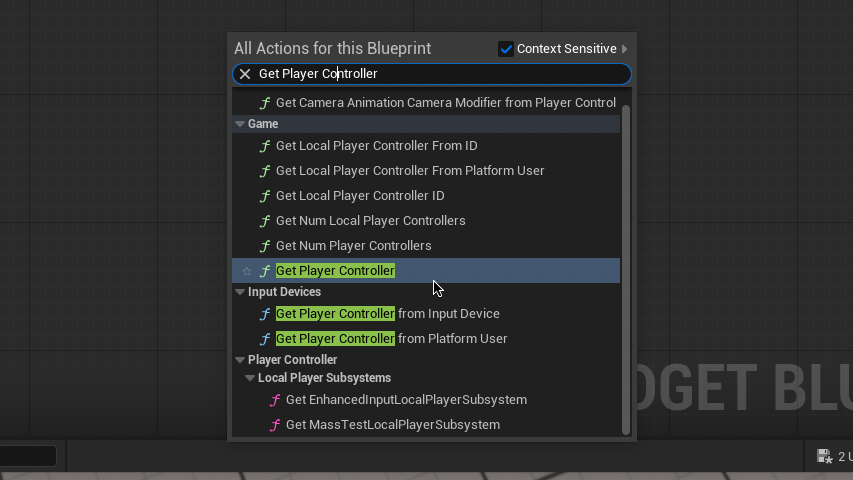
    Now we need to return control to the player. In a blank area of the Event Graph, right-click to type and select “Get Player Controller”.

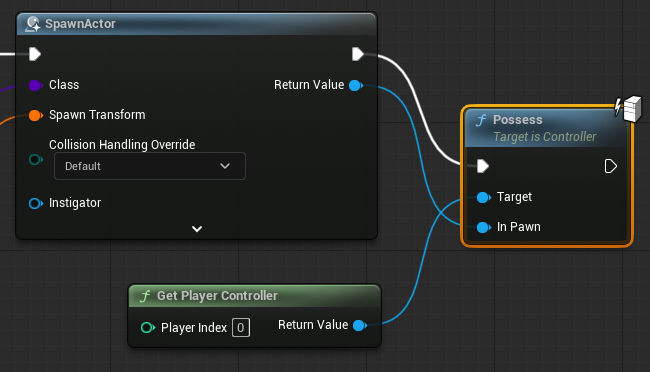
    Drag from the Return value of this new node to type and select “Possess”. Connect the white and Return Value outputs of the Spawn Actor node to the white and In Pawn inputs of the Possess Node as shown above.

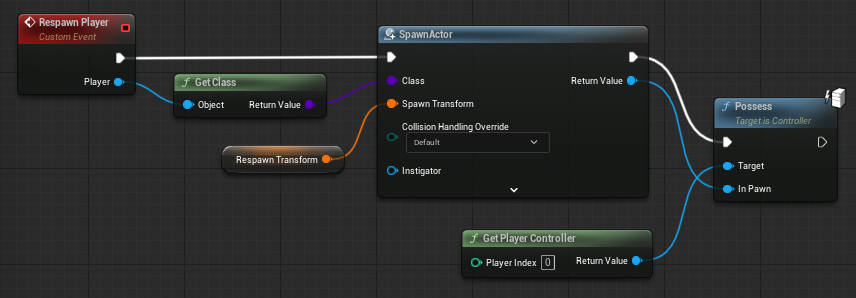
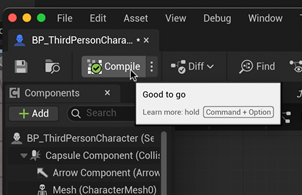
    Your Event Graph should look like this. Compile and go to the BP_ThirdPersonCharacter” blueprint.

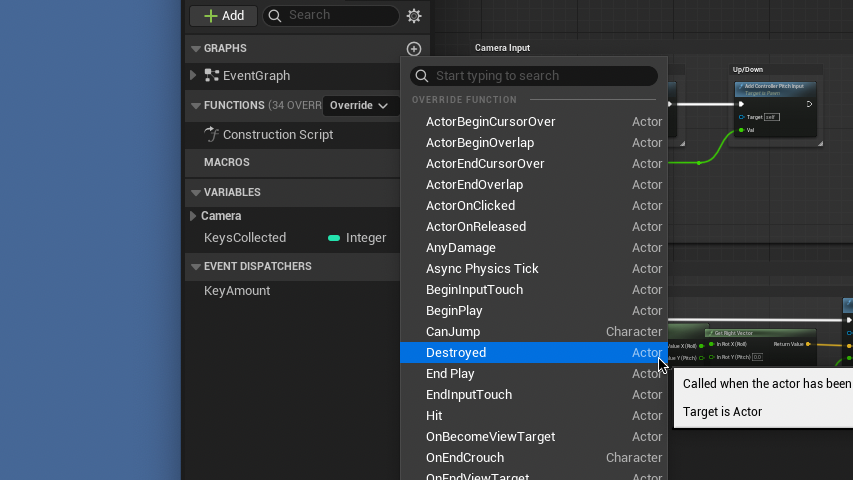
    We now need to call the respawn function when the character dies. In the functions tab on the left, select Override > Destroyed.

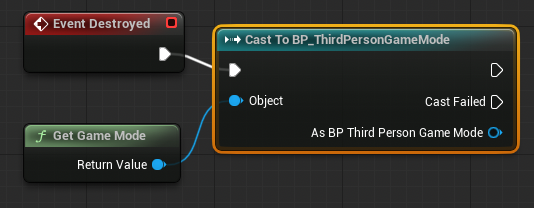
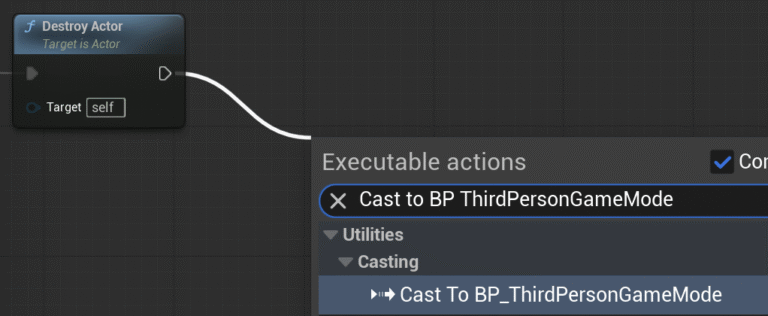
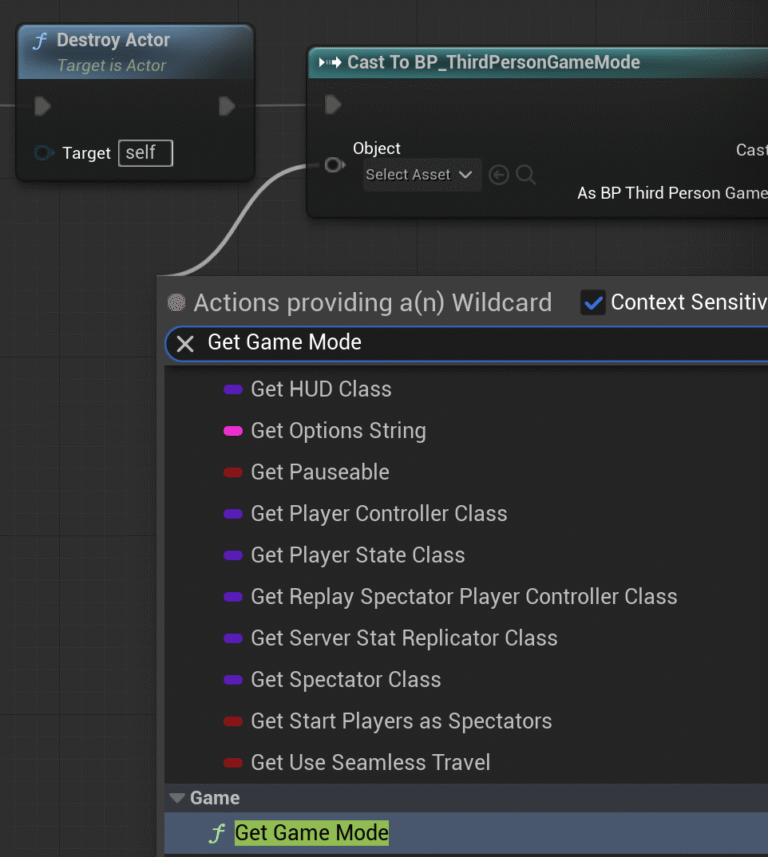
    From the new node, drag and release to select “Cast to BP_ThirdPersonGameMode”. From the Object input drag and release to select “Get Game Mode”.

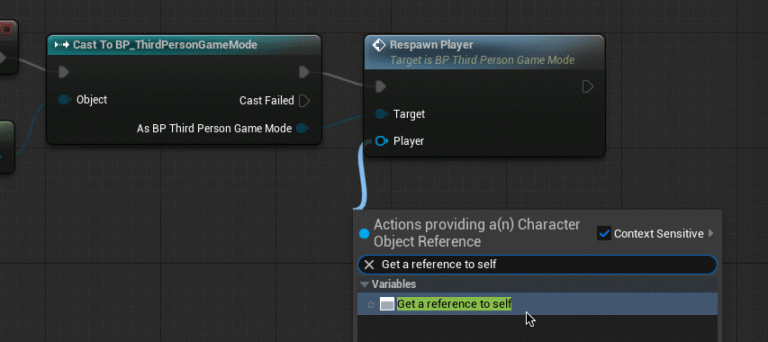
    From “As BP Third Person Game Mode” drag and release to select “Respawn Player”. Drag and release from the player input of the new node to select “Get a reference to self”.

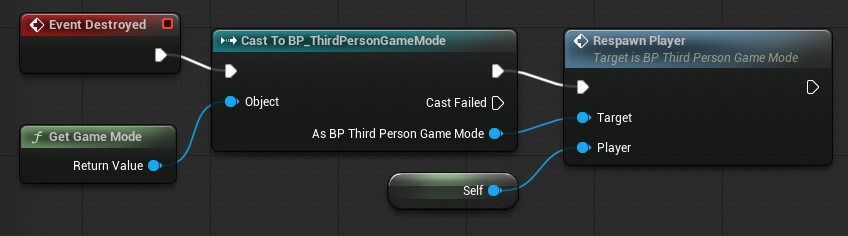
    Your Event Graph should look like this. Compile and test by jumping off the platform. Your character should respawn in the air and fall to their doom over and over. We now need to set our respawn point.

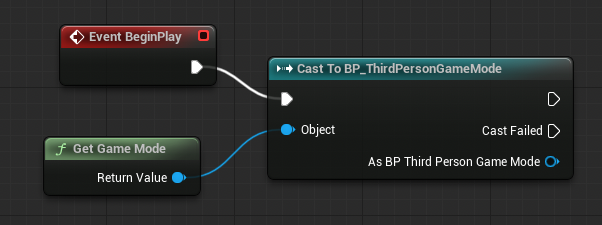
    In a blank area of the Event Graph right-click and select “Event Begin Play”. Cast to “BP_ThirdPersonGameMode” and drag and release the object input to select “Get Game Mode”

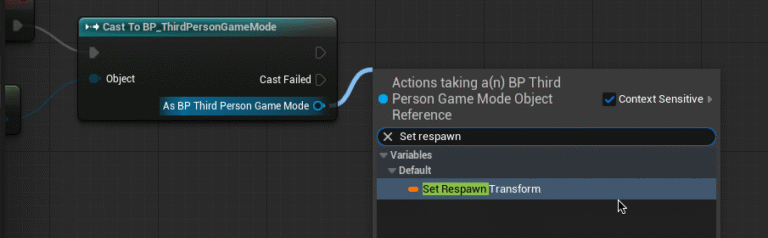
    From “As BP Third Person Game Mode” of the new node, drag and release to select “Set Respawn Transform”.

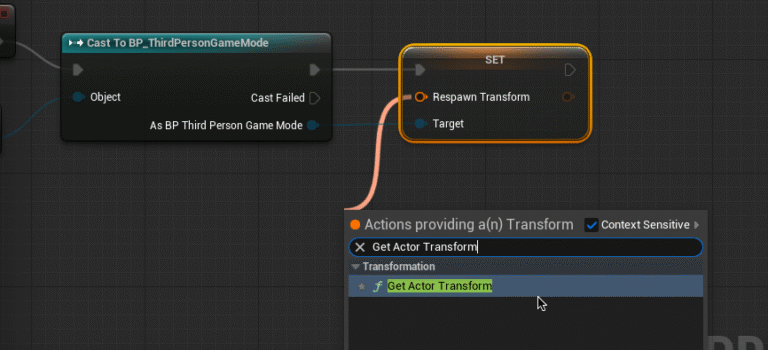
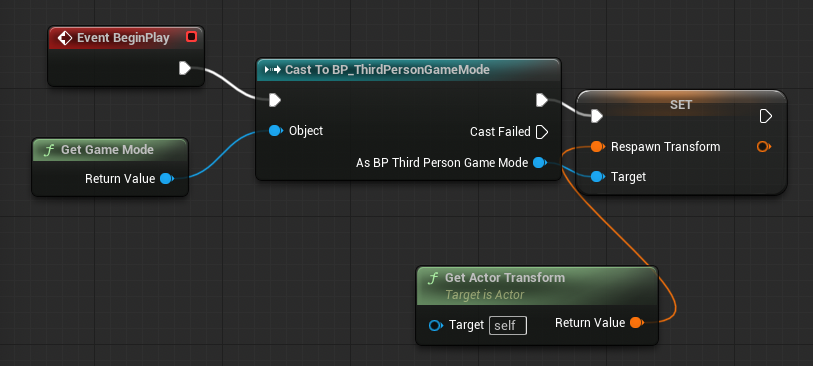
    Connect Cast to BP_ThirdPersonGameMode to the new set node as shown. Drag and release from the Respawn Transform input to select “Get Actor Transform”. This sets the respawn point to the players position when the game starts.

    Your Event Graph should look like this. Compile and test by jumping off the edge of the platform.

  • Using Collectables with Objects

    Now that we have created our collectables and door, we are going to combine these two elements to create a unlockable door that can be opened when the player has gathered all collectables.

    While we could manually set the amount of collectables needed to open the door, we are going to have Unreal Engine automatically count the amount off collectables in the level at game launch instead.

    In the Content Drawer search for “BP_ThirdPersonGameMode”. Double-click to enter and open the Event Graph.

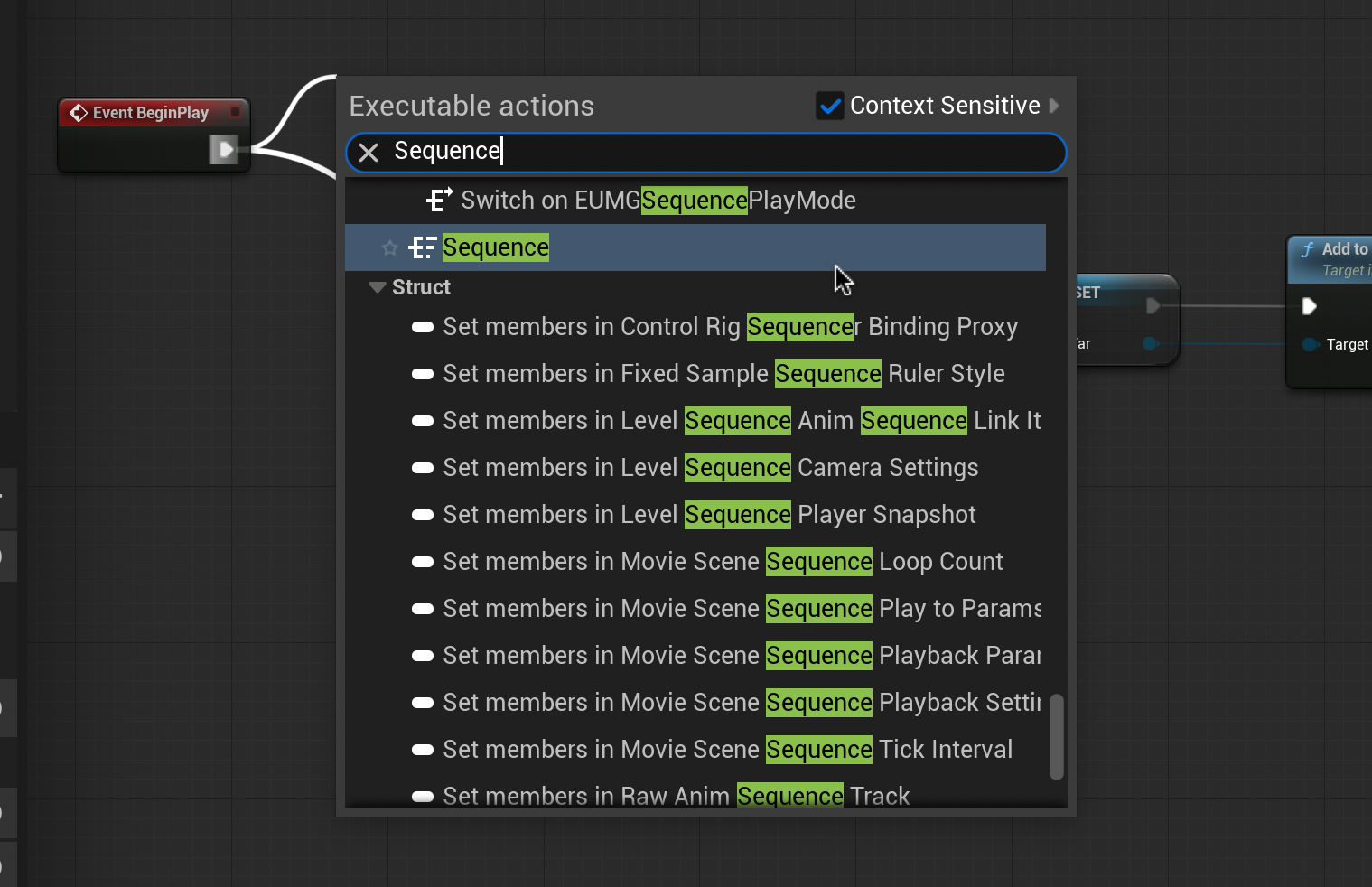
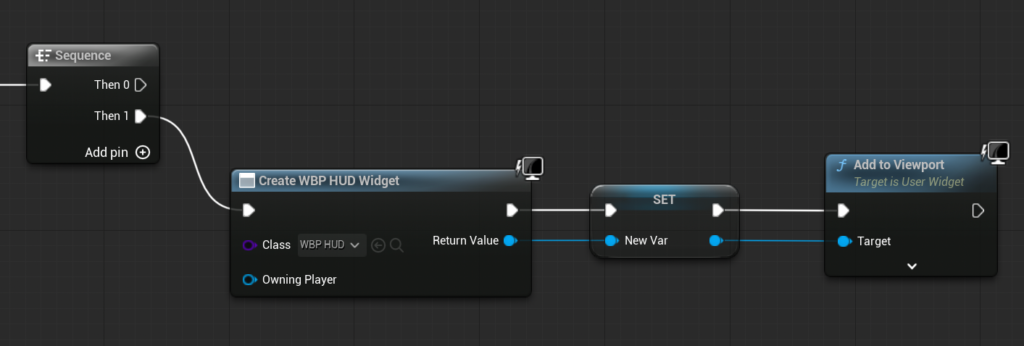
    As you can see, we are already using Event BeginPlay. So that we can execute multiple functions we need to add a sequence.
    Drag and release from Event BeginPlay. Type and select “Sequence”.
    As we want to count the amount of collectables in the scene before loading the HUD, connect the previous node chain to “Then 1”. We can now start our new node chain.

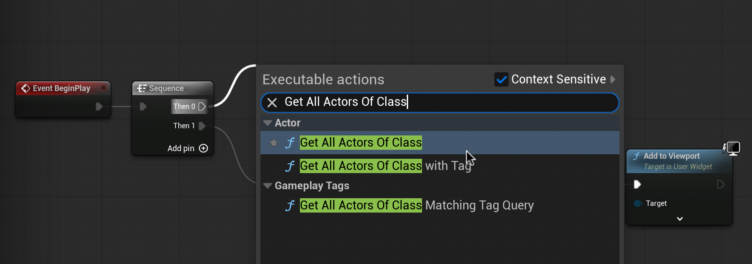
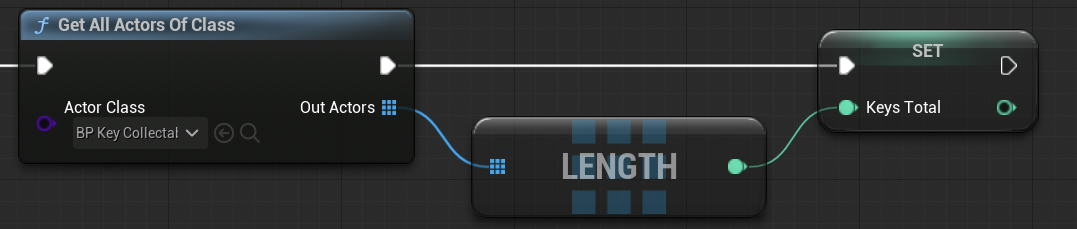
    Drag and release from “Then 0”. Type and select “Get All Actors Of Class”. Set the actor class of this node to BP_[Item]Collectable (or whatever you named your collectable blueprint).

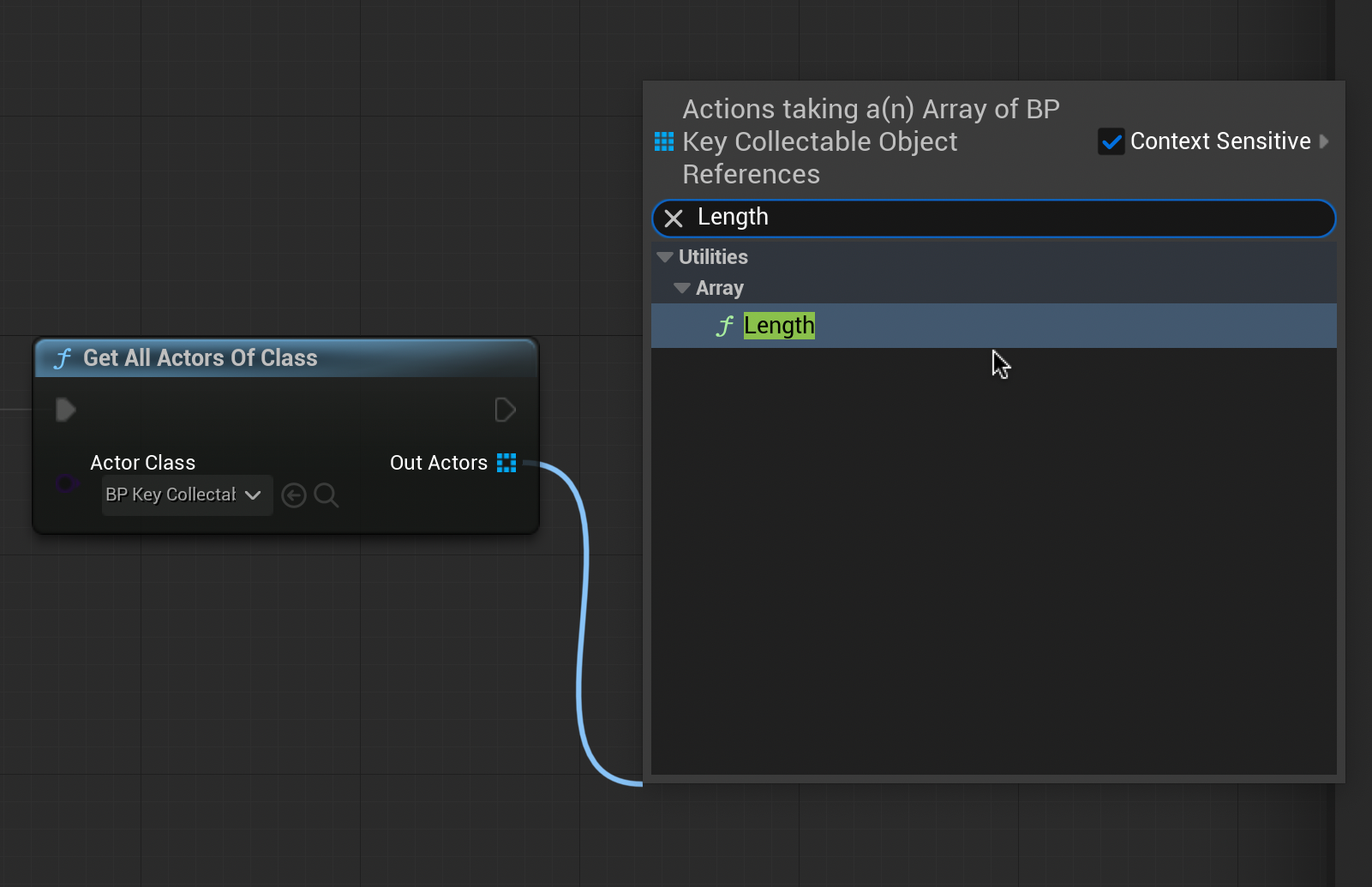
    From the new node, drag and release from “Out Actions”. Type and select “Length”. This allows us to make the number of keys in the scene into a number we can reference later.

    From the new Length node, drag and release. Select “Promote to Variable”. Name this variable “[Items]Total” in the Details Panel on the right. Connect the Get All Actors Of Class node to the [Items]Total node as shown.

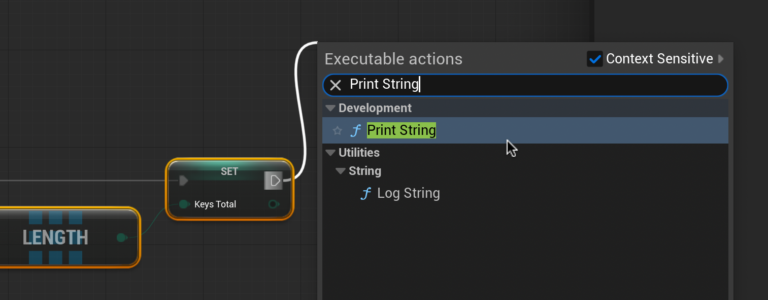
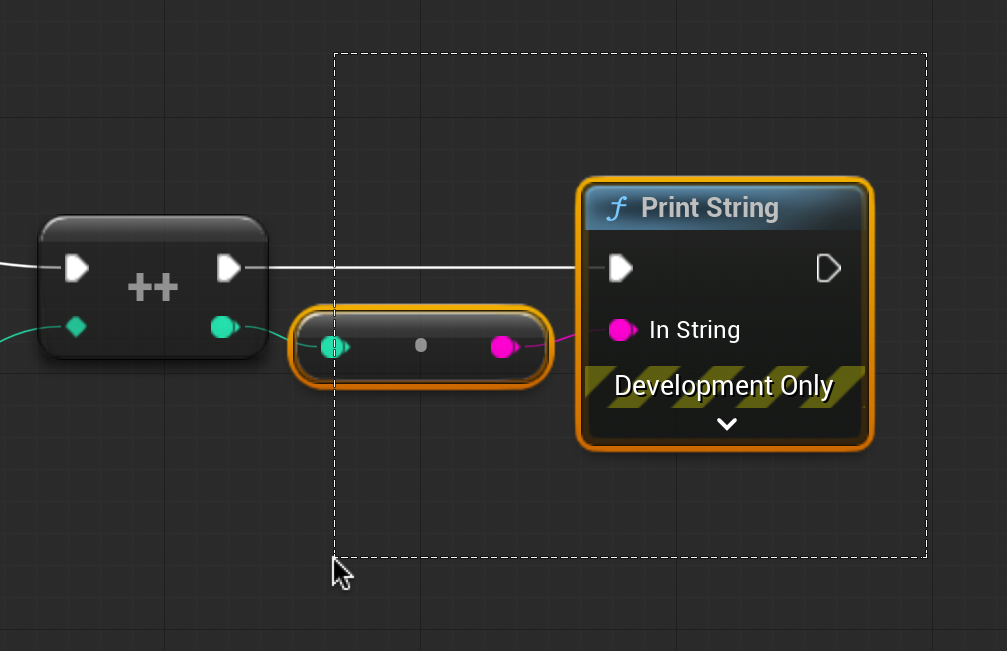
    We can test if we are successfully counting the amount of collectables by dragging and releasing from the top-right arrow of the Set node.

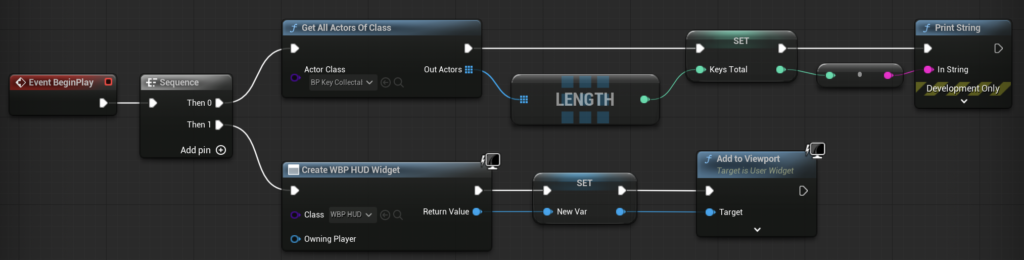
    Type and select “Print String” and connect the mint green and magenta open connections. The Event Graph should look like this.

    Compile and test. If successful the number of collectables in the scene will appear in light blue will appear in the top left corner immediately after pressing play. We can remove the Print String node after testing.

    Head back to the WBP_HUD Event Graph. We will need to add additional nodes to display not only the items collected, but also the amount of collectables total.

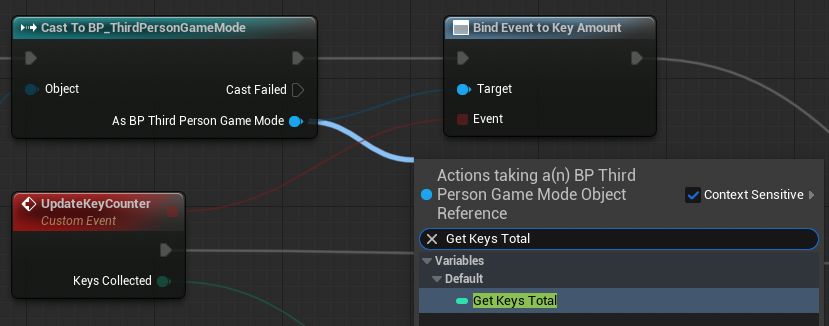
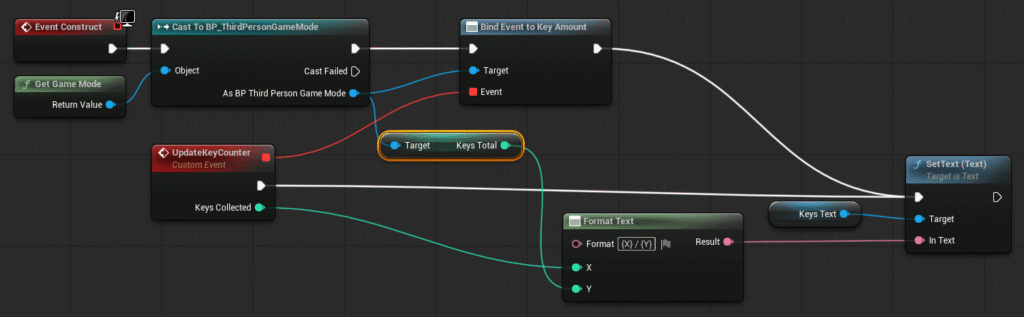
    From the blue “As BP Third Person Game Mode” pin of the Cast node, drag and release to select “Get Keys Total”.

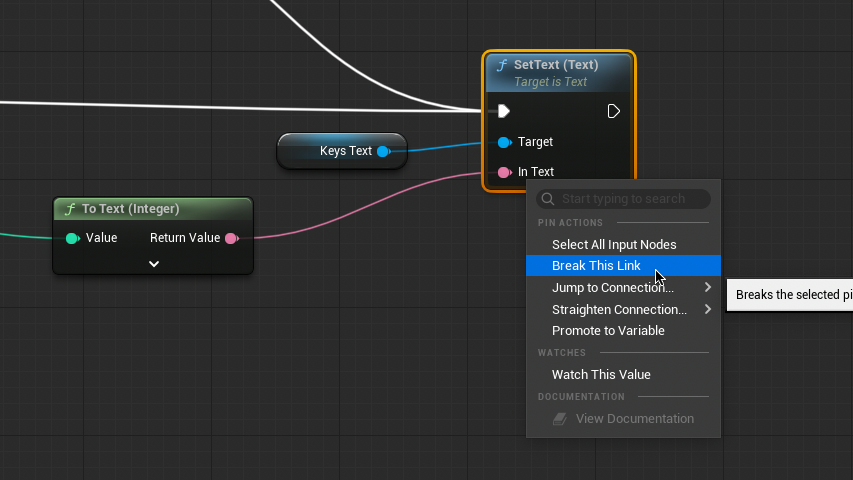
    Right-click the In Text pin of the Set Text node and select “Break This Link”.

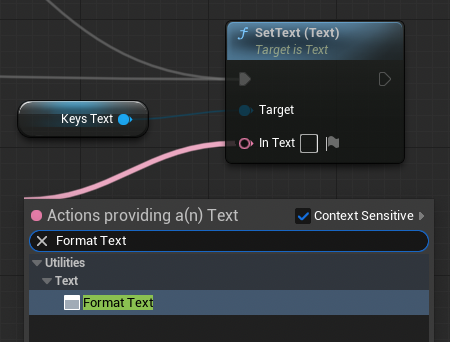
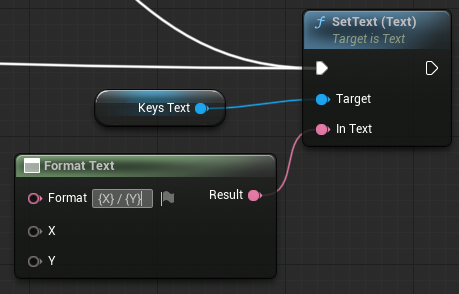
    From the In Text pin drag and release to select “Format Text”.

    In the new node, enter “{X} / {Y}” into the format . This will tell Keys Text how to display multiple data inputs.

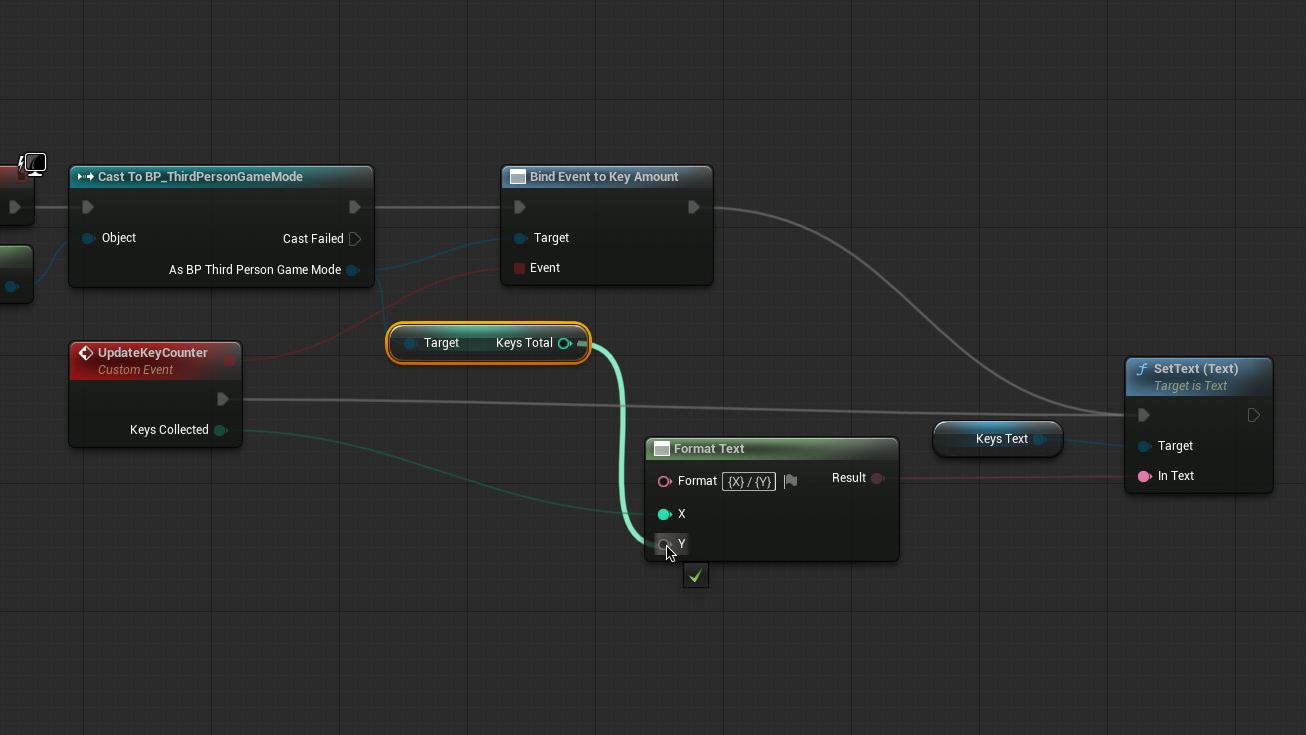
    Connect Keys Collected from the UpdateKeyCounter node to X and Keys Total to Y of the Format Text node.

    Your Event Graph should look like this. Hit Compile and test. Your HUD should now display the both the total amount of collectables in the scene at the start of play and the amount picked up by the player.

    Now we can create our unlockable door.

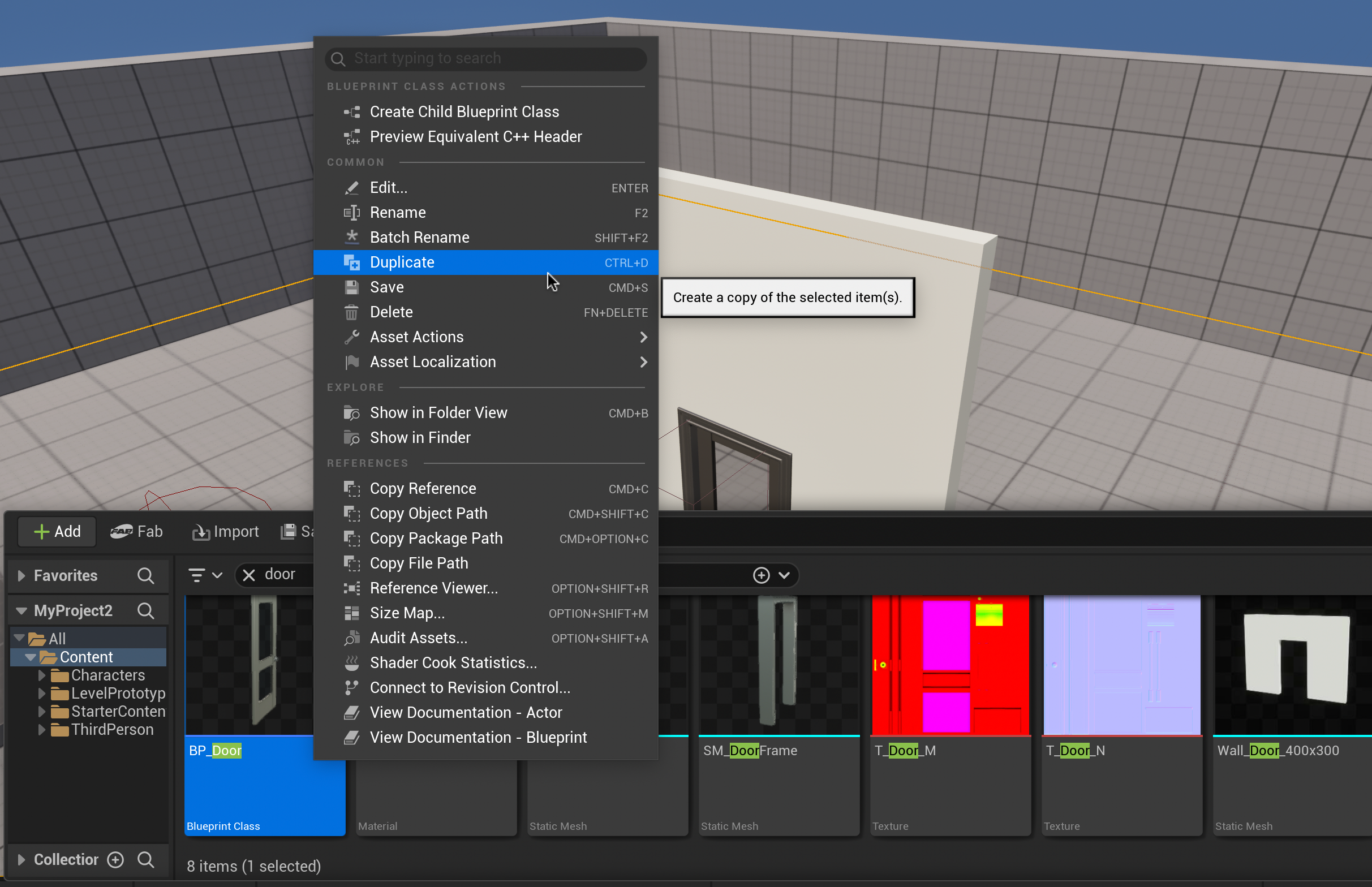
    We are going to use the regular door blueprint we created in the last tutorial as a base for our unlockable door. In the Content Drawer, right click the “BP_Door” and select Duplicate. Rename the duplicated door to “BP_LockedDoor” and double-click to enter the Event Graph.

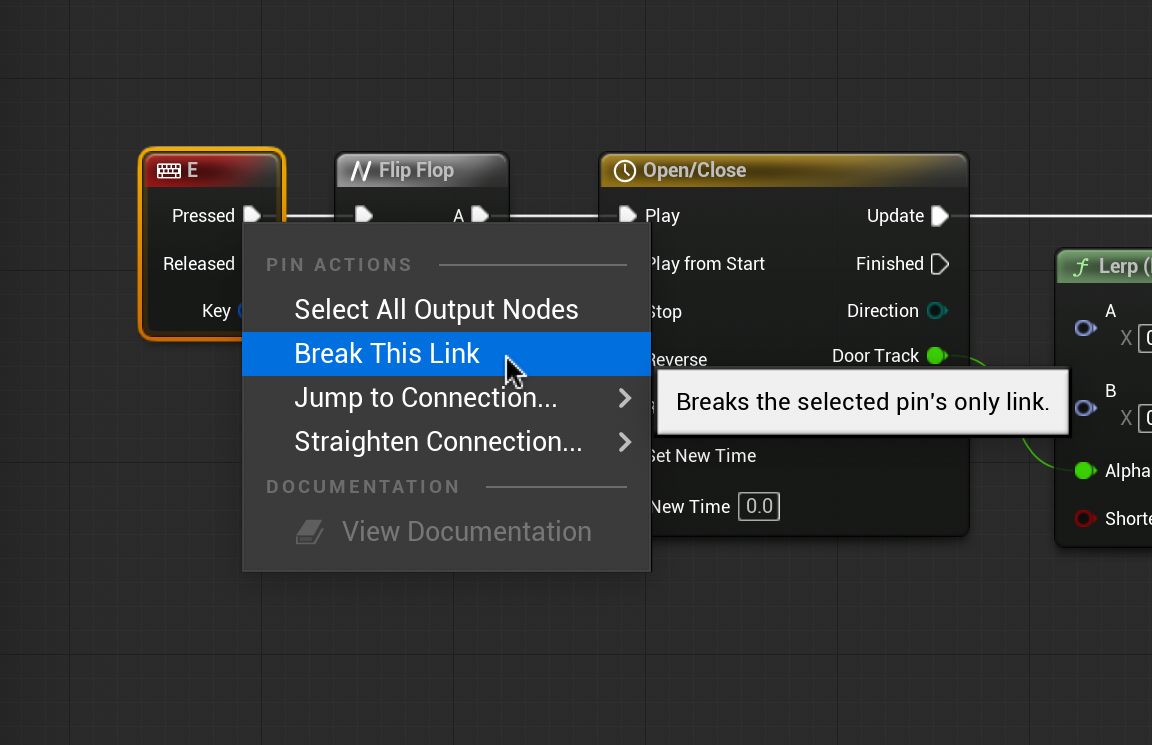
    Right-click the pressed output of the “E” Input node and select “Break This Link”. Drag the separated chain to the side, we will need it later.

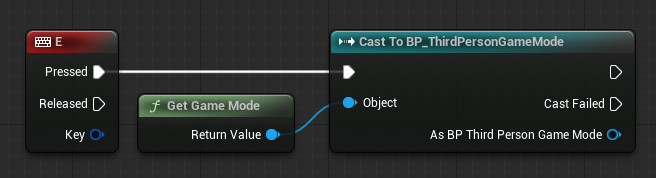
    We need to get information about the items Collected and items Total from different blueprints. Drag from the “Pressed” output and release. Cast to “BP_ThirdPersonGameMode” and add Get Game Mode to the Objects input. The Event Graph should look like the image above.
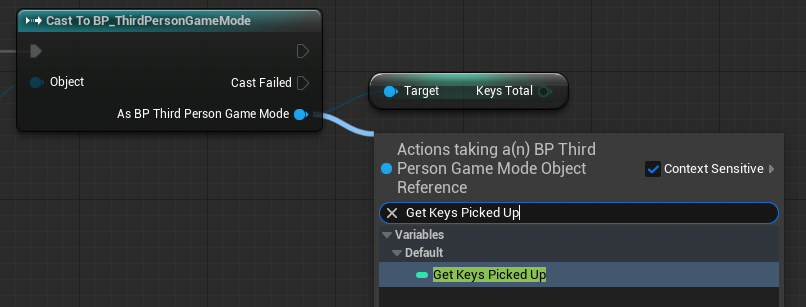
    From the blue, bottom-right arrow of the new Cast node, drag and release. Type and select “Get [Items] Total” and “Get [Items] Picked Up”.
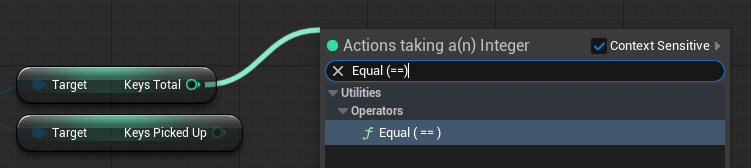
    Drag and release from either new node. Type and select “Equal (==)” and connect the other node. This will activate the chain when the total items and items collected are the same amount.

    Create a branch node by holding “b” and left-clicking a blank area of the Event Graph. Connect to the Equals node output to the Condition pin of the Branch node, and the Cast to BP_ThirdPersonGameMode node to the Branch node as shown above. We can now reconnect our door opening chain to the “True” output of the new node.

    Your Event Graph should look like this. Compile and test. The locked door should only open when all keys have been collected.

  • Interacting with Objects

    The first step to creating a lockable door is to create a regular unlocked door. In this lesson, we will make a door that we can open and close with a key press.

    First, we need to prepare our door. Search the Content Drawer for “SM_Door” (we can change the door’s static mesh later) and double click to open the the Static Mesh editor.

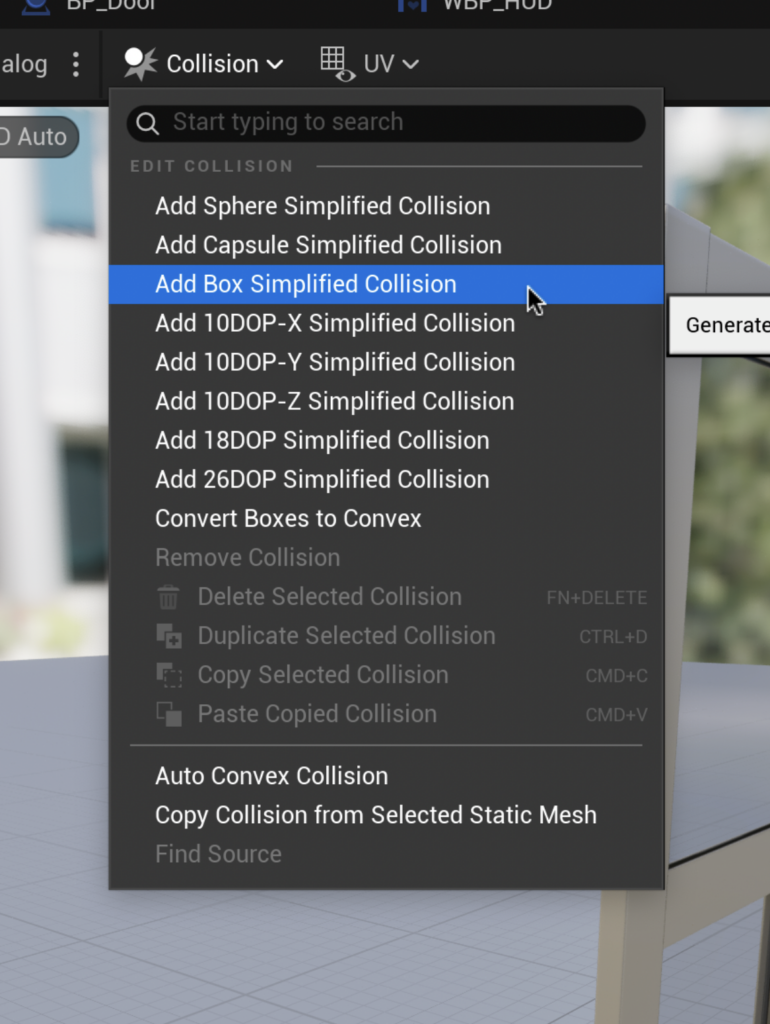
    Click Collision > Add Box Simplified Collision. This creates a simple cube around the door preventing the player character from walking through.

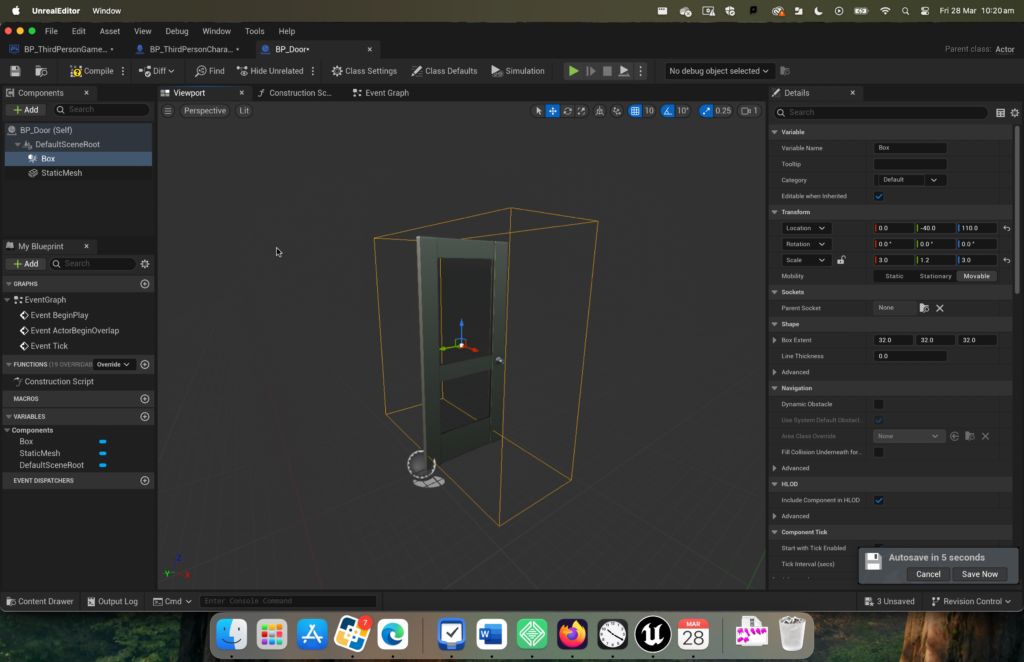
    Return to the Content Drawer, create a new blueprint called “BP_Door” and set it to Actor. In the components menu on the left add a Static Mesh and Box Collision. Set the static mesh to SM_Door and scale the box collision to surround the space in front and behind it. Open up the Graph Editor.

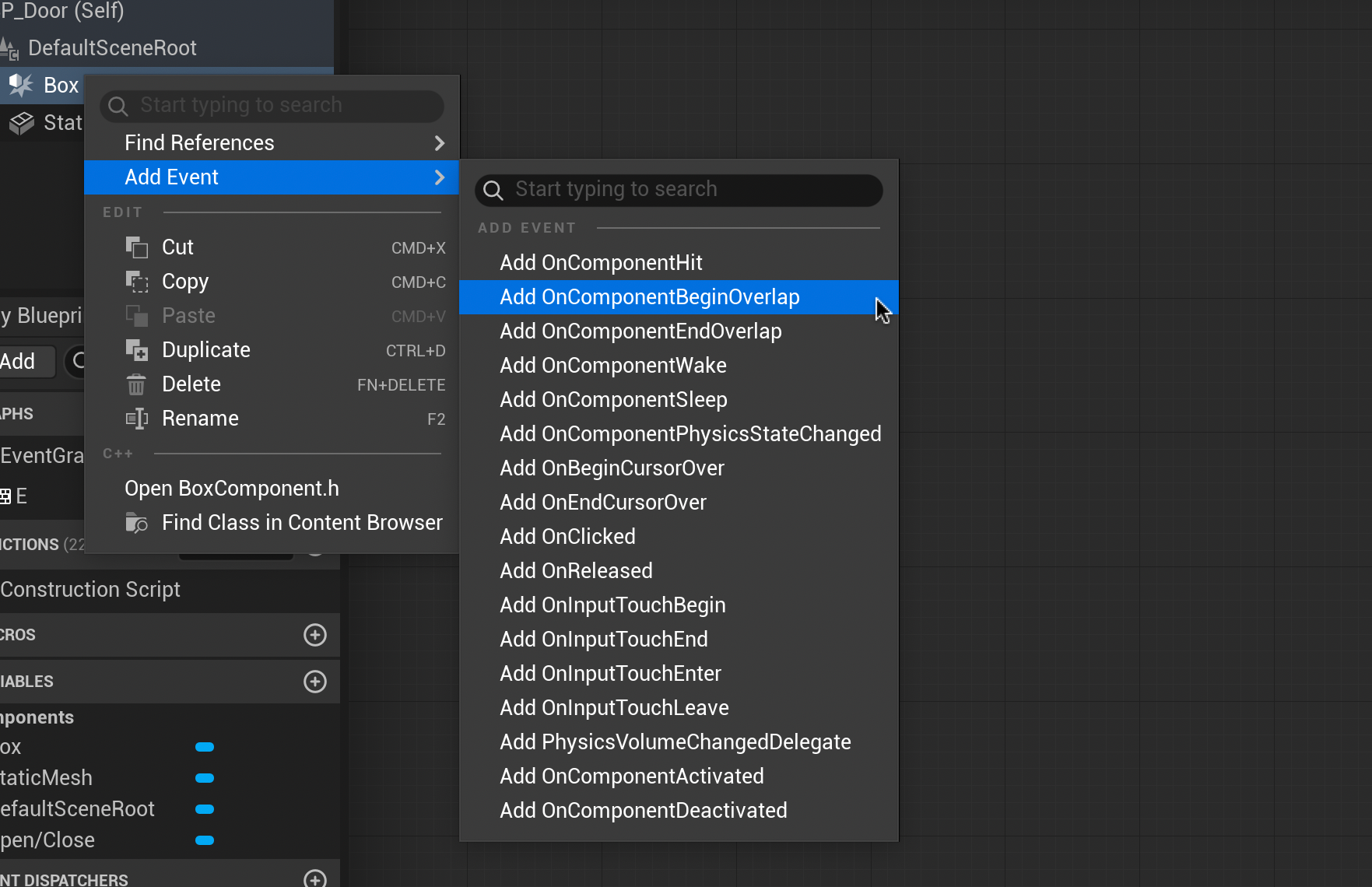
    In the Components panel on the left, right click your Box Collision and add two events – OnComponentBeginOverLap and OnComponentEndOverlap.

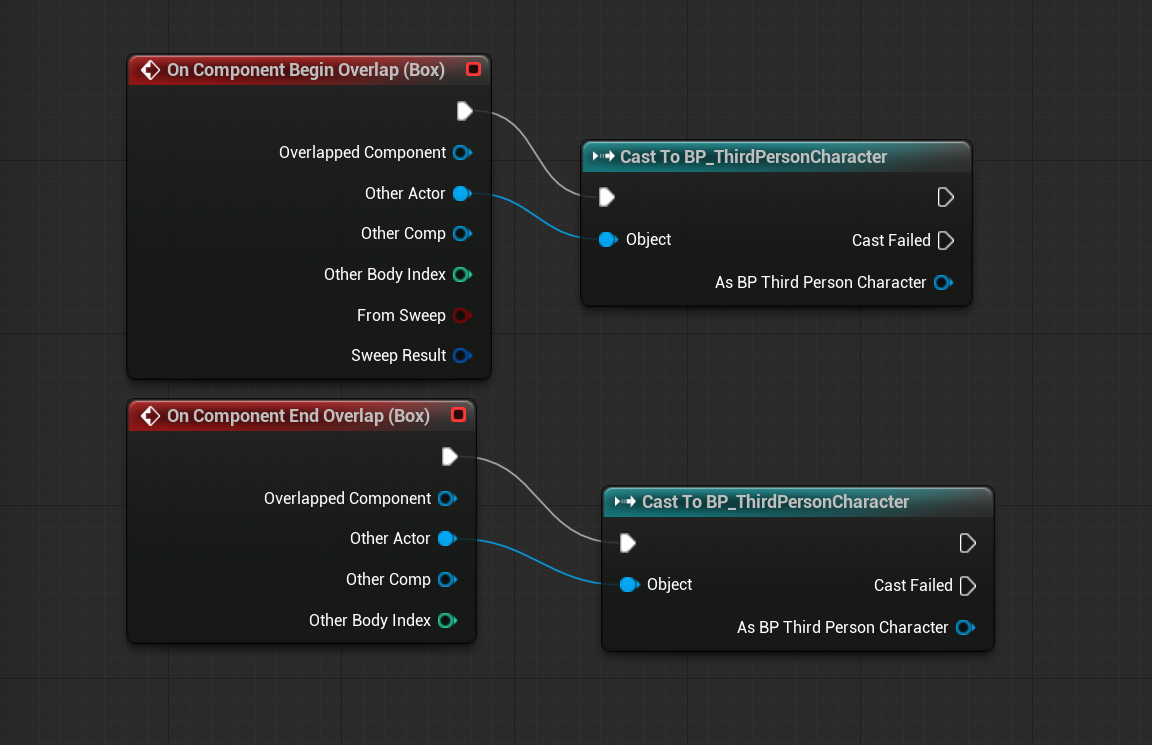
    For both of these new event nodes drag and release from the top-right white arrow, type and select “Cast to BP_ThirdPersonCharacter”

    Now we need to enable player control of the door when they are inside the collision box.

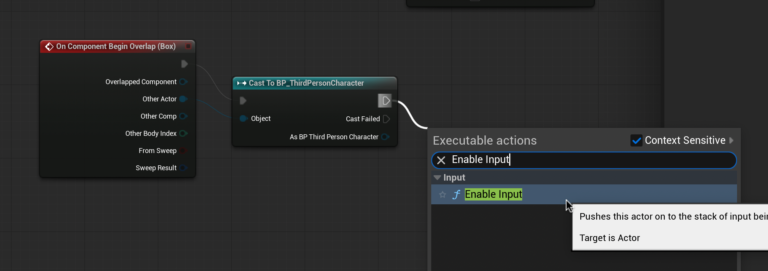
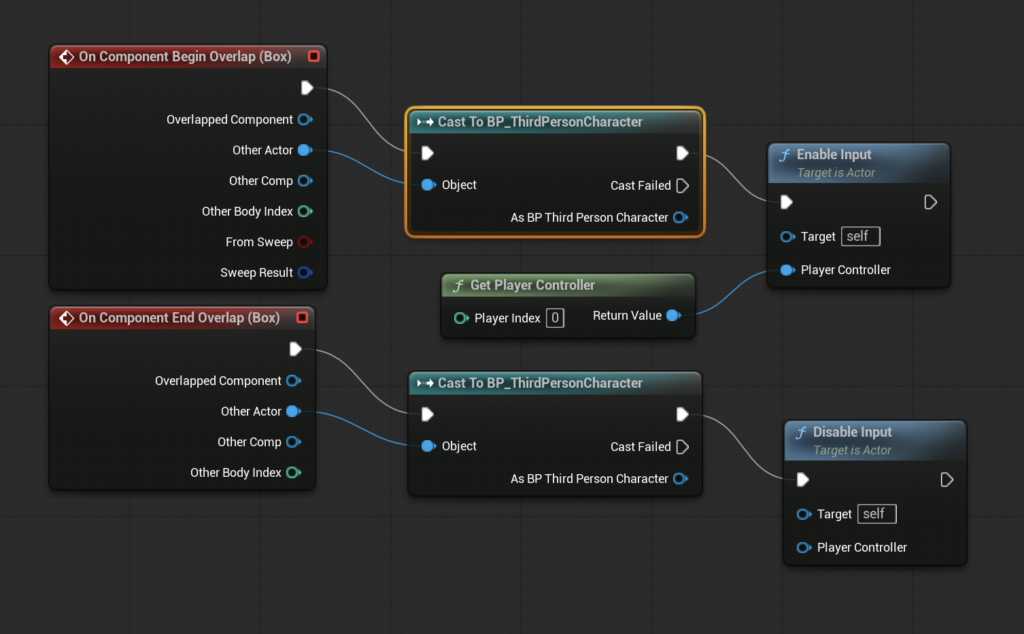
    On the OnComponentBeginOverlap node Drag and release from the top right white arrow of the Cast to BP_ThirdPersonCharacter node. Type and select “Enable Input”.

    Do the same for OnComponentEndOverlap, except this time, type and select “Disable Input”.

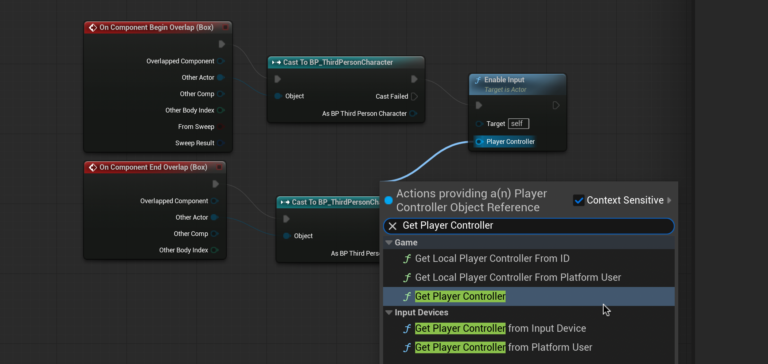
    From the Player Controller arrow of the Enable Input node, drag and release. Type and select “Get Player Controller”.

    Click compile. Your Event Graph should look like this.

    Now that we have enabled player controller input, we now need to tell the door what to do when it receives a command.

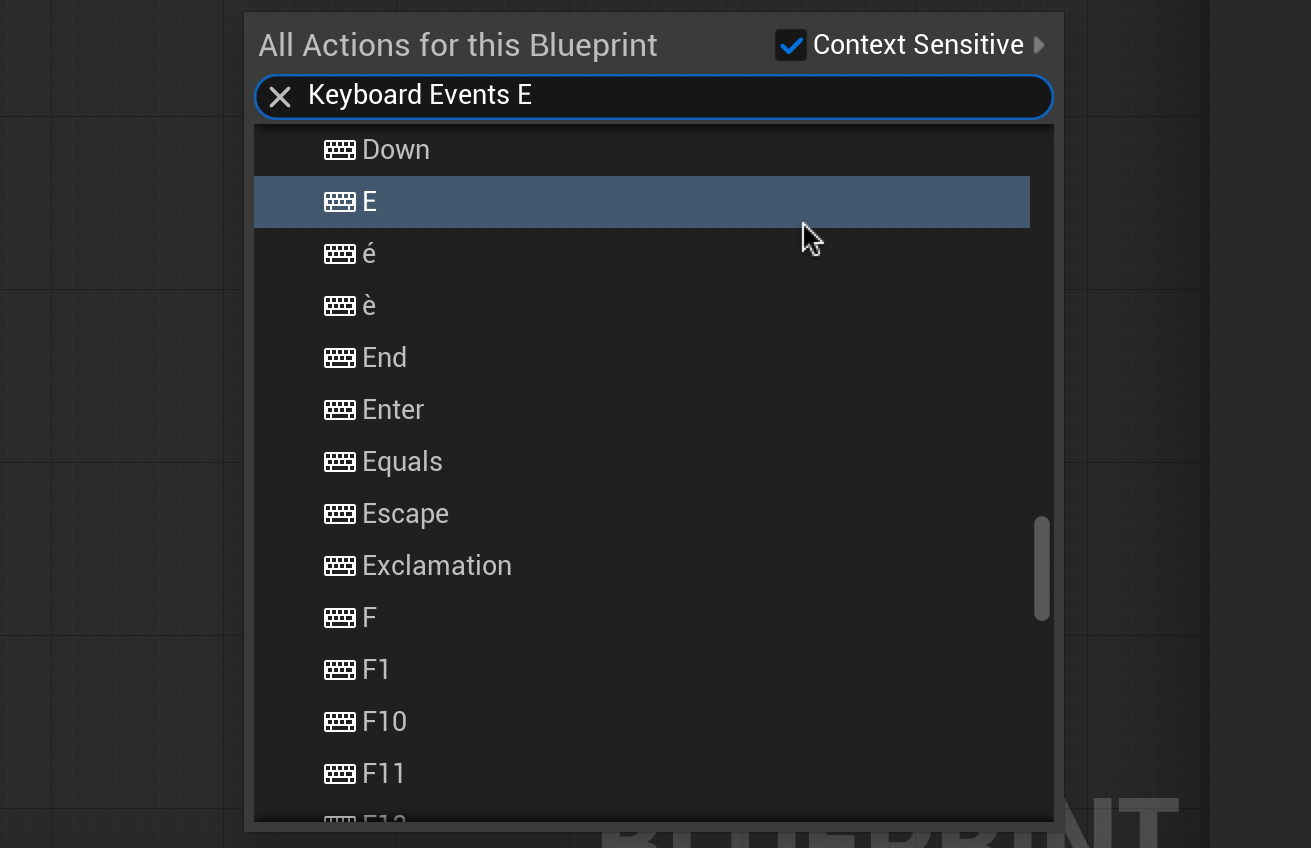
    Right-click a new blank area of the BP_Door Event Graph, Type and select “Keyboard Events E”.

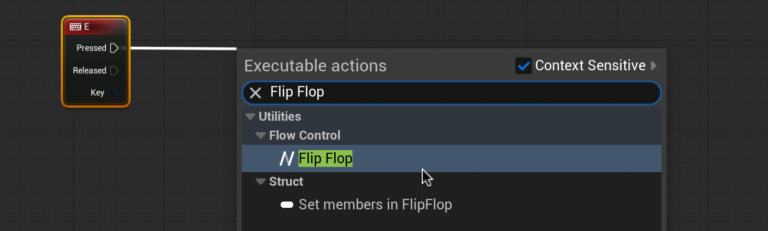
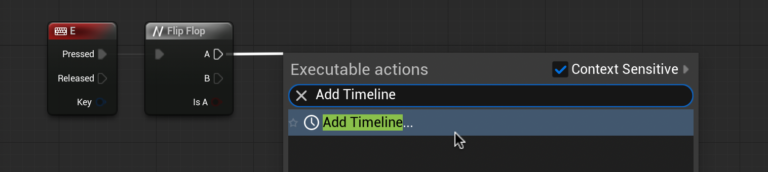
    Drag and release from the “Pressed” arrow of the new node. Type and select “Flip Flop”.

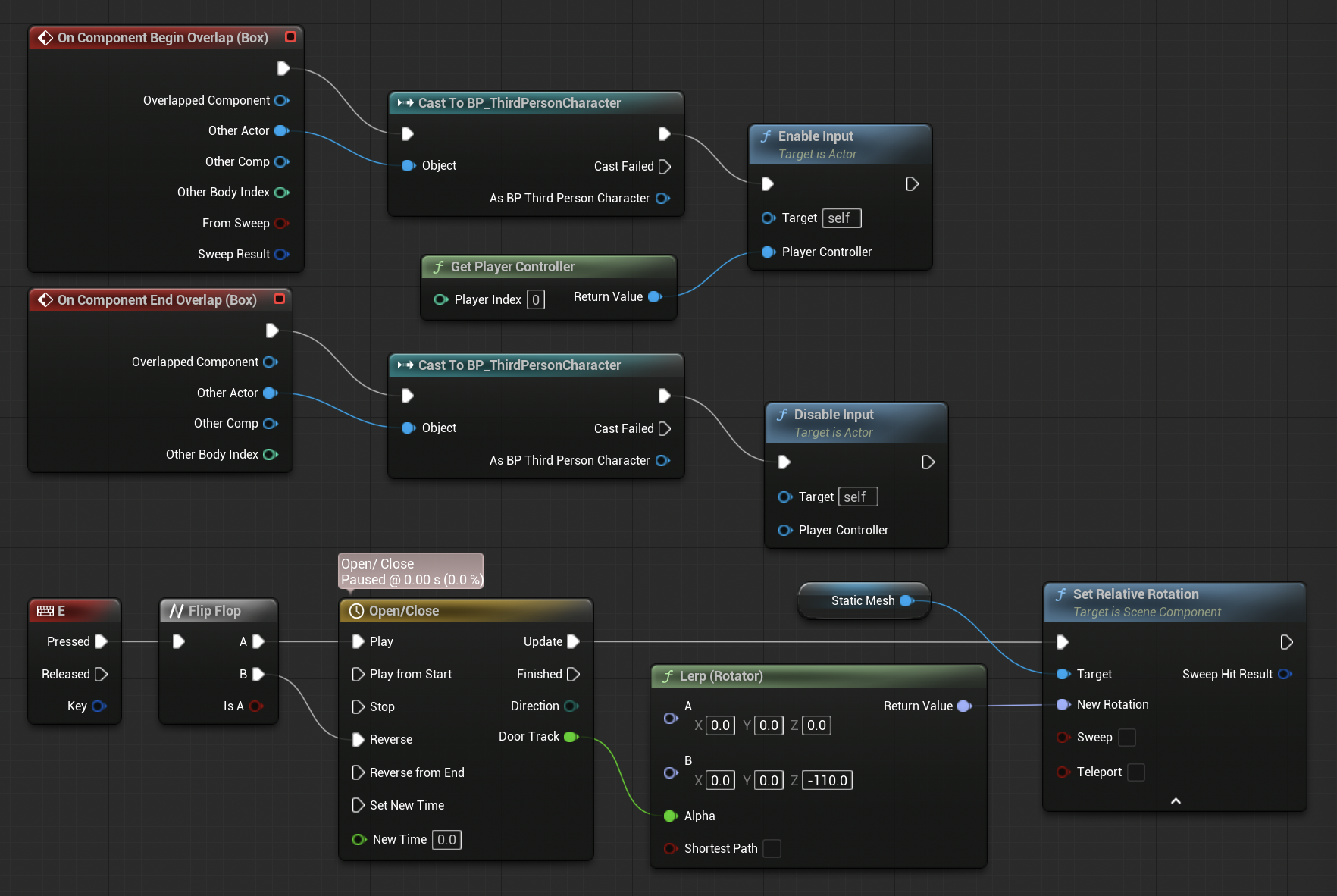
    A Flip Flop node allows us to switch between two different states. Drag and release from the “A” arrow. Type and select “Add Timeline”. Connect the “B” arrow of the Flip Flop node to “reverse” in the timeline node. This makes B do the opposite of what A does (A will be opening the door, therefore B will close the door).

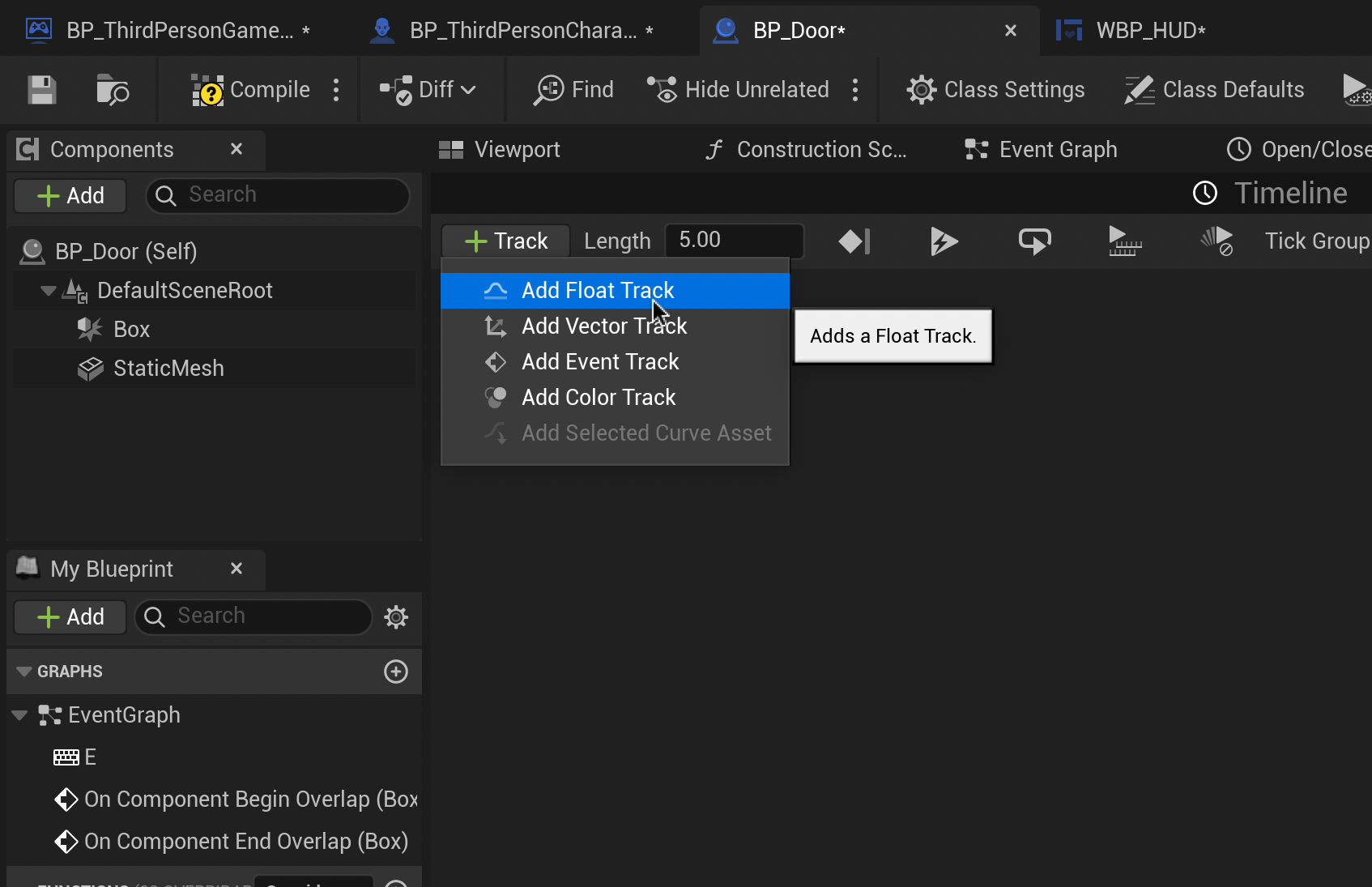
    We now need to set the timing for our door to swing open. Double-click the Timeline node to enter it. Click “+ Track” to add a new Float Track.

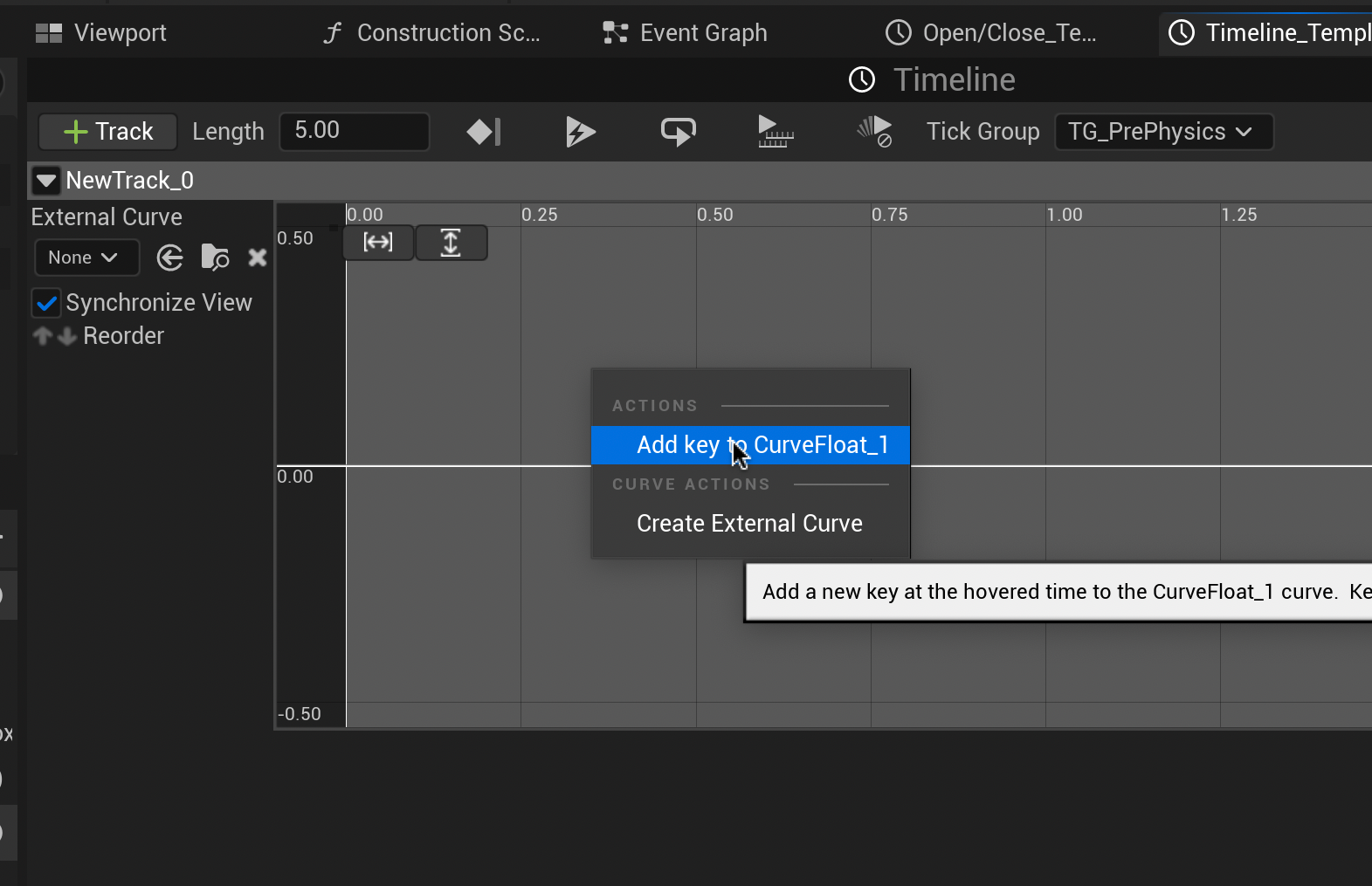
    Right click the new track and select “Add key to Curve Float” twice.

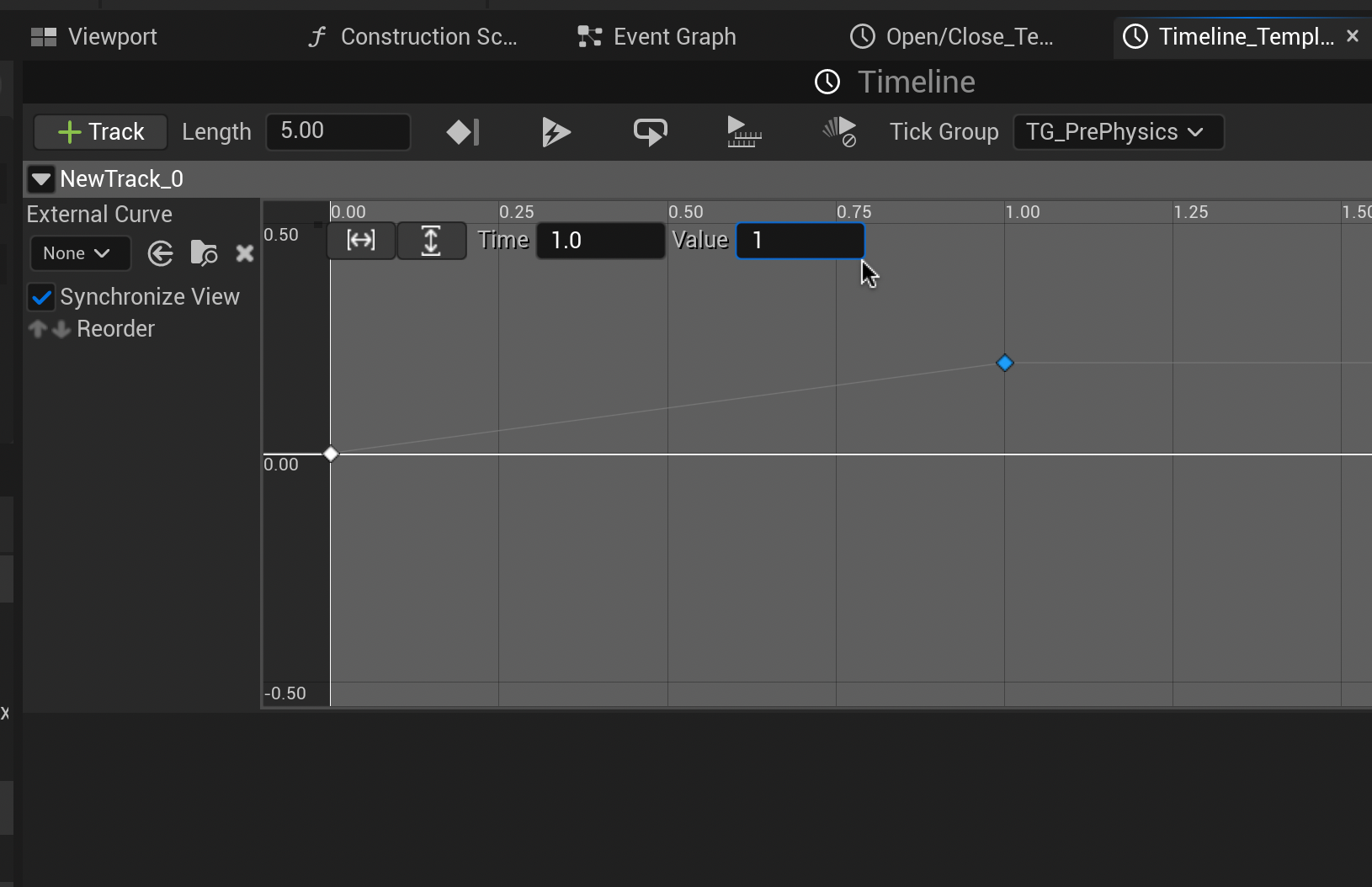
    Select each key to change their Time and Value. Set the first key to a Time and Value to “0”. Set the second key’s Time and Value to “1”. Return to the Event Graph.

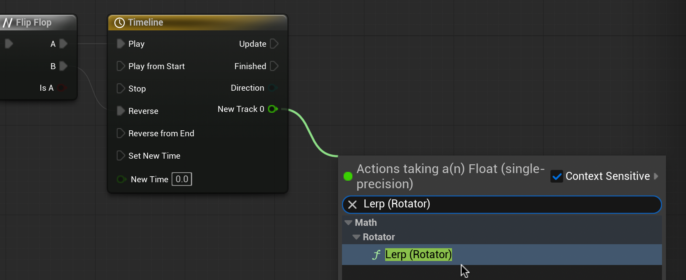
    From the Timeline node, drag and release. Type and select “Lerp (Rotator)”.

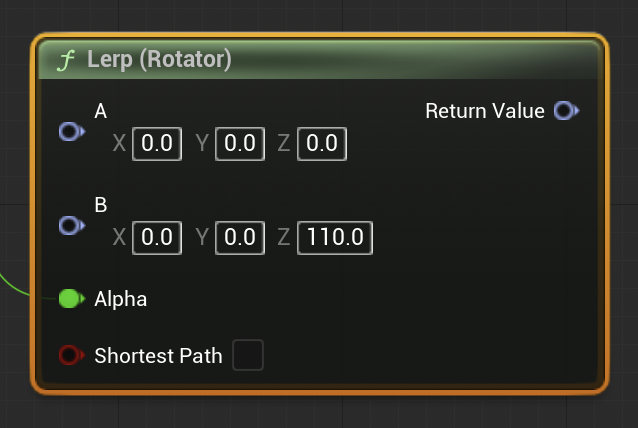
    The Lerp Rotator node allows us to set the two rotation states our timeline will switch between. For now, let’s set the “B” state Z value to 110. We can fine-tune how much our door opens later.

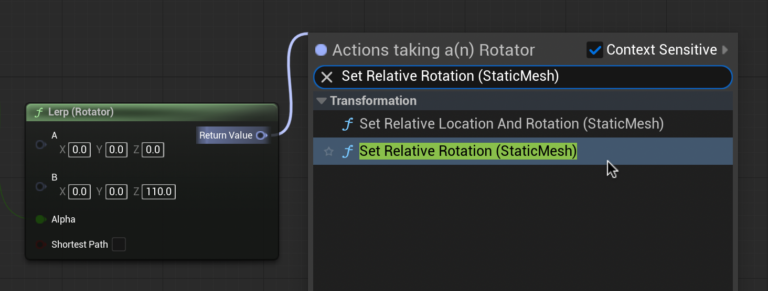
    Now we need to tell the door what to rotate. Drag and release the return value, type and select “Set Relative Rotation (StaticMesh)”.

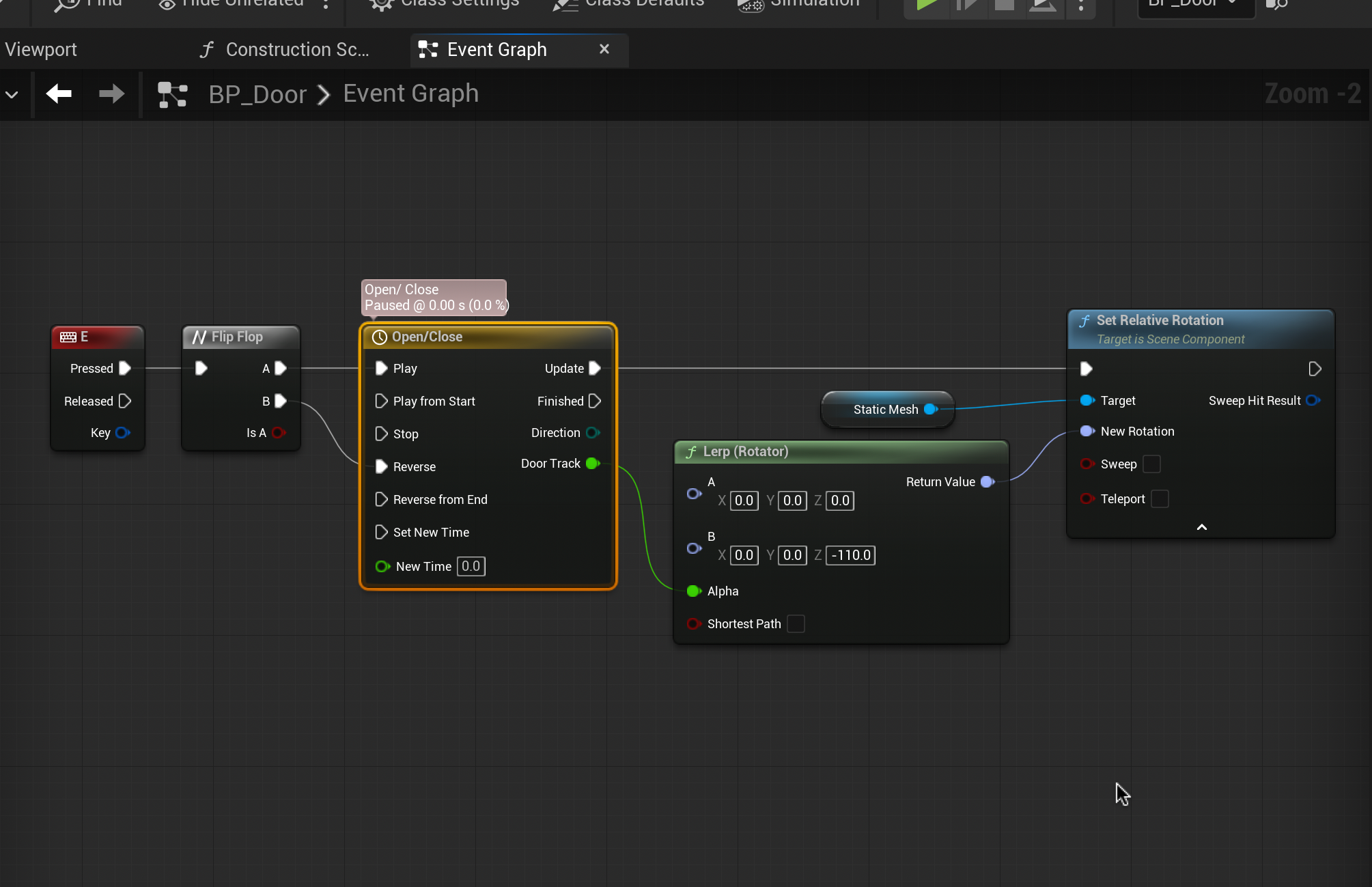
    Finally, connect the Update arrow of the Timeline node to the top left arrow of the Set Relative Rotation node.

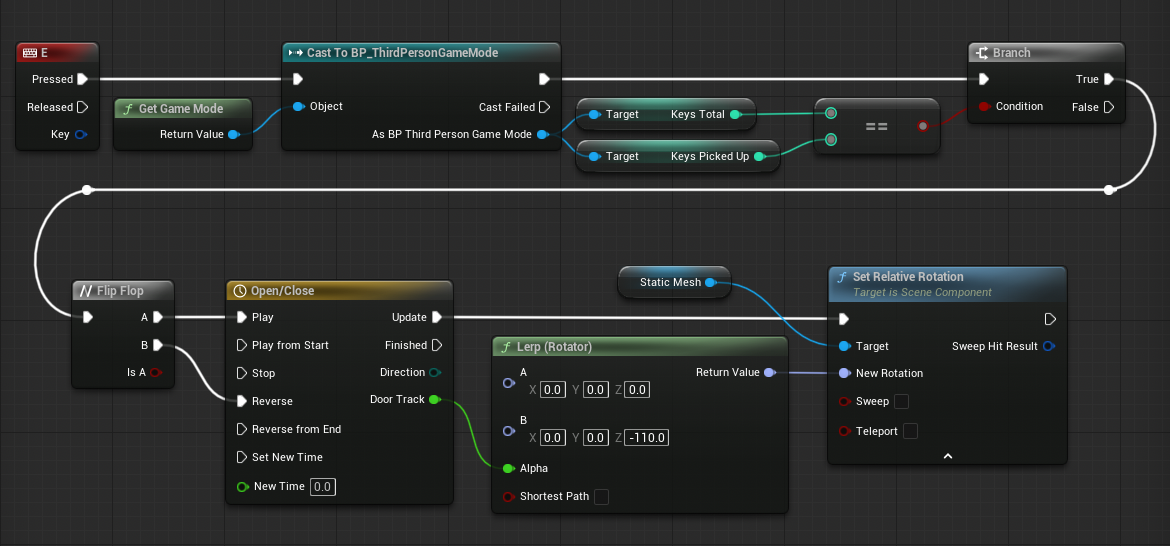
    Your completed Event Graph should look like this.

    Compile and test your door by walking up to it and pressing “E”.

  • Communicating Collectables

    Now that we are able to track our number of collectables picked up we need to visually notify the player how many they have collected in a Heads Up Display (HUD). A HUD is the information we see on the screen about our characters condition, such as health, money, or where they are on a minimap.

    In the Content Drawer, Go to Add > User Interface > Widget Blueprint. Name it “WBP_HUD” and double click to enter the Widget Blueprint.

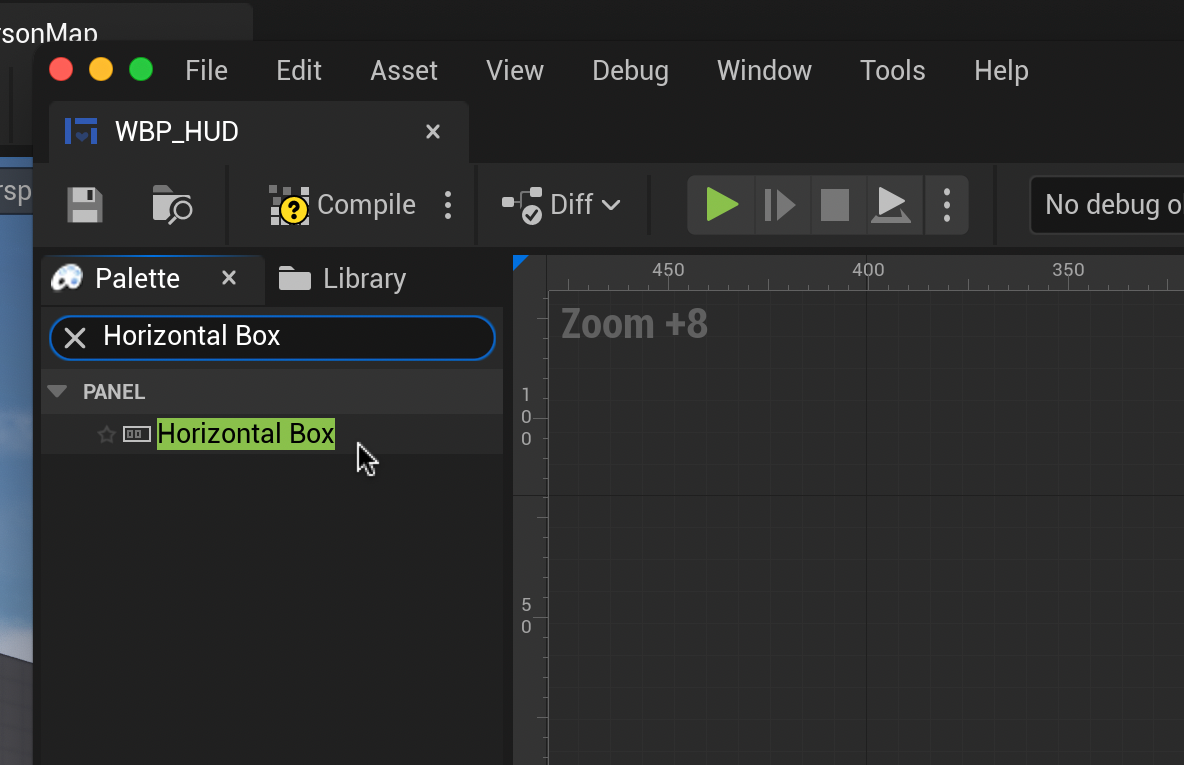
    In the Widget Designer, type “Horizontal Box” in the palette panel on the left and drag into the design window.

    Press the “x” to the left of the search field. Drag an image block and a text block from the Palette panel into the newly created Horizontal Box

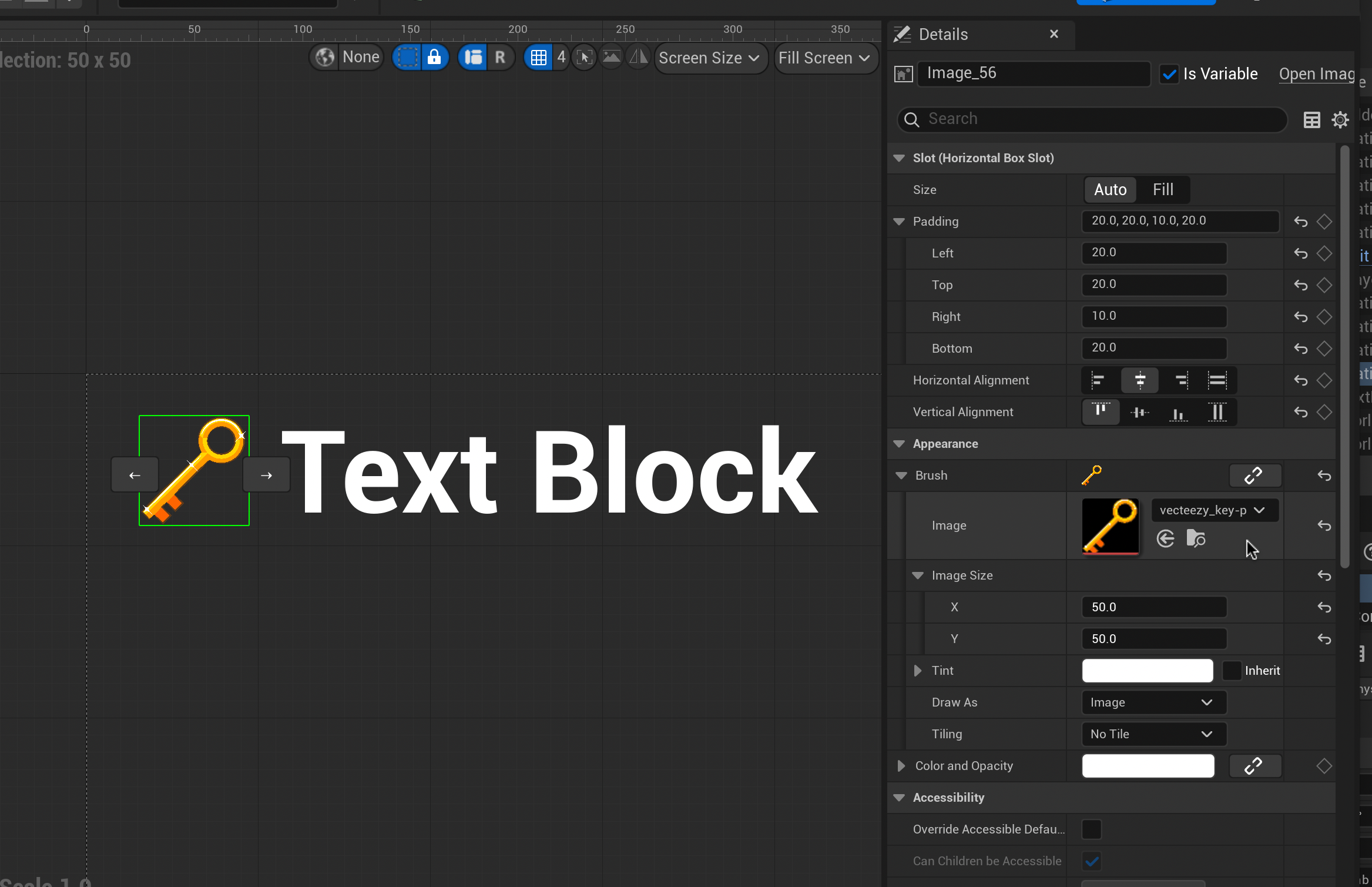
    Select your Image Block. On the right-side in the Details panel use the appearance menu to set the Image Block’s display image under “Brush”. You will need to upload your image to your project first (Content Drawer > Add > Import to /Game…). You can also set the image’s size here by changing it’s X and Y.

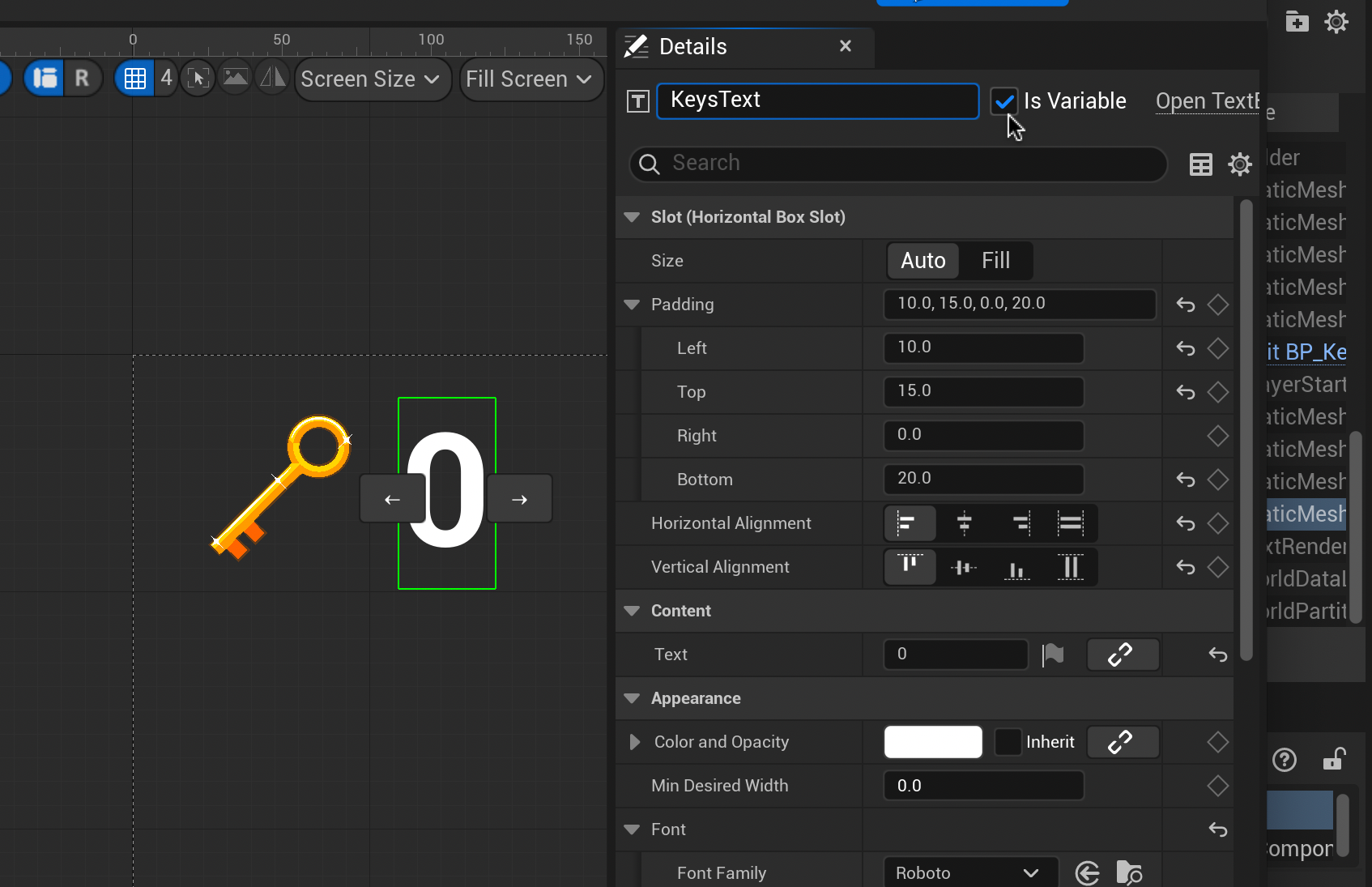
    Once you are happy with your image, set the padding and alignment of your collectable items in the Slot menu above to space your image away from the edge of the screen and textbox.

    Feel free to use my presets displayed above.

    Now, select your Text Block. In the Details panel rename the Text Block to “[Item]Text” and tick “Is Variable”. In the content menu, change your default text to “0”.

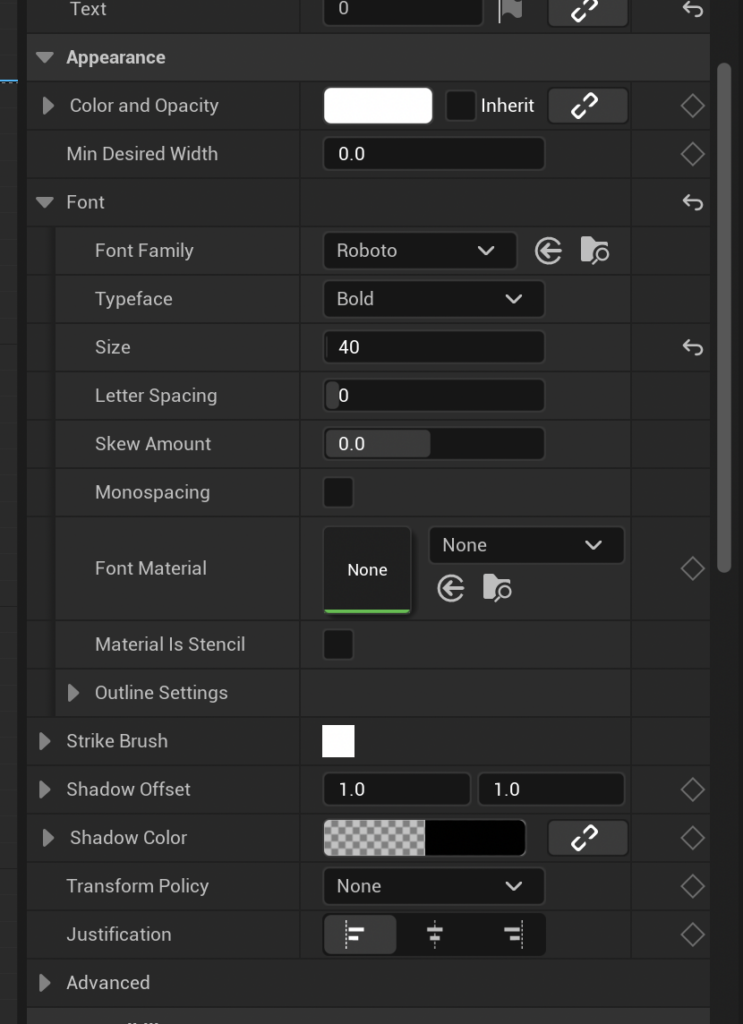
    Scroll down to the Appearance menu to change the text size and font to your preference. When you are happy with your section, set the Text Block’s padding and alignment as you did before with your image.

    We now need to create an Event Dispatcher to communicate with the Widget. In the Content Drawer search for “BP_ThirdPersonGameMode”. Double-click to open the Graph Editor.

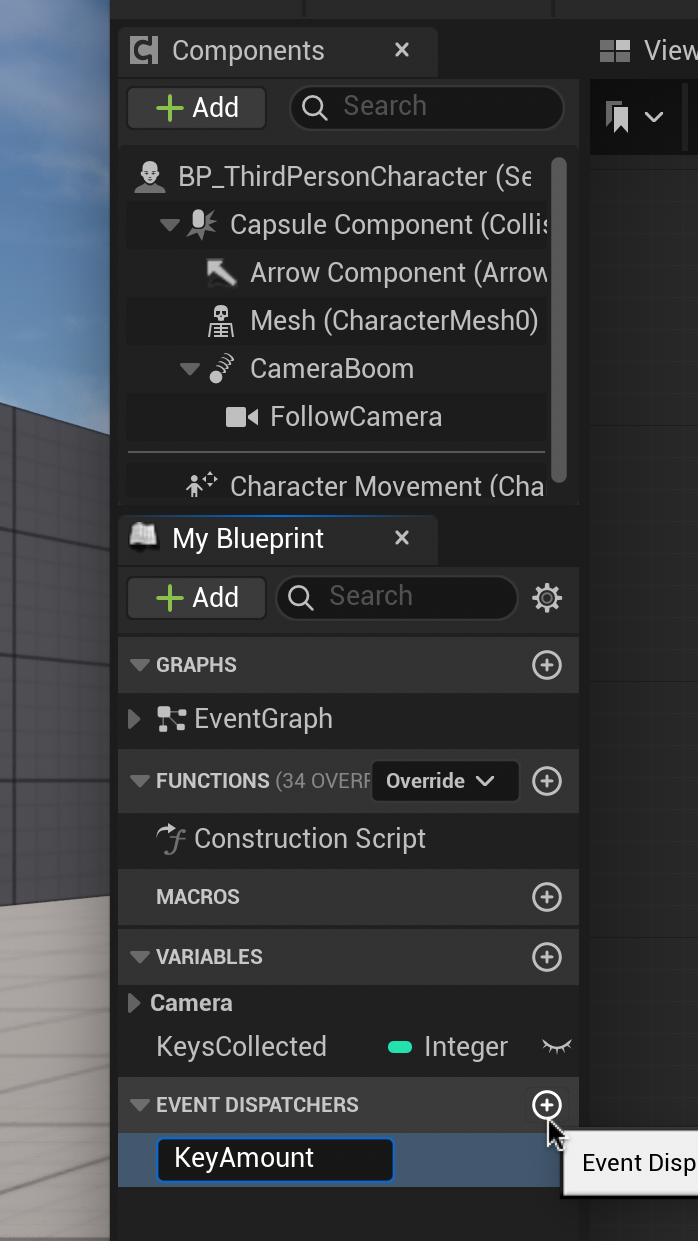
    In the Components panel on the left, add an Event Dispatcher. Name it “[Item]Amount”.

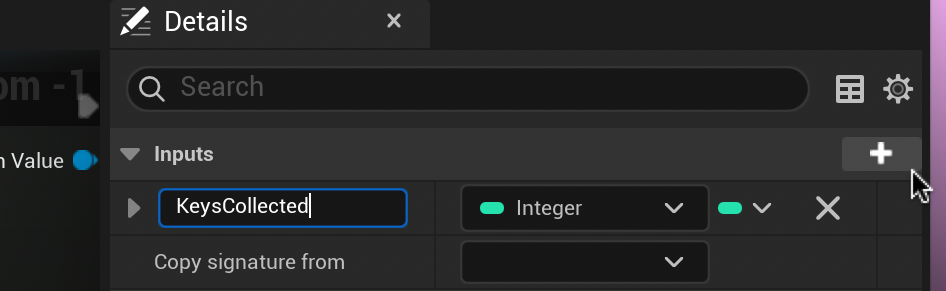
    With our new dispatcher selected, go to the right Details panel and add a new parameter using the plus button. Change the name to “[Items]Collected” and change it into an integer.

    Select and delete the Print String nodes we created before.

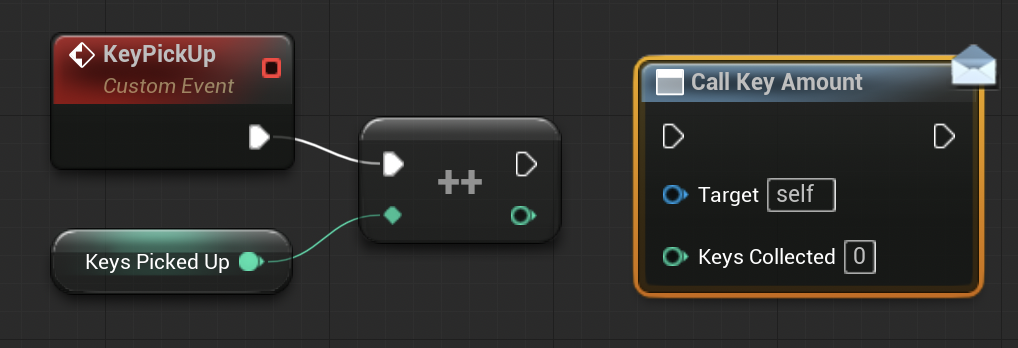
    From the Event Dispatchers panel on the left, drag the [Item]Amount dispatcher into the graph editor and select “Call”.

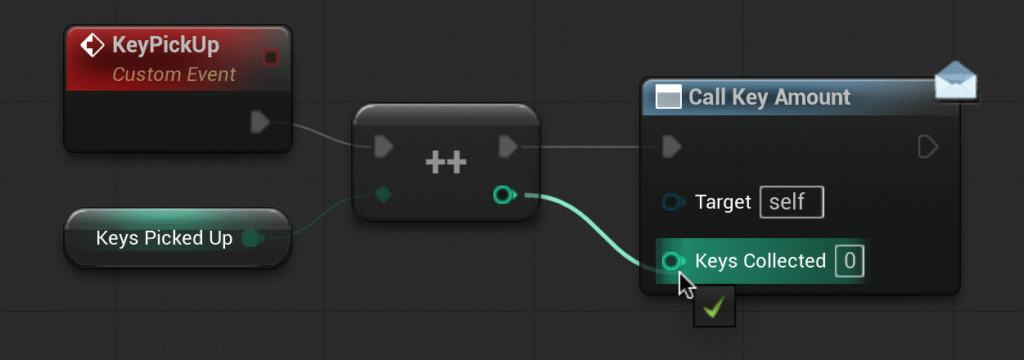
    Connect Call Key Amount to the Incremental Int node as shown (note the dull lines). Click Compile.

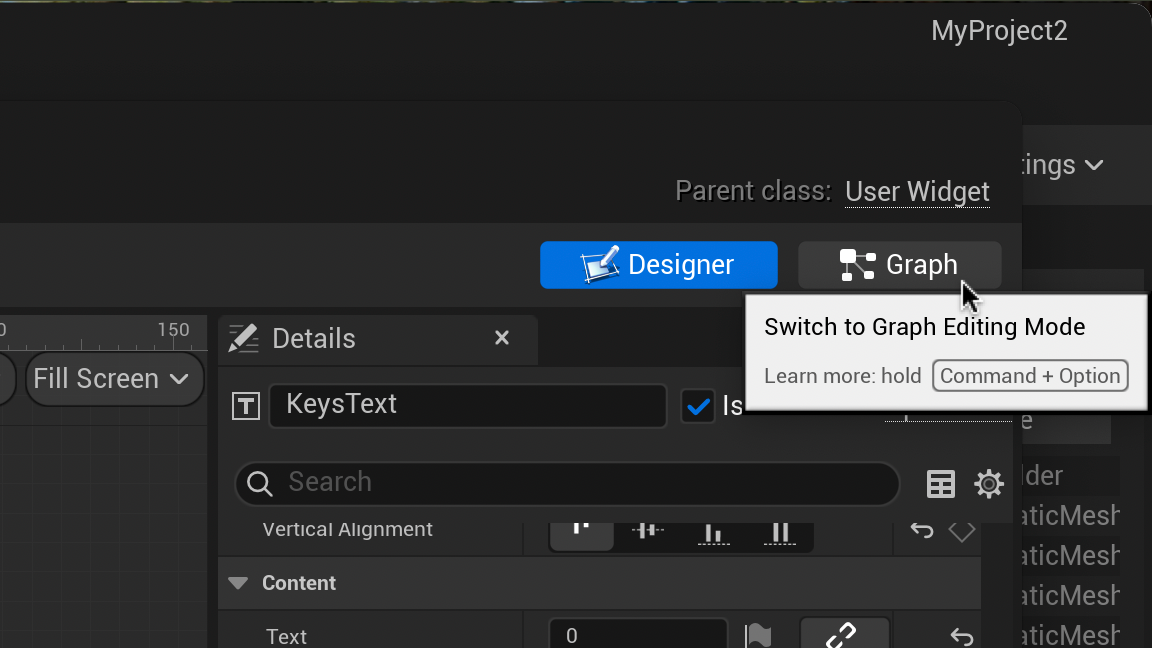
    Let’s return to our Widget Blueprint and head to the Graph tab.

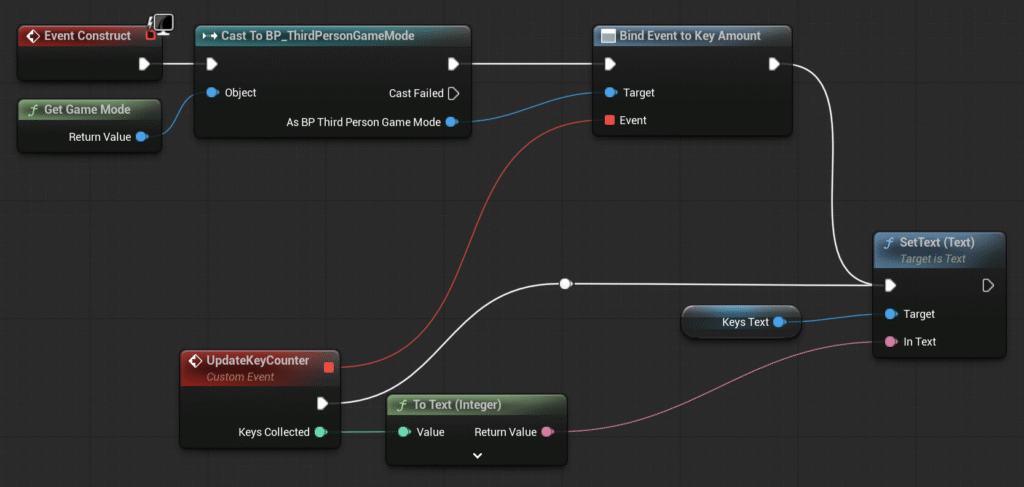
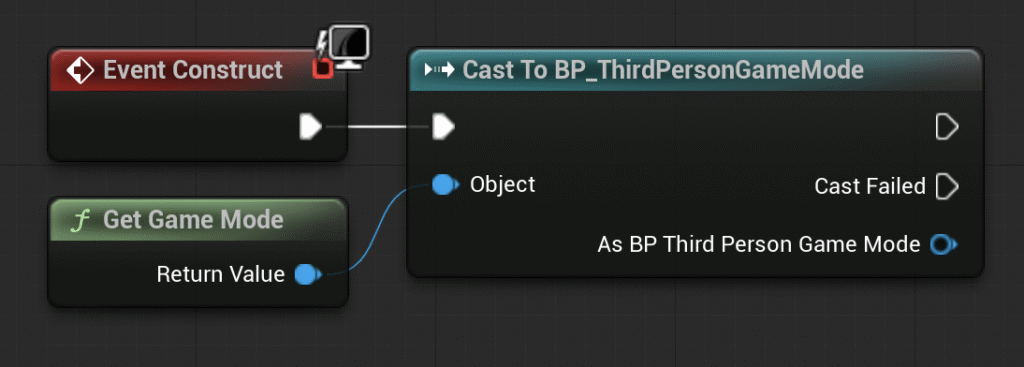
    From Event Construct drag and release to type and select “Cast to BP_ThirdPersonGameMode”. From the Object pin of the new node type and select “Get Game Mode”.

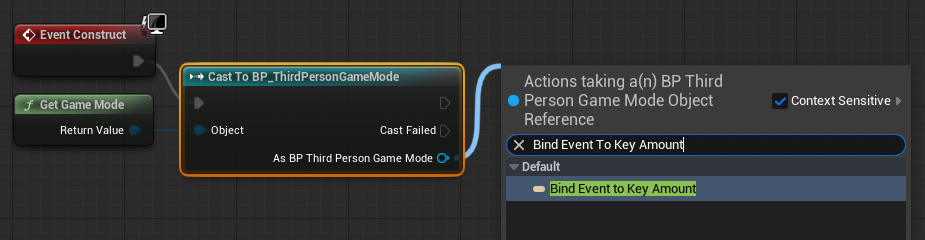
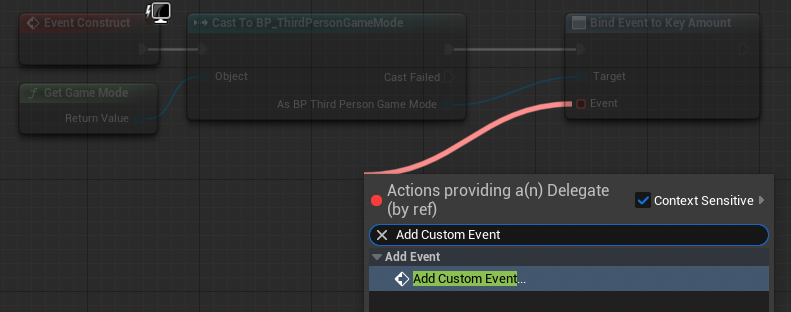
    From the Cast to BP_ThirdPersonGameMode node drag and release the As BP Third Person Game Mode pin. Type and select “Bind Event to [Item] Amount”

    From Bind Event to [Item] Amount drag and release Event. Type and Select “Add Custom Event”. Name this event “Update[Item]Counter”.

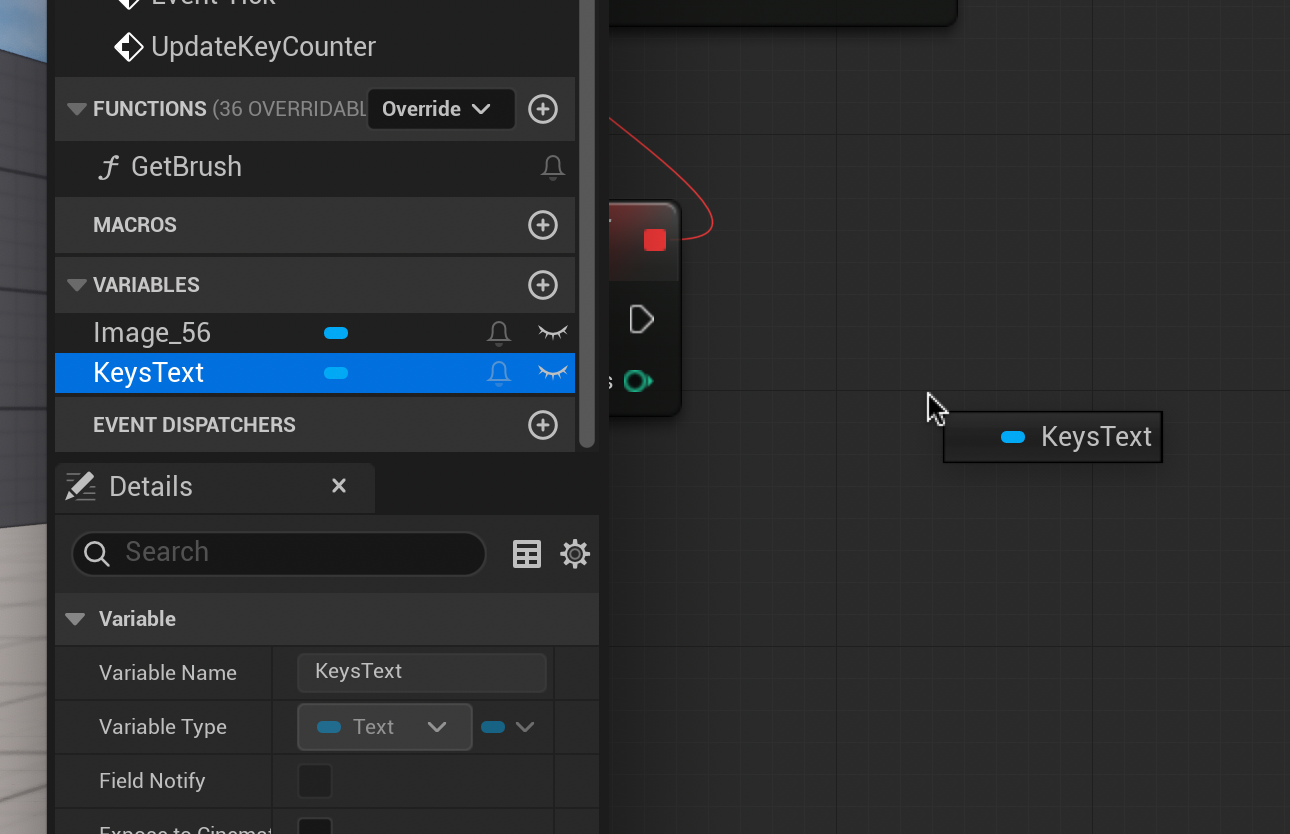
    From the Variables Panel on the left drag out “[Item]Text” and select “Get Keys Text”

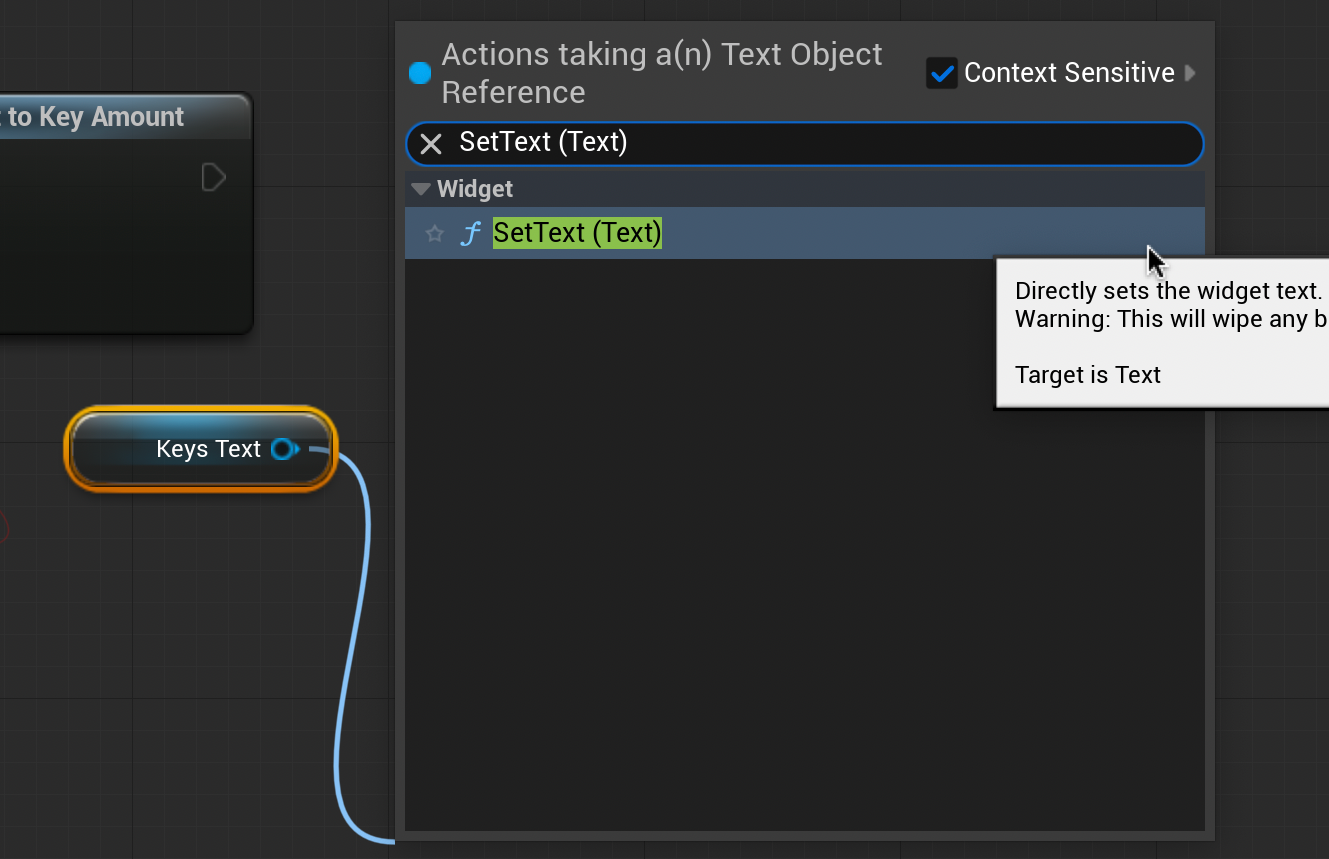
    Drag and release from the [Item] Text node. Type and select “SetText (Text)”.

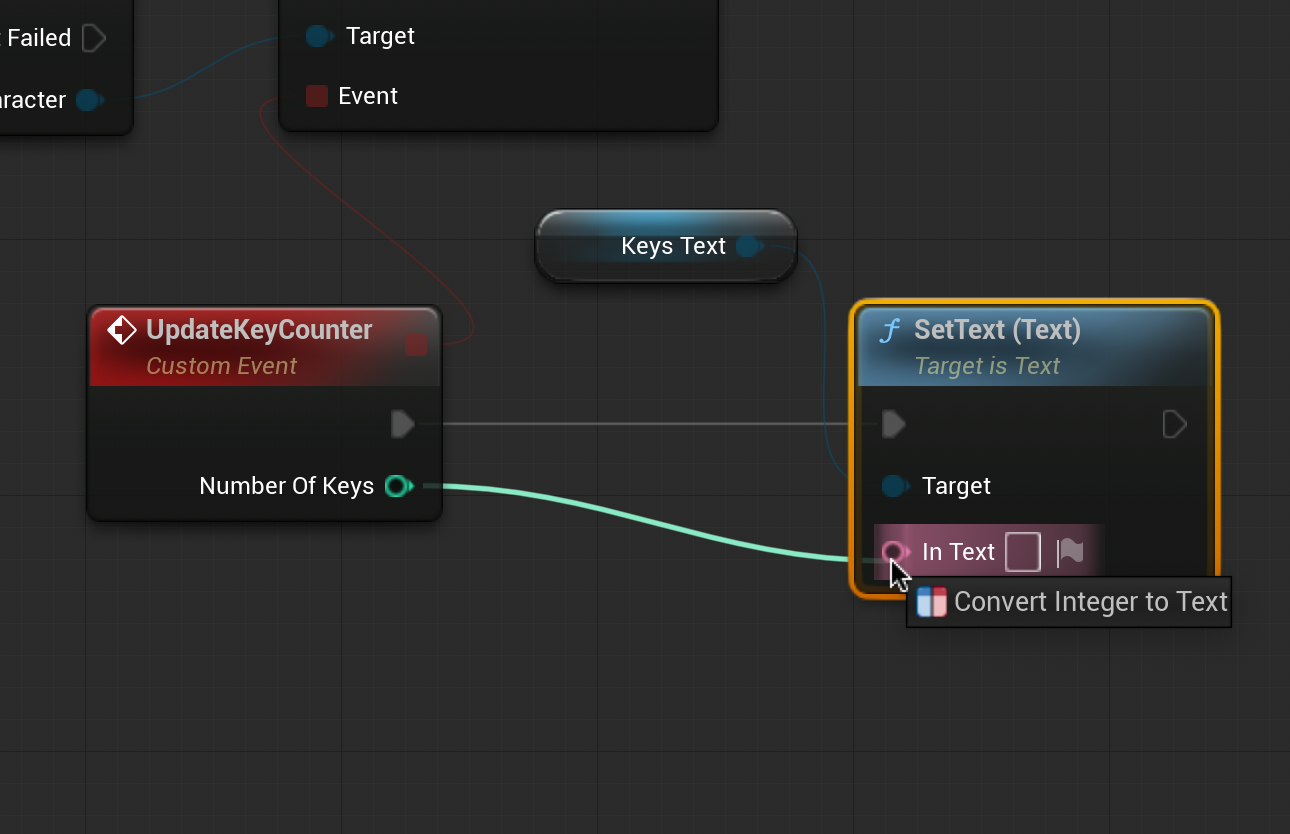
    Connect the SetText node to the Update[Item]Counter as shown (note the dull grey line).

    When completed, the WBP_HUD Event Graph should look like this. Click Compile.

    Finally, we need to connect our HUD to the viewport. From the Content Drawer return to “BP_ThirdPersonGameMode” and double click to open. Click “Open full Blueprint Editor”.

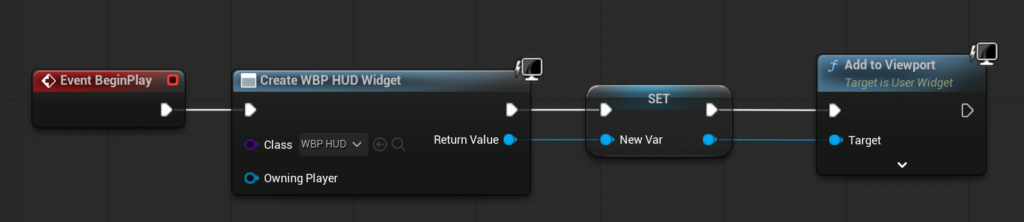
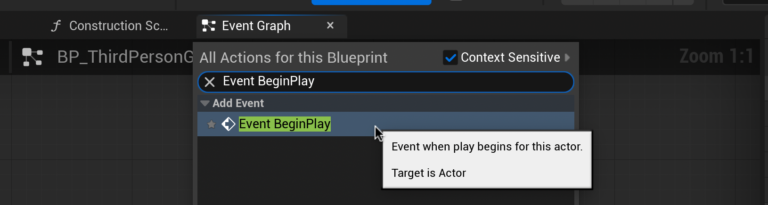
    Right-click a blank area of the Graph Editor. Type and select “Event BeginPlay”. Drag and release from this node, type and select “Create Widget”.

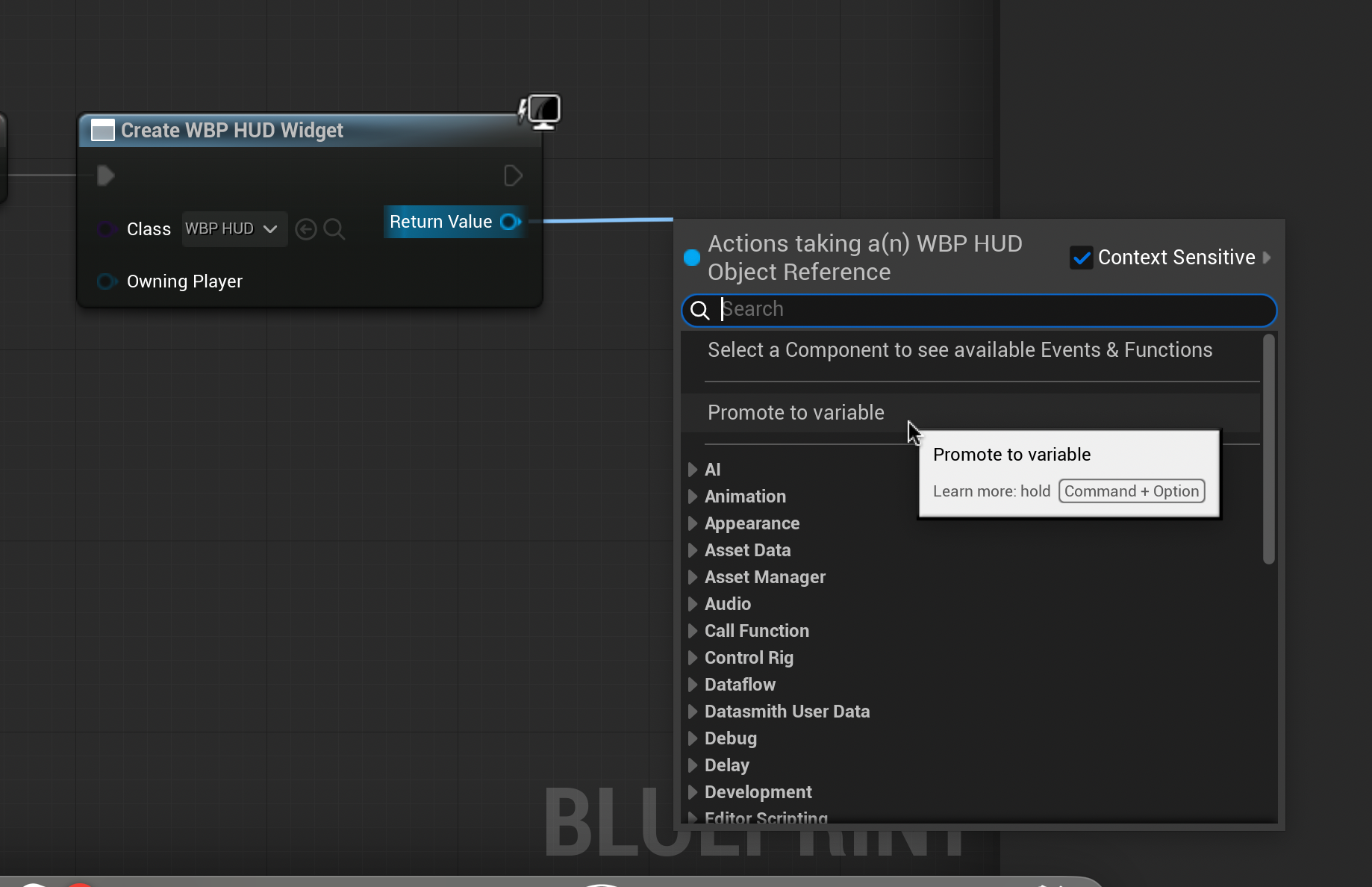
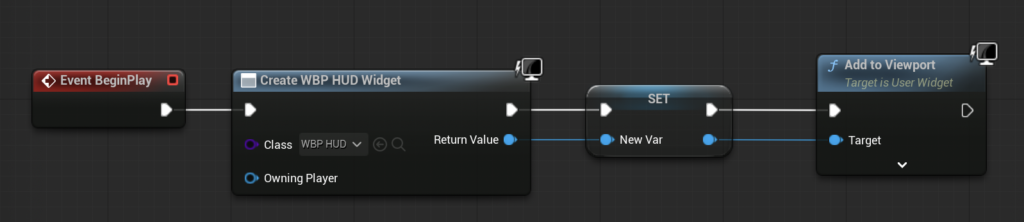
    Change the nodes class to “WBP_HUD”. Drag and release the return value and select “Promote to Variable”. From the bottom right blue arrow of the new node, drag and release. Type and select “add to Viewport”

    The Event Graph should look like this when you are done. Compile and test.

    You should now be able to see an active counter in your top left corner of the screen that increases by one every time you pick up a collectable.

  • Counting Collectables

    Last lesson we created our first collectable – we could walk up to it and pick it up, but other than disappearing it didn’t do anything. In this lesson, we will begin counting the collectables we pick-up.

    When creating our collectable we created a blueprint. This time we are going to alter an existing blueprint – our player character blueprint. In the Content Drawer search and select “BP_ThirdPersonCharacter”

    In the player character blueprint we can see all the different instructions attached to our character. Be careful not to remove anything here – you character might become unable to move, jump or adjust the camera.

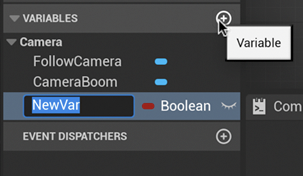
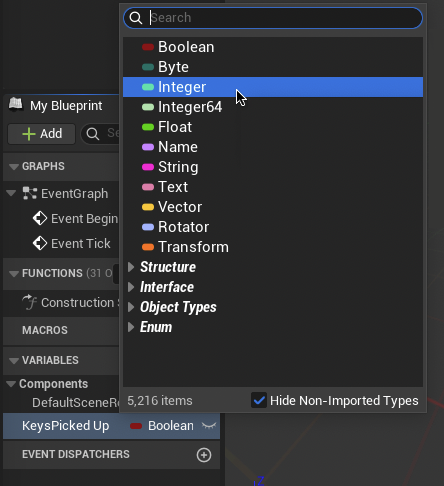
    On the left side, add a variable and name it “[items]collected”. I called mine KeysCollected. Change this variable from a Boolean to an Integer. This means the variable will track whole numbers.

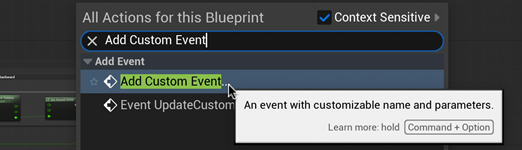
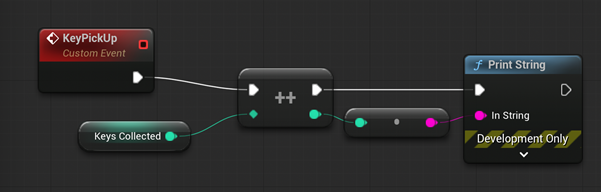
    Right-click a blank space in the Event Graph. Type and select “Add Custom Event”. Name this event “[Item]PickUp”. Remember this name as you will need to use it later.

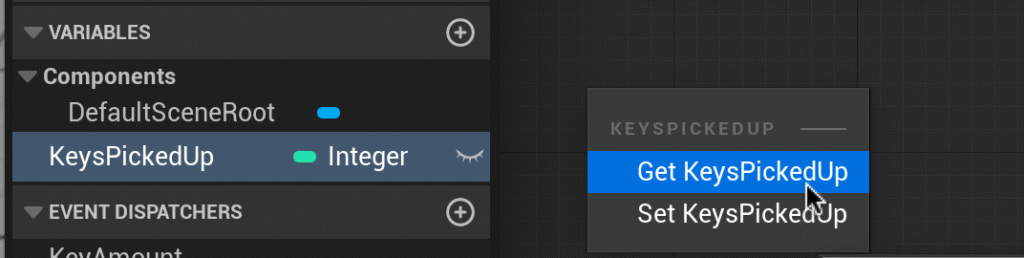
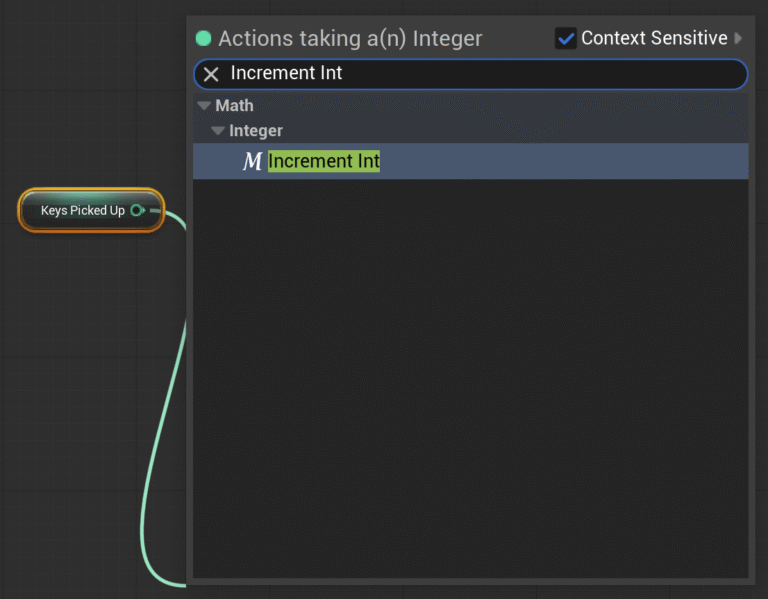
    From the Variables menu on the left drag your Interger into the event graph and select “Get [Items]Collected”. Drag from the right arrow of the “[Items] Collected” variable and release. Type and select “Incremental Int”. This will increase our collectable count by one when activated.

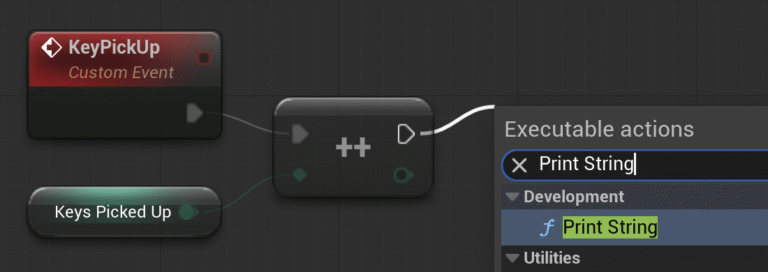
    From the node we just created, drag the top arrow into a blank space in the event editor. Type and select “Print String”.

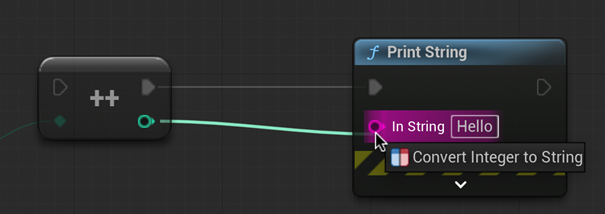
    Connect the mint green arrow from the Incremental Int node to the magenta arrow of the Print String node.

    Connect the top left arrow of the Incremental Int node to the white arrow of the “[Item]PickUp event”. When completed, our Event Graph should look like this.

    Press compile in the top left corner. We are now done with this blueprint. Let’s return to our collectable object blueprint.

    In our collectable object blueprint, drag out from “As BP Third Person Character” and release. Type and select “[Item] Pick Up”, this is the function you named earlier.

    Connect the left white arrow of the newly created node to the right white arrow of the Destroy Actor node. Click compile and test. When you pick up your collectable you should see a “1” in the top left corner. If you place multiple collectables in the scene this number will increase to reflect the new amount.

  • Creating Collectables

    Ensure your collectable item is combined into one object, by selecting the objects (Q) and using
    Mesh > Booleans > Union or Mesh > Combine.

    I also recommend moving your object to the center of the grid plane, this will make moving the object easier.

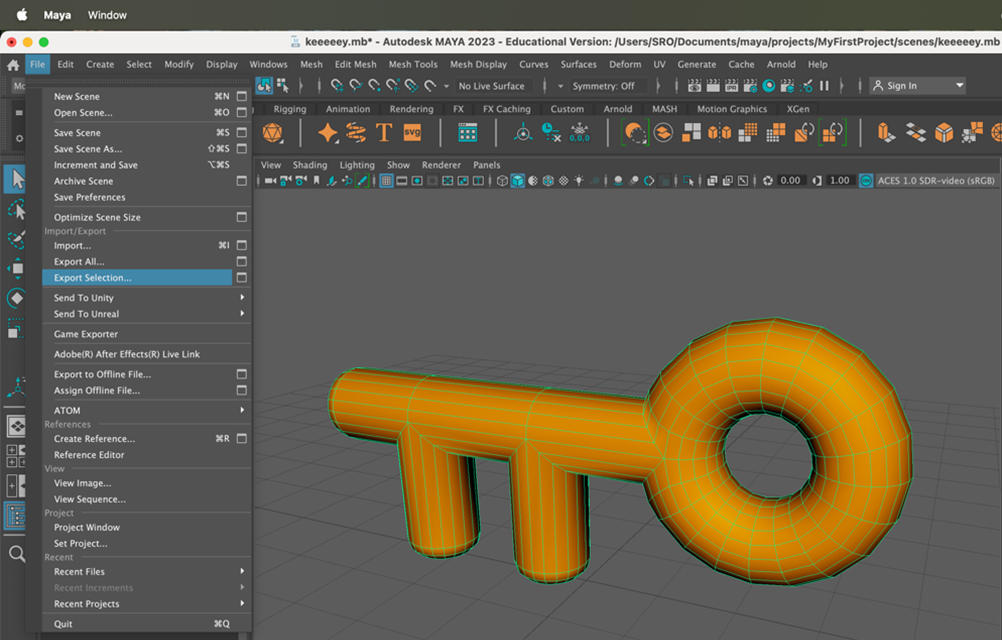
    Export your collectable from Maya by selecting your object (Q) and clicking File > Export Selection.

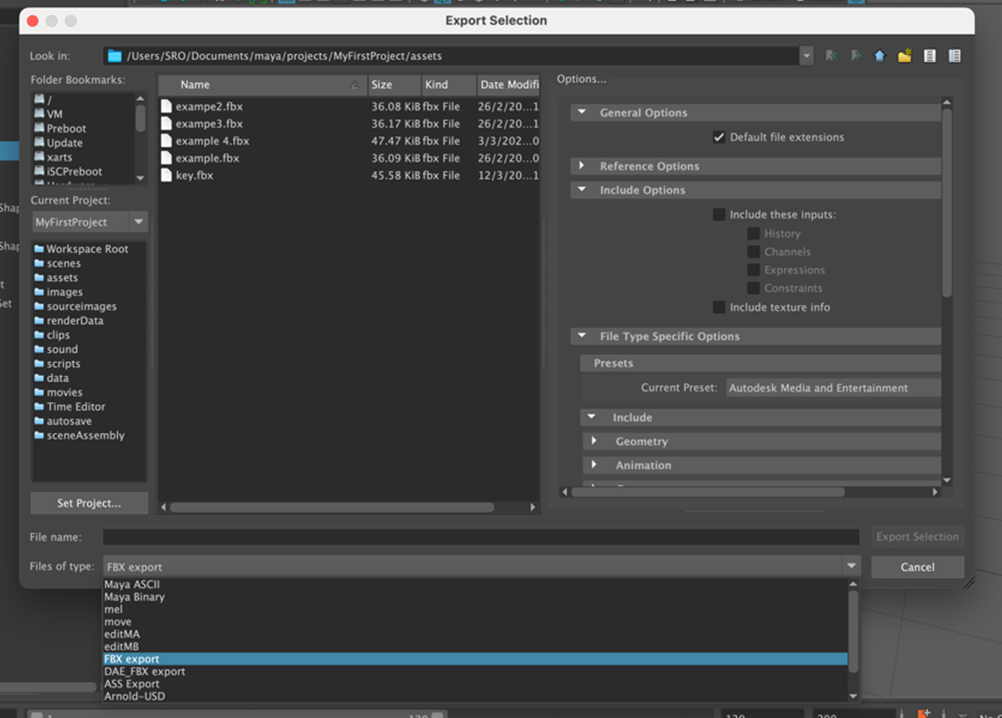
    While exporting be sure to change File of Type to FBX export.

    If you are using a textured model be sure to tick “include texture info”.

    Name your FBX file something easy identifiable and save it to your Maya assets folder.

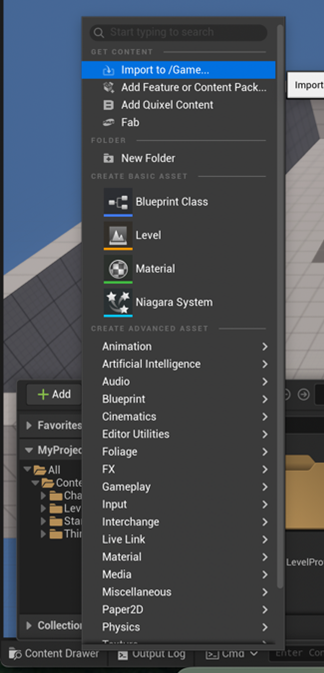
    To import your collectable into Unreal Engine open the Content Drawer in the lower left corner, press
    Add > Import to/Game…

    After selecting your object in files a popup menu will come up, while these settings are often important, today we will use the defaults, press import.

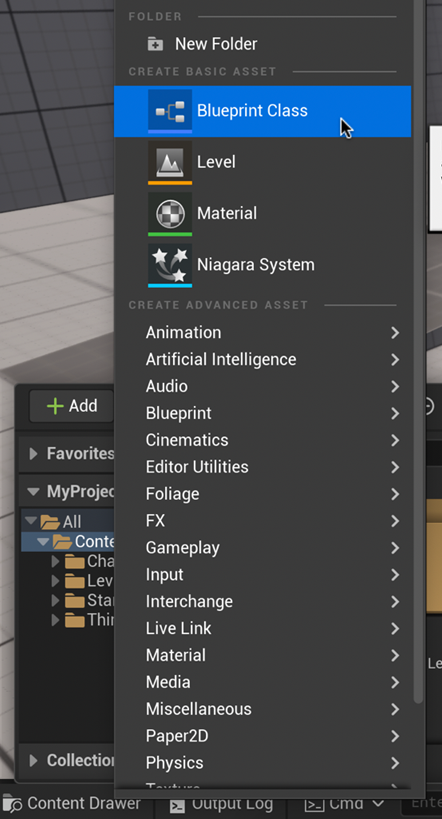
    To create a blueprint your open Content Drawer, select Add > Blueprint and choose Actor from the pop-up menu.

    Name it something that makes sense and identifies it as a blueprint; as my collectable is a key, I am naming it BP_KeyCollectible.

    Double-click your newly created Blueprint to open it.

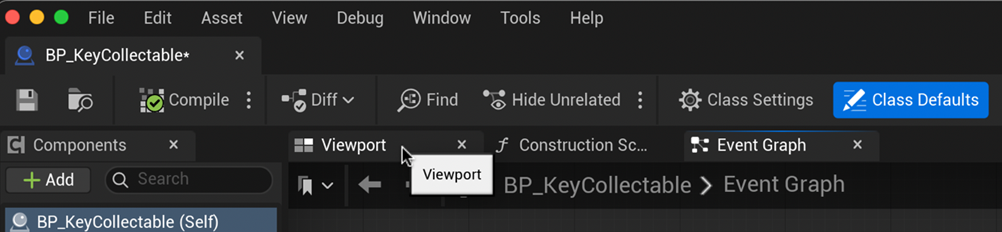
    We are now going to add our Maya object into the Blueprint. You may need to change the view to “Viewport”

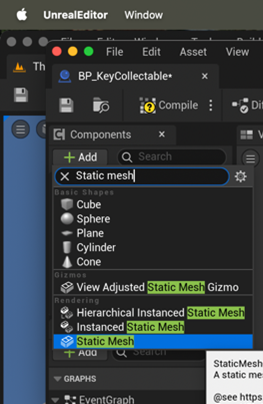
    Using the Components menu in the top left click Add. Type “Static Mesh” in the search window and select it when it appears in the menu.

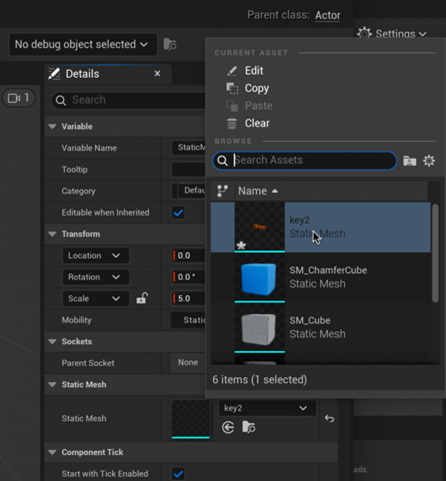
    On the right side select your object as the static mesh. At this point you may want to scale or reposition your object in the right menu.

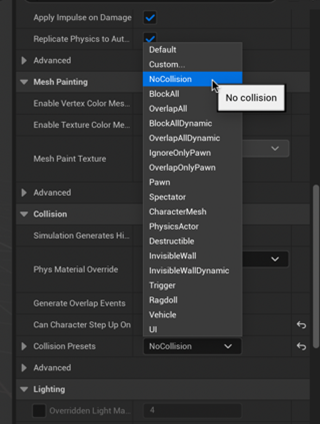
    While we are here, let’s turn off collisions so that our character’s won’t bump into the collectable as they pick them up.

    Let’s make our collectable easier to see by making it rotate on the spot.

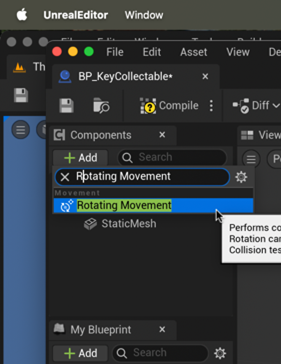
    Back in the Components menu on the left, click Add and type “Rotating Movement”, select this when it appears below. For now, we will use the default rotation rate.

    You can return to the main window and click play to test the rotation effect. Be sure to drag the blueprint from the Content Drawer, not the static mesh.

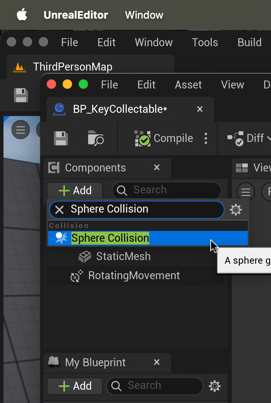
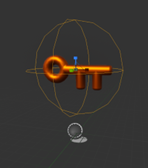
    Next, let’s add collision so that our character can pick up the collectable. In the Components menu click Add, type “Sphere Collision” and select this option when it appears. Move and scale this sphere so it surrounds the Maya object.

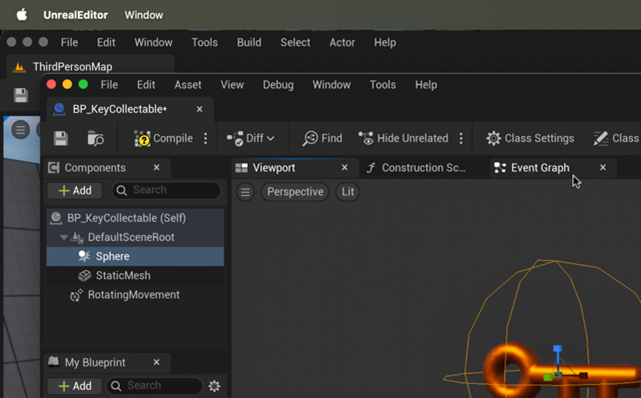
    Now we need to tell our Collision Sphere how to operate. Select “Sphere” in the Components menu and click the Event Graph tab above the viewport. This screen allows us to program how our collectable operates.

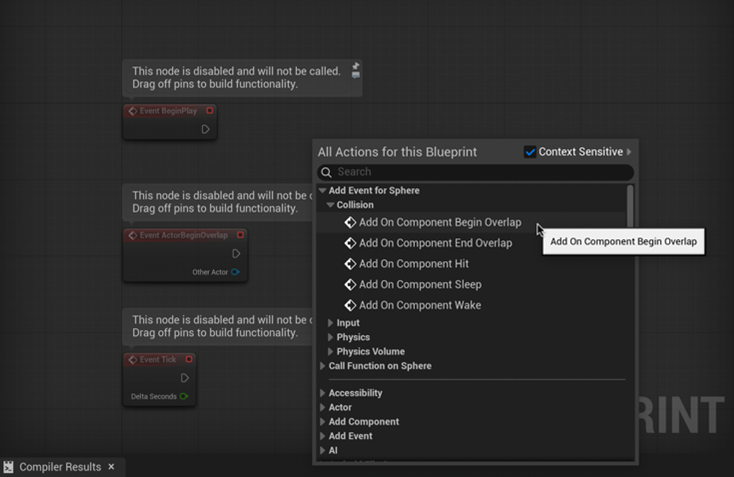
    To add a new event, we need to right click a blank area of the Event Graph. Through the menu select Add Event for Sphere > Collision > Add on Component Begin Overlap.

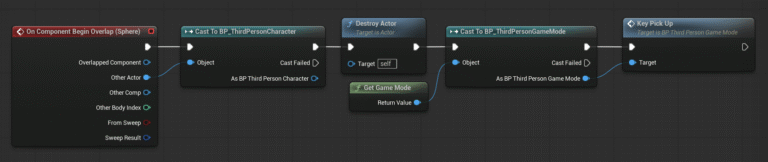
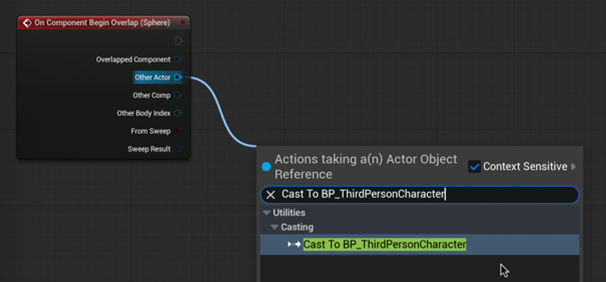
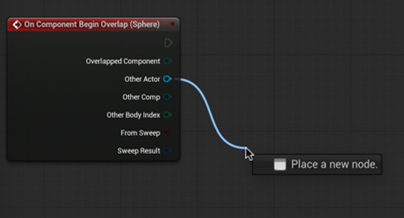
    Drag from the arrow next to “Other Actor” and release into a blank space to create a new action. After releasing type and select “Cast To BP_ThirdPersonCharacter” from the list. This sets the conditions for activating the collectable.

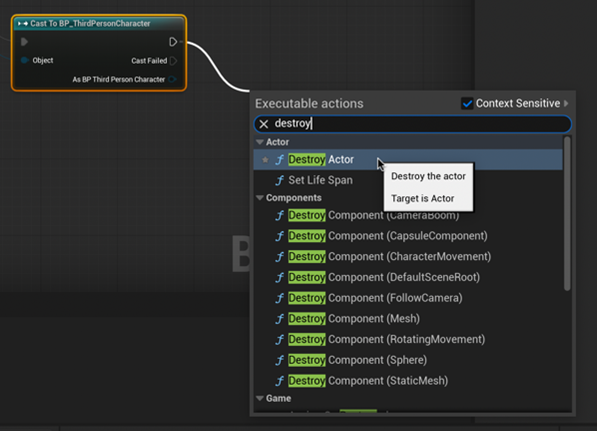
    Finally, let’s make the collectable disappear when we collect it. From the top right arrow of Cast To BP_ThirdPersonCharacter drag and release to a blank space in the Event Graph. Type “Destroy Actor” and select this from the menu.

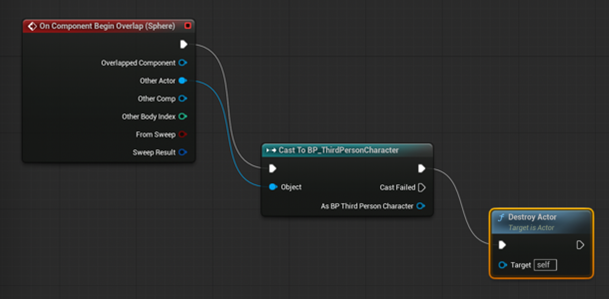
    When completed, our Event Graph should look like this.

    Return to the main window and click play to test. Don’t forget to drag the blueprint (not the object) out of the Content Drawer and into the scene first.